Android soup with SQLiteDatabase, ListActivity and Options Menu

Have some Android soup made with SQLiteDatabase, ListActivity and Options Menu as ingredients! In this latest encounter with Android I create a small database that holds a list of Train numbers and names. The contents of this list is displayed to the user. The user is also given a menu to “add”, “delete” and “deleteAll” the records.

To get started I create a SqlOpenHelper class which extends the SQLiteOpenHelper. This class has the methods to create the SQLiteDatabase.

publicvoid onCreate(SQLiteDatabase db) {

createDatabase(db);

}

publicvoid createDatabase(SQLiteDatabase db) {

//Create TRAIN_TABLE

String CREATE_TRAIN_TABLE = “CREATE TABLE IF NOT EXISTS ” +

TRAINS_TABLE + “(” + TRAIN_ID + ” INTEGER PRIMARY KEY,” +

TRAIN_NO + ” INTEGER , ” + TRAIN_NAME + ” TEXT” + “)”;

Log.d(“Creating: ” , CREATE_TRAIN_TABLE);

db.execSQL(CREATE_TRAIN_TABLE);

}

Besides there are methods to

1) To add a train record

// Add a train method

publicvoid addTrain(int trainNo,String trainName) {

SQLiteDatabase db = this.getWritableDatabase();

ContentValues values = new ContentValues();

values.put(TRAIN_NO, trainNo);

values.put(TRAIN_NAME, trainName);

// Insert a new row

db.insert(TRAINS_TABLE, null, values);

db.close(); // Closing database connection

}

2) To delete a train record

// Delete a single train

publicvoid deleteTrain(Train train) {

SQLiteDatabase db = this.getWritableDatabase();

db.delete(TRAINS_TABLE, TRAIN_ID + ” = ?”,

new String[] { String.valueOf(train.getID()) });

db.close();

}

and to display all the trains in the database. The entire list is returned as a List.

3) Display all trains

// Getting all trains in SQLiteDB

public List<Train> getAllTrains() {

//Create a List

List<Train> trainList = new ArrayList<Train>();

// Create the “Select query”

String selectQuery = “SELECT * FROM ” + TRAINS_TABLE;

//Open the DB in read mode

SQLiteDatabase db = this.getReadableDatabase();

Cursor cursor = db.rawQuery(selectQuery, null);

// loop through all rows and add trains to the List

if (cursor.moveToFirst()) {

do {

Train train = new Train();

train.setID(Integer.parseInt(cursor.getString(cursor.getColumnIndex(TRAIN_ID))));

train.setTrainNo(cursor.getString(cursor.getColumnIndex(TRAIN_NO)));

train.setTrainName(cursor.getString(cursor.getColumnIndex(TRAIN_NAME)));

// Adding contact to list

trainList.add(train);

} while (cursor.moveToNext());

}

//Close DB

db.close();

// return the train list

return trainList;

}

To get started the DB has to be created with the following method in the MainActivity class

SqlOpenHelper helper = new SqlOpenHelper(this);

//Open SQLiteDB

db = this.openOrCreateDatabase(“train_no.db”, MODE_PRIVATE, null);

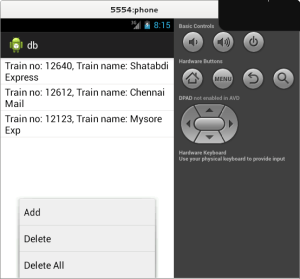
After creating the DB the MainActivity switches to the displayTrains activity which display the current list of of trains in the DB as follows.

 list

SqlOpenHelper helper = new SqlOpenHelper(this);

int count = helper.getTrainCount();

Log.d(“Count:”, “value =” + count);

results = populateResults();

listAdapter = new ArrayAdapter<String>(this, android.R.layout.simple_list_item_1,results);

this.setListAdapter(listAdapter);

The list is displayed by creating displayTrains as a ListActivity using the simple_list_item_1

In order to provide a add,delete & deleteAll function I added an Options Menu. To do this create an Option Menu in XML under res/menu

<menuxmlns:android=http://schemas.android.com/apk/res/android&#8221;>

<item android:id=“@id/add”

android:icon=“@drawable/add”

android:title=“@string/add” />

<item android:id=“@id/delete”

android:icon=“@drawable/delete”

android:title=“@string/delete” />

<item android:id=“@id/deleteAll”

android:title=“@string/deleteAll”

android:icon=“@drawable/deleteall”/>

</menu>

This is then inflated in displayTrains activity in which I wanted the Options Menu to appear as follows

publicboolean onCreateOptionsMenu(Menu menu) {

MenuInflater inflater = getMenuInflater();

inflater.inflate(R.menu.options_menu, menu);

returntrue;

}

Icons for the Options Menu have to added in the drawable folder.

options

For some reason icons do not show up in my ADT but when I debugged on my phone it shows.

When the Add Option is clicked it takes it to the addTrains activity which inputs the Train Number & Train Name. The user is then given the option to save.

add

This returns the activity to display Trains where the entire list is redisplayed.

The delete option was a little tricky. The selected record is deleted as follows

helper.deleteTrain(selectedItem);

where the selectedItem selects a row in which we have to determine the trainID and delete the record with that ID. This is done as below

publicvoid deleteTrain(Train train) {

SQLiteDatabase db = this.getWritableDatabase();

db.delete(TRAINS_TABLE, TRAIN_ID + ” = ?”,

new String[] { String.valueOf(train.getID()) });

db.close();

}

After deleting the record from the DB the list has to be refreshed. I repopulate the listAdapter and pass it to the ListActivity as bwlow. I am not sure if this is the most efficient methid.

r = populateResults();

listAdapter = new ArrayAdapter<String>(this, android.R.layout.simple_list_item_1,r);

this.setListAdapter(listAdapter);

listAdapter.notifyDataSetChanged();

Finally the deleteAll deletes all the records in the DB as shown below

publicvoid deleteAllTrains() {

SQLiteDatabase db = this.getWritableDatabase();

db.delete(TRAINS_TABLE, null, null);

db.close();

}

This was some fun. The entire code can be downloaded at DB.zip

Find me on Google+

Unity(full) android App: With bells and whistles

In this post I discuss a fairly complete Android App – Unity which is a simple unit converter. The android app has all the good stuff from Android including activities, intents, spinners, launch icons and a splash screen to boot as below. Download it from Google Play : Unity – Unit Converter . To know more about the app read on …

compasses

I have enhanced my earlier basic Unity app to start with a Splash Screen before moving onto an initial screen with buttons for various unit conversion like mass,length,volume etc

This is shown below

unity-1

When any of these buttons are clicked it goes to the appropriate conversion screen. This is done by starting the appropriate activity. An activity is invoked by the intent which starts the activity.

Hence the MainActivity.java has an intent and activity for each of the buttons mass,length,volume in the addListenerOnButton as follows

publicvoid addListenerOnButton() {

//Mass activity

massButton = (Button) findViewById(R.id.button1);

massButton.setTextAppearance(context,R.style.ButtonFontStyle);

massButton.setOnClickListener(new OnClickListener() {

publicvoid onClick(View arg0) {

Intent intent = new Intent(context, massActivity.class);

startActivity(intent);

}

});

//Length activity

lengthButton = (Button) findViewById(R.id.button2);

lengthButton.setTextAppearance(context,R.style.ButtonFontStyle);

lengthButton.setOnClickListener(new OnClickListener() {

publicvoid onClick(View arg0) {

Intent intent = new Intent(context, lengthActivity.class);

startActivity(intent);

}

});

When the “Mass button” is clicked it activates a new intent based on the massActivity.java class.

The massActivity.java file performs the following main functions

  1. Changes the layout to the one defined in mass.xml under res/layout.mass.xml
  2. Instantiates a massAdapter as an ArrayAdapter
  3. Passes the massAdapter to both the spinners in the View
  4. A convert method is invoked when the Convert button is clicked. This method does the actual calculation
  5. Finally a ‘Home’ button is used to go back to the MainActivity class

publicclass massActivity extends Activity {

String[] massUnits = {“gram”,“kilogram”,“ounce”,“pound”,“ton”};

//double massConversion[][] = new double[5][5];

doublemassConversion[][] = newdouble [][]{

{1.0,0.001,3.527e-2,2.205e-3,1.102e-6},

{1000.0,1.0,35.27,2.205,1.102e-3},

{28.35,28.38e-2,1,6.25e-2,3.125e-5},

{453.6,0.4536,16.0,1.0,.0005},

{9.072e-5,907.2,3.2e4,2000.0,1}

};

protectedvoid onCreate(Bundle savedInstanceState) {

ArrayAdapter<String> massAdapter = new ArrayAdapter<String> (this,

android.R.layout.simple_spinner_item,massUnits);

sp1 = (Spinner) findViewById(R.id.spinner1);

sp1.setAdapter(massAdapter);

sp1.setOnItemSelectedListener(new OnItemSelectedListener() {

publicvoid onItemSelected(AdapterView<?> argo0, View arg1,

int arg2, long arg3) {

intitem = sp1.getSelectedItemPosition();

}

publicvoid onNothingSelected(AdapterView<?> arg0) {

}

});

sp2 = (Spinner) findViewById(R.id.spinner2);

sp2.setAdapter(massAdapter);

sp2.setOnItemSelectedListener(new OnItemSelectedListener() {

publicvoid onItemSelected(AdapterView<?> argo0, View arg1,

int arg2, long arg3) {

intitem = sp2.getSelectedItemPosition();

/

}

});

}

publicvoid convert(View view) {

double inputValue = Double.parseDouble(text1.getText().toString());

int item1 = sp1.getSelectedItemPosition();

int item2 = sp2.getSelectedItemPosition();

double value = massConversion[item1][item2];

double convertedValue = inputValue * value;

txtConvertedValue.setText(String.valueOf(convertedValue));;

}

The Home button takes back to the Main screen

publicvoid home(View view) {

final Context context = this;

Intent intent = new Intent(context,

MainActivity.class);

startActivity(intent);

}

The mass.xml screen has 1 Textfield for input, a TextView for output, 2 spinners for handling the fromUnit & toUnit and a Convert & a Home button. The mass.xml is shown below

<TableLayout xmlns:android=http://schemas.android.com/apk/res/android&#8221;

android:layout_width=“fill_parent”

android:layout_height=“fill_parent” >

<TableRow

android:id=“@+id/tableRow1”

android:layout_width=“wrap_content”

android:layout_height=“wrap_content” >

<TextView

android:id=“@+id/textView1”

android:layout_width=“wrap_content”

android:layout_height=“wrap_content”

android:layout_column=“0”

android:layout_span=“4”

android:text=“@string/massConversion”

android:textAppearance=“?android:attr/textAppearanceMedium” />

</TableRow>

<TableRow

<TextView

android:id=“@+id/textView2”

/>

<EditText

android:id=“@+id/editText1”

android:inputType=“numberDecimal” />

</TableRow>

<TableRow

<TextView

android:id=“@+id/textView3”

android:text=“@string/convertedValue” >

<TextView

android:id=“@+id/txtConvertedValue”>

</TableRow>

<TableRow

android:id=“@+id/tableRow5”

<Spinner

android:id=“@+id/spinner1”>

</TableRow>

<TableRow

android:id=“@+id/tableRow6”

<Spinner

android:id=“@+id/spinner2”>

</TableRow>

<TableRow

android:id=“@+id/tableRow11>

<Button

android:onClick=“convert”

android:text=“@string/Convert” />

<Button

android:onClick=“home”

android:text=“@string/home” />

</TableRow>

</TableLayout>

unity-5

Note: Ensure that you add this new activity massActivity to AndroidManifest.xml

As shown

<application

<activity

android:name=”com.example.test.massActivity”

android:label=”@string/app_name” >

</activity>

</application>

</manifest>

Similar code can be replicated for the other buttons and other conversion units.

Once this is done your application is ready. It is now time to create a suitable “icon” for your android app. I found GIMP utility extremely useful in creating icons. GIMP cam be downloaded from http://www.gimp.org. This requires some learning ramp-up. So I took the easy route and downloaded ready made icon from OpenClipArt.org which has a huge collection of icons.

The specified dimensions for the icons based on the resolution of the android device is given in http://developer.android.com/guide/practices/ui_guidelines/icon_design_launcher.html

and should be

  • Low density screens (ldpi): 36x36px, 120dpi
  • Medium density screens (mdpi): 48x48px, 160dpi
  • High density screens (hdpi): 72x72px, 240dpi
  • Extra high density screens (xdpi): 96x96px, 320dpi

Copy all the icons to the directory below and rename the png files to ic_launcher.png

  • Low density icon : res/drawable-ldpi
  • Medium density icon : res/drawable-mdpi
  • High density icon : res/drawable-hdpi
  • Extra high density icon : res/drawable-xdpi

WhenyoubuildandruntheapponyouremulatoryoushouldseeyouriconinsteadofthestandardAndroidicon.

It is worth mentioning a problem that I faced initially and had me stumped. I would make some changes and get the error “R cannot be resolved to a variable”.

AftertryingtounsuccessfullycleanandrebuildtheprojectseveraltimesItriedtodiginmore.MysearchwithGoogleprovedfutilewithsomepostscomplainingthatEclipsewasclobberingfiles.TheissueusuallyhappenswhentheR.javafilecannotbegeneratedwhenyoubuildtheproject.Thisusuallyhappenswhenthereissomeissueinyour /resdirectory.Checkifthereareanyredmarksinyourlayout,strings.xmlorAndroidManifest.xmletcfile, fixthem, rebuild and theproblemshouldgoaway.

Finally I added an initial splash screen. For this I took the code from O’Reilly’s cook book “Splash screens in Android”. A splash *.jpg or *.png has to be added to the res/drawable folders

Remember to change the AndroidManifest.xml to have the app open up with the splash screen and then switch the MainActivity.java.

A snippet is shown below

<activity

android:name=“com.tvganesh.unity.SplashScreen”

android:noHistory=“true”

android:label=“@string/app_name” >

<intent-filter>

<action android:name=“android.intent.action.MAIN” />

<category android:name=“android.intent.category.LAUNCHER” />

</intent-filter>

</activity>

<activity

android:name=“com.tvganesh.unity.MainActivity”

android:label=“@string/app_name” >

</activity>

<activity

android:name=“com.tvganesh.unity.massActivity”

android:label=“@string/app_name” >

</activity>

….

With this app is also set to rock ‘n roll. I also managed to submit the app to Google Play. To publish in Google Play you need to do the following

  1. Create a signed app package. For this right click the package, select Android Tools->Export Signed Application Package and follow the prompts. Upload the *.apk file in Google Play
  2. You will also need 2 screenshots of the app & a 512×512 icon.

And you should be through.

The Unity project can be cloned from Git Hub at Unity project or

The entire Unity – Unit converter app can be downloaded at Unity-Unit Converter

Find me on Google+

Unity – My first android app

Unity – A simple unit converter is my first android app. The app in itself is no great piece of software wizardry but I managed to play around some of the basic android concepts. Currently in its current version there are just 4 main types of units – length, mass,temperature and volume each with just 2 unit types. I am planning to implement a full-fledged android version with all types of units and unit conversions shortly. Watch this space for more.

For this simple version I have a textfield to take user input of the value to be converted. I also have 2 spinners with the list of units. The first spinner (fromUnit) has its content loaded in runtime from an ArrayAdapter. The contents of the 2nd spinner is based on the selection of the 1st spinner. So if the 1st spinner chooses a length unit the 2nd spinner will also be loaded with the length units and so on. There is also a Calculate button with a “convert” method for onClick to convert from the fromUnit to the toUnit.

The resource/activity_main.xml

<RelativeLayout xmlns:android=http://schemas.android.com/apk/res/android&#8221;
xmlns:tools=http://schemas.android.com/tools&#8221;
android:layout_width=“match_parent”
android:layout_height=“match_parent”
tools:context=“.MainActivity” >
<Button
android:id=“@+id/button1”
android:layout_width=“wrap_content”
android:layout_height=“wrap_content”
android:layout_below=“@+id/spinner2”android:layout_centerHorizontal=“true”
android:layout_marginTop=“62dp”
android:onClick=“convert”
android:text=“Calculate” />
<EditText
android:id=“@+id/editText1”
android:layout_width=“wrap_content”
android:layout_height=“wrap_content”
android:layout_alignParentTop=“true”
android:layout_centerHorizontal=“true”
android:layout_marginTop=“24dp”
android:ems=“10”
android:inputType=“numberDecimal” >

<requestFocus />
</EditText>
<Spinner
android:id=“@+id/spinner1”
android:layout_width=“wrap_content”
android:layout_height=“wrap_content”
android:layout_alignParentLeft=“true”
android:layout_below=“@+id/editText1”
android:layout_marginTop=“24dp” />
<Spinner
android:id=“@+id/spinner2”
android:layout_width=“wrap_content”
android:layout_height=“wrap_content”
android:layout_alignParentLeft=“true”
android:layout_below=“@+id/spinner1”
android:layout_marginTop=“44dp” />
</RelativeLayout>
The fromUnit is based on the units array below
String[] units = {“kilogram”,“mile”,
“kilometer”,“pound”,“gallon”,“liter”,“centigrade”,“fahrenheit”,
};
In the onCreate() method I create an ArrayAdapter and set the spinner with this adapter as follows
final ArrayAdapter<String> adapter = new ArrayAdapter<String> (this,
android.R.layout.simple_spinner_item,units);
sp = (Spinner) findViewById(R.id.spinner1);
sp.setAdapter(adapter);
I also set the 2nd spinner (toUnit) based on the selected unit in spinner 1. Hence I conditionally set the 2nd spinner as follows
sp1 = (Spinner) findViewById(R.id.spinner2);
sp.setOnItemSelectedListener(new OnItemSelectedListener() {
public void onItemSelected(AdapterView<?> argo0, View arg1,
int arg2, long arg3) {
int item = sp.getSelectedItemPosition();
fromUnit = units[item];
if( (fromUnit.equals(“kilometer”)) || (fromUnit.equals(“mile”))) {
sp1.setAdapter(lengthAdapter);
unitType=1;
}
else if ((fromUnit.equals(“kilogram”)) || (fromUnit.equals(“pound”))){
sp1.setAdapter(massAdapter);
unitType=2;
}
else if ((fromUnit.equals(“centigrade”)) || (fromUnit.equals(“fahrenheit”))) {
sp1.setAdapter(tempAdapter);
unitType=3;
}
else if((fromUnit.equals(“liter”)) ||(fromUnit.equals(“gallon”))){
sp1.setAdapter(volumeAdapter);
unitType=4;
}
else {
sp1.setAdapter(adapter);
unitType =5;
}
Toast.makeText(getBaseContext(),“You have selected: “ +
fromUnit, Toast.LENGTH_SHORT).show();
}
public void onNothingSelected(AdapterView<?> arg0) {
}
});
sp1.setOnItemSelectedListener(new OnItemSelectedListener() {
public void onItemSelected(AdapterView<?> argo0, View arg1,
int arg2, long arg3) {
int item = sp1.getSelectedItemPosition();
if(unitType == 1) {
toUnit= lengthUnits[item];
}
else if(unitType == 2){
toUnit = massUnits[item];
}
else if(unitType == 3){
toUnit = tempUnits[item];
}
else if (unitType == 4) {
toUnit = volumeUnits[item];
}
else {
toUnit = units[item];
}
Toast.makeText(getBaseContext(),“SP2:You have
selected: “ +
toUnit, Toast.LENGTH_SHORT).show();
}
public void onNothingSelected(AdapterView<?> arg0) {
}
});
Finally based on the fromUnit and the toUnit the appropriate method is called in the onClick method of the Calculate button.
if((fromUnit.equals(“kilometer”)) && (toUnit.equals(“mile”))){
text.setText(String.valueOf(convertkilometer2mile(inputValue)));
}

else if((fromUnit.equals(“mile”)) && (toUnit.equals(“kilometer”))) {
text.setText(String.valueOf(convertmile2kilometer(inputValue)));
}
and so on…
While this is an elementary app I intend to develop a more thorough version shortly with some of the good features of android.
The complete code can be downloaded from the link Unity.zip

Also see
1. Train Spotting android app – Nuts & bolts
2. The making of Dino Pong android game

Find me on Google+

Toying with Android apps

As the title suggests this is my first encounter with Android. This post is not meant for those who are intending to develop serious android apps. This article shows how to get started with Android App development. Recently I acquired my first Samsung smartphone and I can’t seem to get enough of it. I am now fully hooked on to Android and hope to play around with it in the days to come. Fortunately the initial encounter has been fairly pleasant.

To get started download the SDK from http://developer.android.com/sdk/index.html#ExistingIDE assuming you already have Eclipse like I did. Unpack and install the SDK at a suitable location for e.g. /android. You will also have to install the Eclipse plugin for Android from http://developer.android.com/sdk/installing/installing-adt.html. Alternatively you can directly download the comple ADT bundle which includes the SDK,Eclipse along with plugin etc.

Once you have Android installed on in the plugin start Eclipse. Select File->New->Project-> Android Application Project and click next. In the Application Name enter My Test and let eclipse fill the names for Project name and Package name. Click next. Allow default values in New Android Application and Configure Launcher icon screens. In the Create Activity choose Blank Activity and choose default values for New Blank Activity and finally choose Finish.

This will create the Android Project. The files and folders that are created
/src – Source folder. This contains the java source files
/res – Resource folder. This is the resource which specifies the Layout, UI and also has the Android Manifest File indicating permissions.

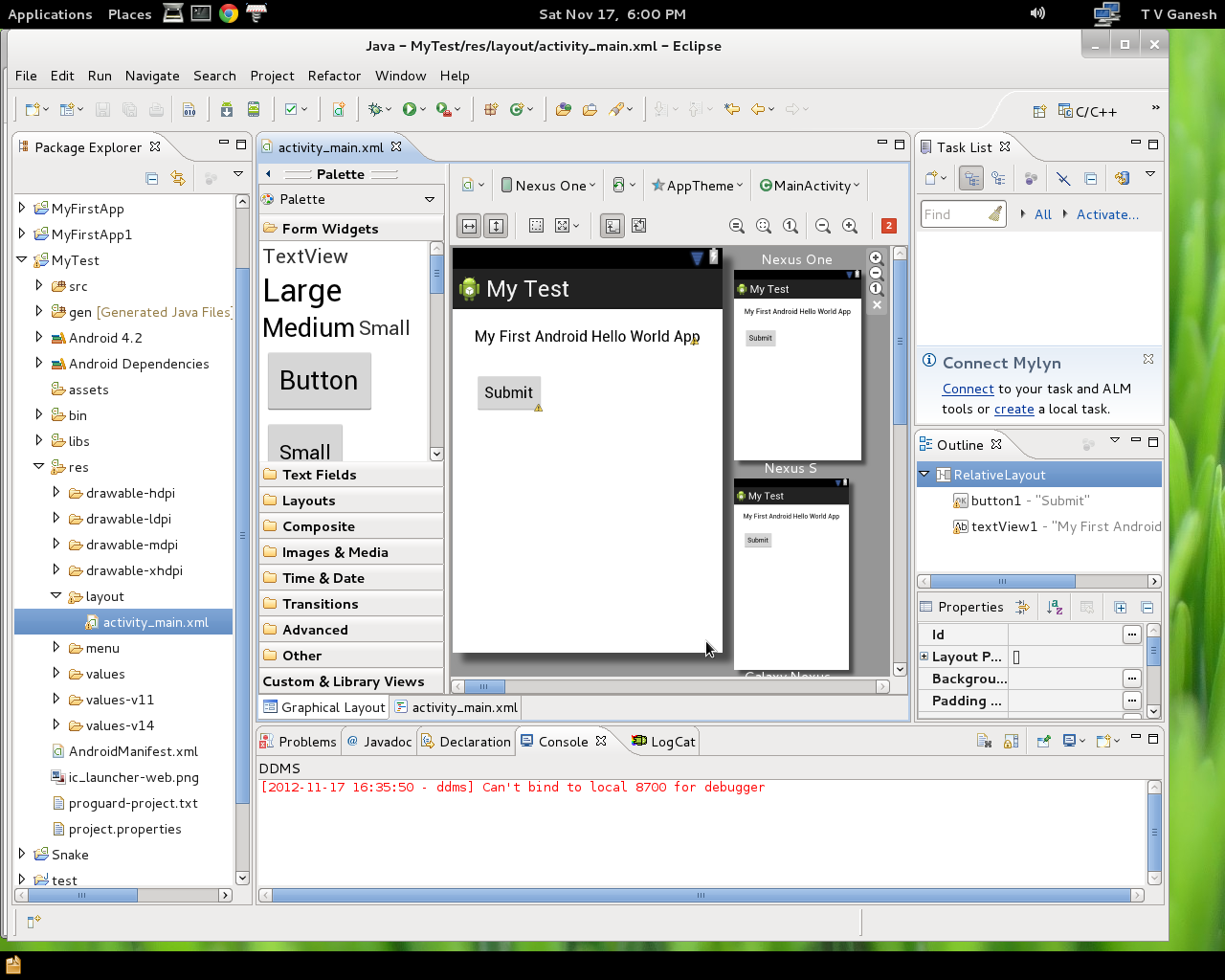
For the 1st Android app under res/layout open activity_main.xml. There are 2 tabs in the eclipse Window namely Graphical Layout and activity_main.xml. The Palette can be used to drag and drop widgets like textfield, buttons, radio buttons etc. For my example I placed a text field with a text “My first Android Hello World App”. You can modify the text after dragging from the palette by right clicking and entering the text string. Similarly I also dragged and dropped a button and named it “Submit”. Right click the button choose Other properties->Inherited from View and select onClick and enter “print” for New OnClickValue. Now the function print will be invoked when the Submit button is clicked.

The activity_main.xml will contain the following contents
<RelativeLayout xmlns:android=http://schemas.android.com/apk/res/android&#8221;
xmlns:tools=http://schemas.android.com/tools&#8221;
android:layout_width=“match_parent”
android:layout_height=“match_parent”
tools:context=“.MainActivity” >
<Button
android:id=“@+id/button1”
android:layout_width=“wrap_content”
android:layout_height=“wrap_content”
android:layout_alignLeft=“@+id/textView1”
android:layout_below=“@+id/textView1”
android:layout_marginTop=“32dp”
android:onClick=“print”
android:text=“Submit” />
<TextView
android:id=“@+id/textView1”
android:layout_width=“wrap_content”
android:layout_height=“wrap_content”
android:layout_alignParentTop=“true”
android:layout_centerHorizontal=“true”
android:layout_marginTop=“22dp”
android:text=“My First Android Hello World App”
android:textAppearance=“?android:attr/textAppearanceMedium” />
</RelativeLayout>

Now under src open MainActivity.java and add the following code
public void print(View view) {
Toast.makeText(this, “Hello World, Hello Android!”,
Toast.LENGTH_LONG).show();
return;
}

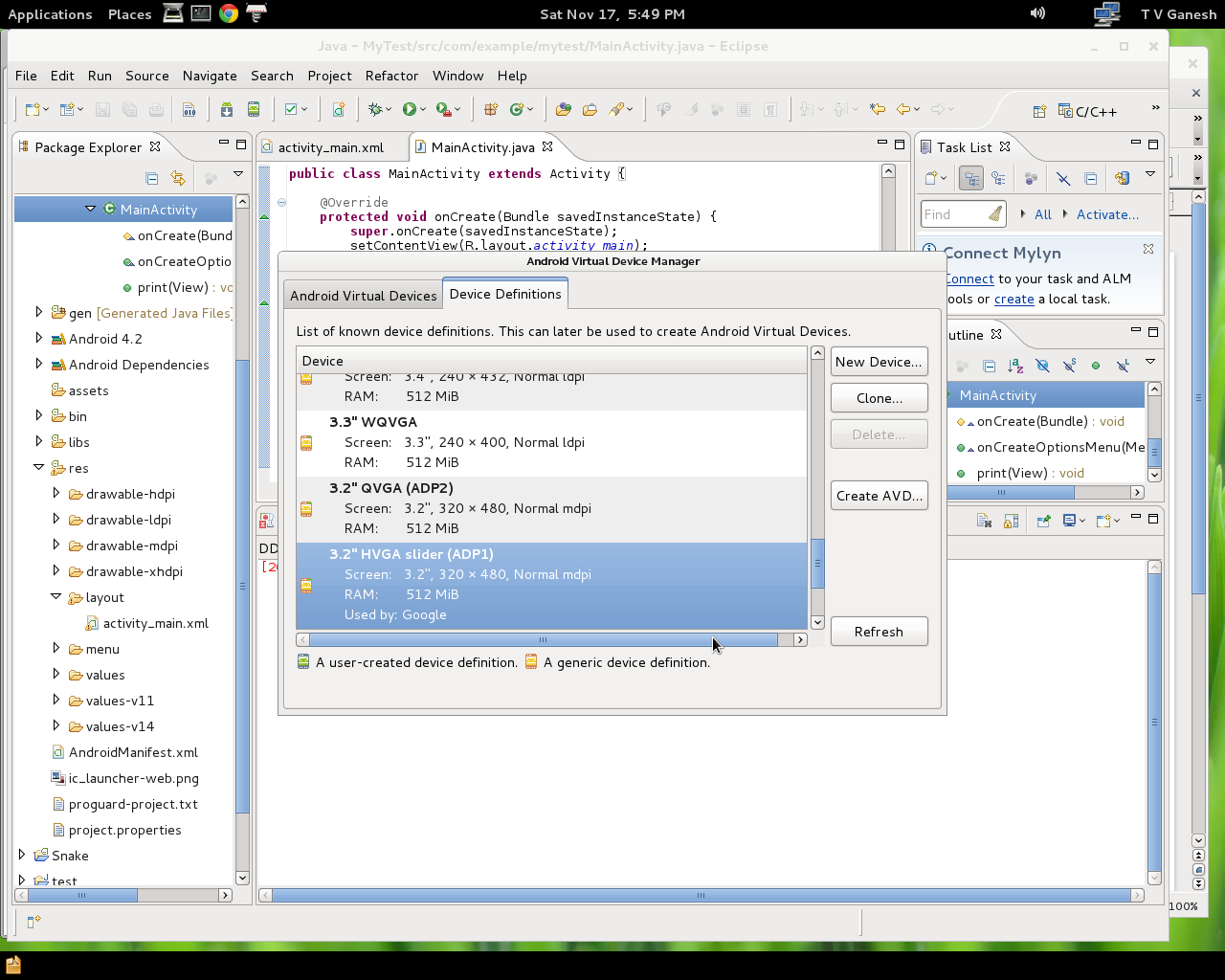
Before you build your application click Windows->Android SDK Manager. Select Tools, Android 4.2 and the necessary Extras. This will update your SDK with the latest version of teh SDK and associated libraries. Now click Windows-> Android Virtual Device Manager. This is Android’s emulator and needs to be setup. The simplest way is to select the Device Definitions tab and choose one of the devices mentioned there as your AVD. Alternatively you can select New and create a custom AVD.

Now build the project by selecting Project->Build All. Once the build is successful run the project. This will bring the AVD you selected above.

This will take a few minutes. Finally the screen will appear with a lock. Drag the lock to unlock it. To see a list of apps click the rectange wih six squares inside it. You show now see this in the AVD.

Finally double click your My Test app. When you click the Submit button it show print “Hello world, Hello Android as show below.

The SDK also comes with several sample Android projects to play around with. To build a sample project click New->Project-Android Sample Project and choose any one among them. Play around with other AVDs.

I hope to do some more serious stuff with Android in the days to come. Watch this space

Find me on Google+

Adventures in LogParser, HTA and charts

In my earlier post “Slicing and dicing with LogParser & VBA”  I had mentioned that LogParser is really a slick Microsoft utility that can be used to obtain information on files, event logs, IIS logs etc. Continuing on the journey in LogParser I came to realize that you can also create cool charts with output of LogParser which can be either a line graph, a pie chart , a 3D pie chart a 3D bar chart etc. The options are many. So I started to play around with the utility.

To create a chart you can run the command from a LogParser prompt. Some samples are shown below

LogParser “SELECT TOP  10 TO_LOWERCASE (Name) AS NewName, Size INTO .\chart.gif, Path, LastWriteTime FROM ‘” &   files & “‘ WHERE NOT Attributes LIKE ‘%D%’ AND NOT ATTRIBUTES LIKE ‘%H%’ ORDER BY Size DESC ” &   “-chartType:column3D -i:FS –chartTitle: “My chart”

This will create a gif file with a 3D bar chart with the top 10 files by size

Similarly you could also create a 3D pie chart as follows

LogParser “SELECT TOP 5 Name, Size INTO c:\Chart.gif FROM C:\*.* ORDER BY Size DESC” -chartType:PieExploded3D  -i:FS

However I wanted to create these charts in a HTA application and display it dynamically along with the output of LogParser.  Thankfully the procedure is very similar. Here is what you need to do for this.

To do this you need to set up the environment as below. I have used VBscript.

Set objLogParser = CreateObject(“MSUtil.LogQuery”)

Set objInputFormat =   CreateObject(“MSUtil.LogQuery.FileSystemInputFormat”)

Then you need to specify the chart options

Set objOutputChartFormat = CreateObject(“MSUtil.LogQuery.ChartOutputFormat”)

objOutputChartFormat.groupSize = “400×300”

objOutputChartFormat.fileType = “GIF”

objOutputChartFormat.chartType = “Column3D”

objOutputChartFormat.categories = “ON”

objOutputChartFormat.values = “ON”

objOutputChartFormat.legend = “ON”

Finally create a LogParser query and execute it as shown below where “topN” & the directory path “files” is taken as input from the user

strQuery1 = “SELECT TOP ” & topN & ” Name, Size INTO c:\tes\filesize.gif FROM ” &  files & ” WHERE NOT Attributes LIKE ‘%D%’ AND NOT ATTRIBUTES LIKE ‘%H%’ ORDER BY Size DESC ”

objOutputChartFormat.config = “c:\test\FileSize.js”

Set objRecordSet1 = objLogParser.ExecuteBatch(strQuery1,  objInputFormat , objOutputChartFormat )

To specify the chart title, the X axis & Y axis a javascript/VBscript file has to be created as  below (FileSize.js) which is specified in objOutputChartFormat.config

FileSize.js (contents)

// Set the title above the chart.

chart.HasTitle = true;

chart.Title.Caption = “Top N files by size”


// Set the border style for the chart.

chartSpace.Border.Color = “#000000”;

chartSpace.Border.Weight = 2;


// Change the background color for the plot area.

chart.PlotArea.Interior.Color = “#f0f0f0”;


// Set the font size for the chart values.

chart.SeriesCollection(0).DataLabelsCollection(0).Font.Size = 6;


// Set the caption below the chart.

chartSpace.HasChartSpaceTitle = true;

chartSpace.ChartSpaceTitle.Caption =

    “This chart shows the Top N files by file sizes in the specified directory “;


chartSpace.ChartSpaceTitle.Font.Size = 10;

chartSpace.ChartSpaceTitle.Position = chartSpace.Constants.chTitlePositionBottom;


// Set the style and caption for the Y axis.

chart.Axes(0).Font.Size = 8;

chart.Axes(0).HasTitle = true;

chart.Axes(0).Title.Caption = “File Name”;

chart.Axes(0).Title.Font.Size = 9;


// Set the style and caption for the X axis.

chart.Axes(1).Font.Size = 7;

chart.Axes(1).HasTitle = true;

chart.Axes(1).Title.Caption = “Size in bytes”;

chart.Axes(1).Title.Font.Size = 9;


Lastly to display the chart dynamically as it is created in the HTA file do the following

imagearea.innerHTML = “

where imagearea will be specified in the HTML portion as

where filesize.png is any  image prior to the creation of the chart through LogParser.

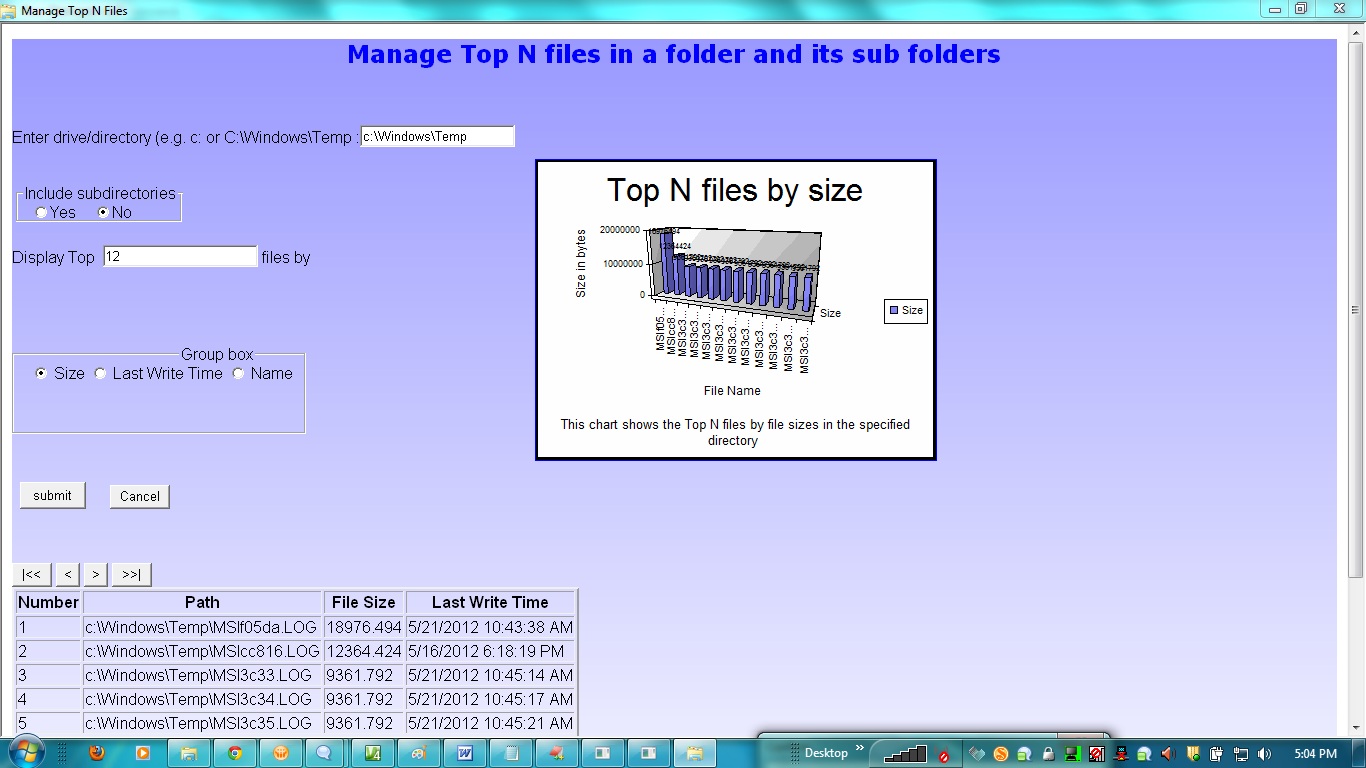
A sample output is shown below

LogParser charts are really cool and well worth the effort!

Also see
Brewing a potion with Bluemix, PostgreSQL, Node.js in the cloud
A Bluemix recipe with MongoDB and Node.js A Cloud medley with IBM Bluemix, Cloudant DB and Node.js
Rock N’ Roll with Bluemix, Cloudant & NodeExpress

You may also like
– A crime map of India in R: Crimes against women
– What’s up Watson? Using IBM Watson’s QAAPI with Bluemix, NodeExpress – Part 1
– Bend it like Bluemix, MongoDB with autoscaling – Part 1
– Analyzing cricket’s batting legends – Through the mirage with R
– Masters of spin: Unraveling the web with R

Find me on Google+

The dark side of the Internet

Published in Telecom Asia 26 Sep 2012 – The dark side of the internet

Imagine a life without the internet. You can’t! That’s how inextricably enmeshed the internet is in our lives. Kids learn to play “angry birds” on the PC before they learn to say “duh”, school children hobnob on Facebook and many of us regularly browse, upload photos, watch videos and do a dozen other things on the internet.

So on one side of the internet is the user with his laptop, smartphones or iPad. So what’s on the other side of the Internet and what is the Internet? The Internet is a global system of interconnected computer network that uses the TCP/IP protocol.  The Internet or more generally the internet is network of networks made of hundreds of millions of computers.

During the early days the internet was most probably used for document retrieval, email and browsing. But with the passage of time the internet and the uses of the internet have assumed gigantic proportions. Nowadays we use the internet to search billions of documents, share photographs with our online community, blog and stream video. So, while the early internet was populated with large computers to perform the tasks, the computations of the internet of today require a substantially larger infrastructure. The internet is now powered by datacenters. Datacenters contain anywhere between 100s to 100,000s servers. A server is a more beefed up computer that is designed for high performance sans a screen and a keyboard. Datacenters contain servers stacked over one another on a rack.

These datacenters are capable of handling thousands of simultaneous users and delivering results in split second. In this age of exploding data and information overload where split second responses and blazing throughputs are the need of the hour, datacenters really fill the need. But there is a dark side to these data centers. The issue is that these datacenters consume a lot of energy and are extremely power hungry besides. In fact out of a 100% of utility power supplied to datacenter only 6 – 12 % is used for actual computation. The rest of the power is either used for air conditioning or is lost through power distribution.

In fact a recent article “Power, pollution and the Internet” in the New York Times claims that “Worldwide, the digital warehouses use about 30 billion watts of electricity, roughly equivalent to the output of 30 nuclear power plants.”  Further the article states that “it is estimated that Google’s data centers consume nearly 300 million watts and Facebook’s about 60 million watts or 60 MW”

For e.g. It is claimed that Facebook annually draws 509 million kilowatt hours  of power for its  data centers  (see Estimate: Facebook running 180,000 servers). This article further concludes “that the social network is delivering 54.27 megawatts (MW) to servers” or approximately 60 MW to its datacenter.  The other behemoths in this domain including Google, Yahoo, Twitter, Amazon, Microsoft, and Apple all have equally large or larger data centers consuming similar amounts of energy.  Recent guesstimates have placed Google’s server count at more than 1 million and consuming approximately 220 MW. Taking a look at the power generation capacities of power plants in India we can see that 60 MW is between to 20%-50% of the power generation capacity of  power plants  while 220 MW is entire capacity of medium sized power plants (see List of power stations in India”)

One of the challenges that these organizations face is the need to make the datacenter efficient. New techniques are constantly being used in the ongoing battle to reduce energy consumption in a data center. These tools are also designed to boost a data center’s Power Usage Effectiveness (PUE) rating. Google, Facebook, Yahoo, and Microsoft compete to get to the lowest possible PUE measure in their newest data centers. The earlier datacenters used to average 2.0 PUE while advanced data centers these days aim for lower ratings of the order of 1.22 or 1.16 or lower.

In the early days of datacenter technology the air-conditioning systems used to cool by brute force. Later designs segregated the aisles as hot & cold aisle to improve efficiency. Other technique use water as a coolant along with heat exchangers. A novel technique was used by Intel recently in which servers were dipped in oil. While Intel claimed that this improved the PUE rating there are questions about the viability of this method considering the messiness of removing or inserting new circuit board from the servers.

Datacenters are going to proliferate in the coming days as information continues to explode. The hot new technology “Cloud Computing” is nothing more that datacenters which uses virtualization technique or the ability to run different OS on the hardware improving server utilization.

Clearly the thrust of technology in the days to come will be on identifying renewable sources of energy and making datacenters more efficient.

Datacenters will become more and more prevalent in the internet and technologies to make them efficient as we move to a more data driven world

Find me on Google+

The moving edge of computing

Published in The Hindu – 30 Sep 2012 as “Three computing technologies that will power the world

“The moving edge of computing computes and having computed moves on…” We could thus rephrase the Rubaiyat of Omar Khayyam’s “The moving hand…” Computing technology has really advanced by leaps and bounds. We are now in a new era of computing. We are in the midst of “intelligent and cognitive” computing.

From the initial days of number crunching by languages of FORTRAN, to the procedural methodology of Pascal or C and later the object oriented paradigm of C++ and Java we have now come a long way.  In this age of information overload technologies that can just solve problems through steps & procedures are no longer adequate. We need technology to detect complex patterns, trends, understand nuances in human language and to automatically resolve problems. In this new era of computing the following 3 technologies are furthering the frontiers of computing technology.

Predictive Analytics

By 2016 130 Exabyte’s (130 * 2 ^ 60) will rip through the internet. The number of mobile devices will exceed the human population this year, 2012 and by 2016 the number of connected devices will touch almost 10 billion. The devices connected to the net will range from mobiles, laptops, tablets, sensors and the millions of devices based on the “internet of things”. All these devices will constantly spew data on the internet. A hot and happening trend in computing is the ability to make business and strategic decisions by determining patterns, trends and outliers among mountains of data. Predictive analytics will be a key discipline in our future and experts will be much sought after. Predictive analytics uses statistical methods to mine intelligence, information and patterns in structured, unstructured and streams of data. Predictive analytics will be applied across many domains from banking, insurance, retail, telecom, energy. There are also applications for energy grids, water management, besides determining user sentiment by mining data from social networks etc.

Cognitive Computing

The most famous technological product in the domain of cognitive computing is IBM’s supercomputer Watson. IBM’s Watson is an artificial intelligence computer system capable of answering questions posed in natural language. IBM’s supercomputer Watson is best known for successfully trouncing a national champion in the popular US TV quiz competition, Jeopardy. What makes this victory more astonishing is that IBM’s Watson had to successfully decipher the nuances of natural language and pick the correct answer.  Following the success at Jeopardy, IBM’s Watson supercomputer has now  been employed by a leading medical insurance firm in US to diagnose medical illnesses and to recommend treatment options for patients. Watson will be able to analyze 1 million books, or roughly 200 million pages of information. The other equally well known mobile app is Siri the voice recognition app on the iPhone. The earlier avatar of cognitive computing was expert systems based on Artificial Intelligence. These expert systems were inference engines that were based on knowledge rules. The most famous among the expert systems were “Dendral” and “Mycin”. We appear to be on the cusp of tremendous advancement in cognitive computing based on the success of IBM’s Watson.

Autonomic Computing

This is another computing trend that will become prevalent in the networks of tomorrow. Autonomic computing refers to the self-managing characteristics of a network. Typically it signifies the ability of a network to self-heal in the event of failures or faults. Autonomic network can quickly localize and isolate faults in the network while keeping other parts of the network unaffected. Besides these networks can quickly correct and heal the faulty hardware without human intervention. Autonomic networks are typical in smart grids where a fault can be quickly isolated and the network healed without resulting in a major outage in the electrical grid.

These are truly exciting times in computing as we move towards true intelligence!

Find me on Google+

Slicing and dicing with LogParser & VBA

LogParser  is probably one of the most understated utilities from Microsoft. LogParser 2.2. Log parser is a powerful and a versatile tool that provides a SQL like query access to text-based data such as log files, XML files and CSV files, as well as key data sources on the Windows such as the Event Log, the Registry, the file system, and Active Directory. There are so many things that you can do to search and collate data on Windows with LogParser. The nice thing about it is that the query is SQL like and fairly intuitive.

On a UNIX/Linux system we would have to run a shell command for e.g. (ls –lrt) and pipe it to “sort”,”awk” or a “sed” utility. LogParser is all this rolled into one. If you have been reading my earlier post “Building a respectable VBA with Excel Application” will realize that using LogParser with VBA is a fairly potent combination and you can build nifty applications quickly.

Display files in directories

For e.g. to display file sizes in specific directories or under all directories we can create VBA GUI as below

The logParser commands are to display all files in the directory with Size, LastWriteTime & name is below

Set objLogParser = CreateObject(“MSUtil.LogQuery”)

Set objInputFormat = _

CreateObject(“MSUtil.LogQuery.FileSystemInputFormat”)

If OptionButton1.value = True Then

objInputFormat.recurse = -1

End If

If OptionButton2.value = True Then

objInputFormat.recurse = 0

End If

strQuery = “SELECT TO_LOWERCASE (Name) AS NewName,  Size, Path, LastWriteTime FROM ‘” &   files & “‘ ORDER BY LastWriteTime ASC”

Set objRecordSet = objLogParser.Execute(strQuery, objInputFormat)

Do While Not objRecordSet.AtEnd

Set objRecord = objRecordSet.GetRecord

strPath = objRecord.GetValue(“Path”)

fileSize = objRecord.GetValue(“Size”)

lastWriteTime = objRecord.GetValue(“LastWriteTime”)

objRecordSet.MoveNext

Loop

Top N files

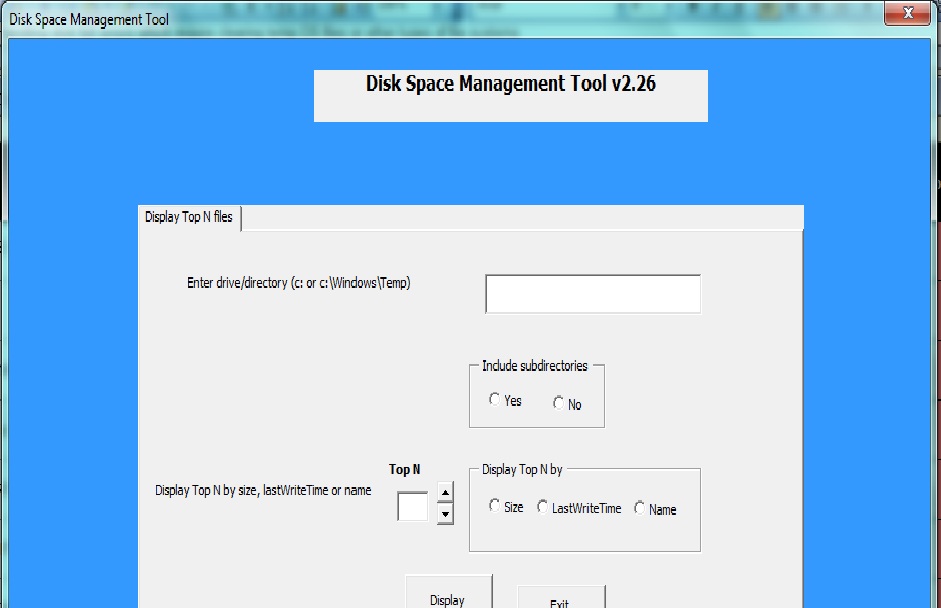
You can display the Top N files by size, lastWriteTime or name with a suitable VBA GUI as below

This can be written in logParser as

Set objLogParser = CreateObject(“MSUtil.LogQuery”)

Set objInputFormat = _

CreateObject(“MSUtil.LogQuery.FileSystemInputFormat”)

If OptionButton7.value = True Then

strQuery = “SELECT TOP ” & topN & ” TO_LOWERCASE (Name) AS NewName, Size, Path, LastWriteTime FROM ‘” & _

files & “‘ WHERE NOT Attributes LIKE ‘%D%’ ORDER BY Size DESC”

ElseIf OptionButton8.value = True Then

strQuery = “SELECT TOP ” & topN & ” TO_LOWERCASE (Name) AS NewName, Size, Path, LastWriteTime FROM ‘” & _

files & “‘ WHERE NOT Attributes LIKE ‘%D%’ ORDER BY lastWriteTime ASC”

ElseIf OptionButton9.value = True Then

strQuery = “SELECT TOP ” & topN & ” TO_LOWERCASE (Name) AS NewName, Size, Path, LastWriteTime FROM ‘” & _

files & “‘ WHERE NOT Attributes LIKE ‘%D%’ ORDER BY NewName ASC”

End If

The SpinButtons subroutines can be updates as follows

Private Sub SpinButton1_SpinDown()

If TextBox7.value <= 1 Then

MsgBox (“Cannot decrement below 1”)

TextBox7.value = 1

Exit Sub

Else

TextBox7.value = TextBox7.value – 1

End If

End Sub

Private Sub SpinButton1_SpinUp()

TextBox7.value = TextBox7.value + 1

End Sub

Extension based disk management

logParser can also be used to select all files with specified extensions for e.g. tmp,.log etc

Set objLogParser = CreateObject(“MSUtil.LogQuery”)

Set objInputFormat = _

CreateObject(“MSUtil.LogQuery.FileSystemInputFormat”)

files = baseDirectory & “\” & fileExt

strQuery = “SELECT TO_LOWERCASE (Name) AS NewName,  Size ,Path, LastWriteTime FROM ‘” & _   files & “‘ ORDER BY LastWriteTime ASC”

Set objRecordSet = objLogParser.Execute(strQuery, objInputFormat)

You can also search Event Logs with LogParser

Event Logs

Set objLogParser = CreateObject(“MSUtil.LogQuery”)

Set objInputFormat = _

CreateObject(“MSUtil.LogQuery.EventLogInputFormat”)

If OptionButton1.Value = True Then

strQuery = “SELECT TimeGenerated, EventID, EventTypeName,Message, Strings, SourceName FROM Application WHERE EventID IN ” & str

ElseIf OptionButton2.Value = True Then

strQuery = “SELECT TimeGenerated, EventID, EventTypeName, Message, Strings, SourceName FROM System WHERE EventID IN ” & str

ElseIf OptionButton3.Value = True Then

strQuery = “SELECT TimeGenerated, EventID, EventTypeName, Message, Strings, SourceName FROM Security WHERE EventID IN ” & str

ElseIf OptionButton4.Value = True Then

strQuery = “SELECT TimeGenerated, EventID, EventTypeName, Message, Strings, SourceName FROM Setup WHERE EventID IN ” & str

End If

Set objRecordSet = objLogParser.Execute(strQuery, objInputFormat)

LogParser is really a cool utility and when combined with VBA can really help in developing nifty applications.

Find me on Google+

Sneak preview of Windows 8 with VMWare Workstation 8.0.3

Here’s a sneak preview of Windows 8 evaluation version using VMWare’s Workstation 8.0.3. For those who read my earlier post “Experiences with VMWare Workstation 8.0.3 : The good, bad and the Ugly” the Windows 8 VM experience  must definitely rate as good. The setup and installation of Windows 8 in Workstation was a breeze. There was just one hiccup which is mentioned below.

The initial experience with Windows 8 is truly breath taking. The metro-style screen with its mosaic of tiles looks really great. Besides, Microsoft with Windows 8 is definitely taking the right path with a tile for the App Store and the SkyDrive. More on that later…

To get started download Windows 8 Release preview ISO image from http://windows.microsoft.com/en-US/windows-8/iso. Make a note of the Product key in the page.

Start your VMWare Workstation and choose “Create a new VM”. Browse to the directory which has the ISO image start the VM. Use the product key that you made a note of in the download page. While the installation will start you are bound to run into the error “Windows cannot read the product key from the unattend answer file”. To fix this issue power off the Windows 8 VM. Now select the “Settings” of the VM and remove floppy drive from the settings. Now Power on your VM. This time things should go smoothly and you installation process should begin.

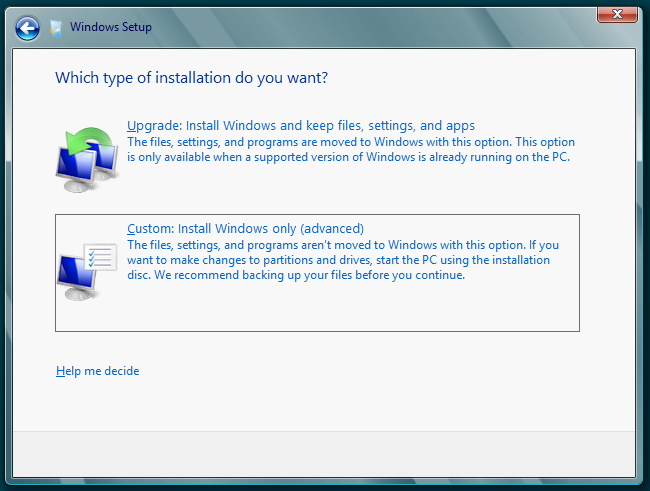
Soon you should see Windows 8 installation screen

Choose the custom option as shown below

The installation should start and you should see

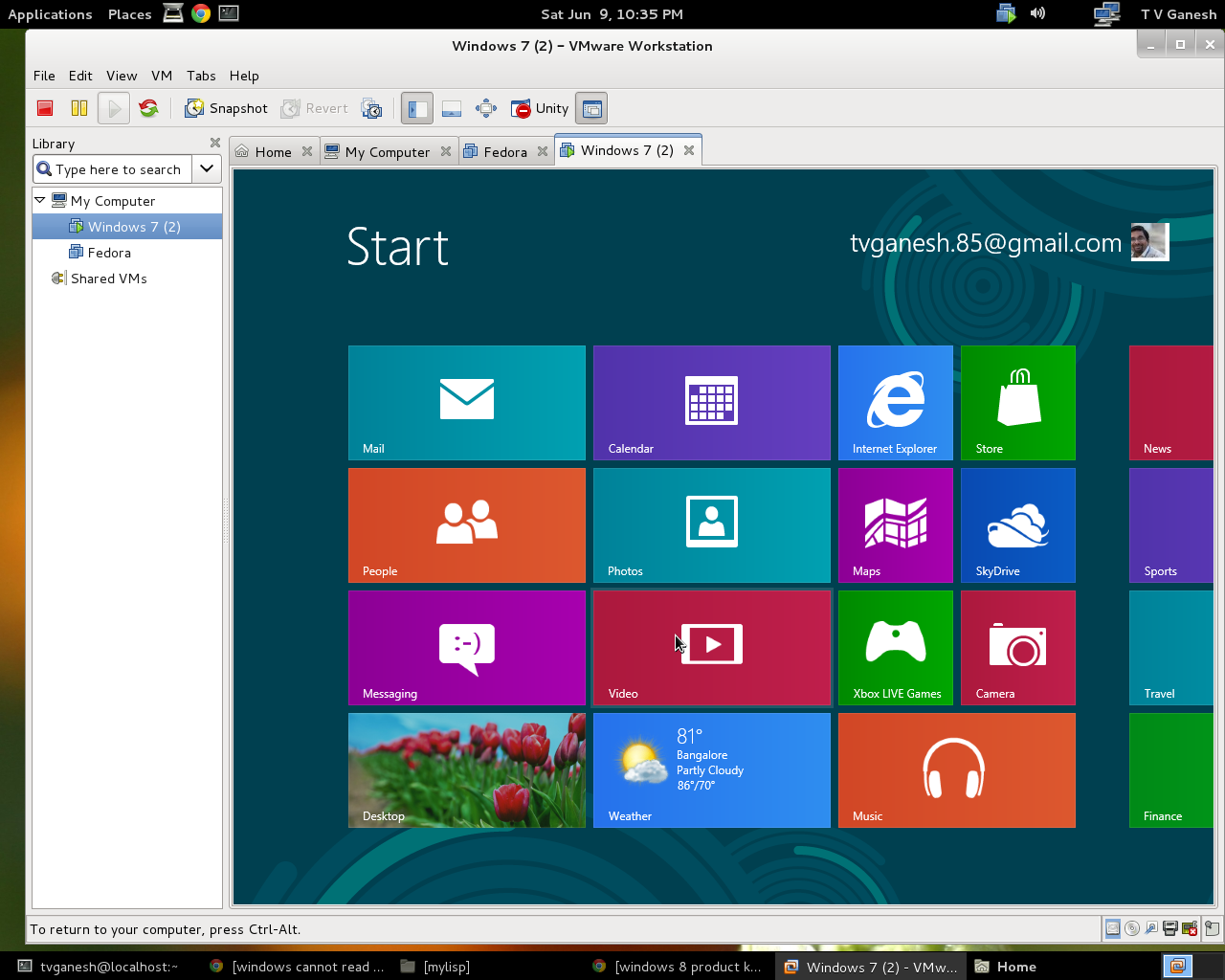
Follow the prompts and pretty soon you should see a really appealing Windows 8 metro style screen. The screen has a really cool tiled look. In fact with this look icons seem almost passe.

A quick look at this screen and you will see that Microsoft has now included the Store (App Store) and the SkyDrive. I am certain both of these will be put to great use in the future. Games and apps will be downloaded from the App Store. Play around the desktop.

Windows 8 is supposed to be based on touch where the user touches the screen to select an application. To navigate between applications or to get back to the metro-style screen move the mouse to the lower left corner of the screen and you should see a small metro-style screen. The top left corner has your current running applications.

I wanted to check out the Skydrive. So I created 2 text files in my Documents folder and selected Skydrive.

You can right click the files and select them. Go the bottom right corner and right click. You should see the task bar pop up. Click add and you will get a screen as shown below

Uploading files and folders to the cloud is bound to be commonly used in the not too distant future. The Skydrive right on your desktop will be a god send for users who want to keep a back up copy on the Cloud.

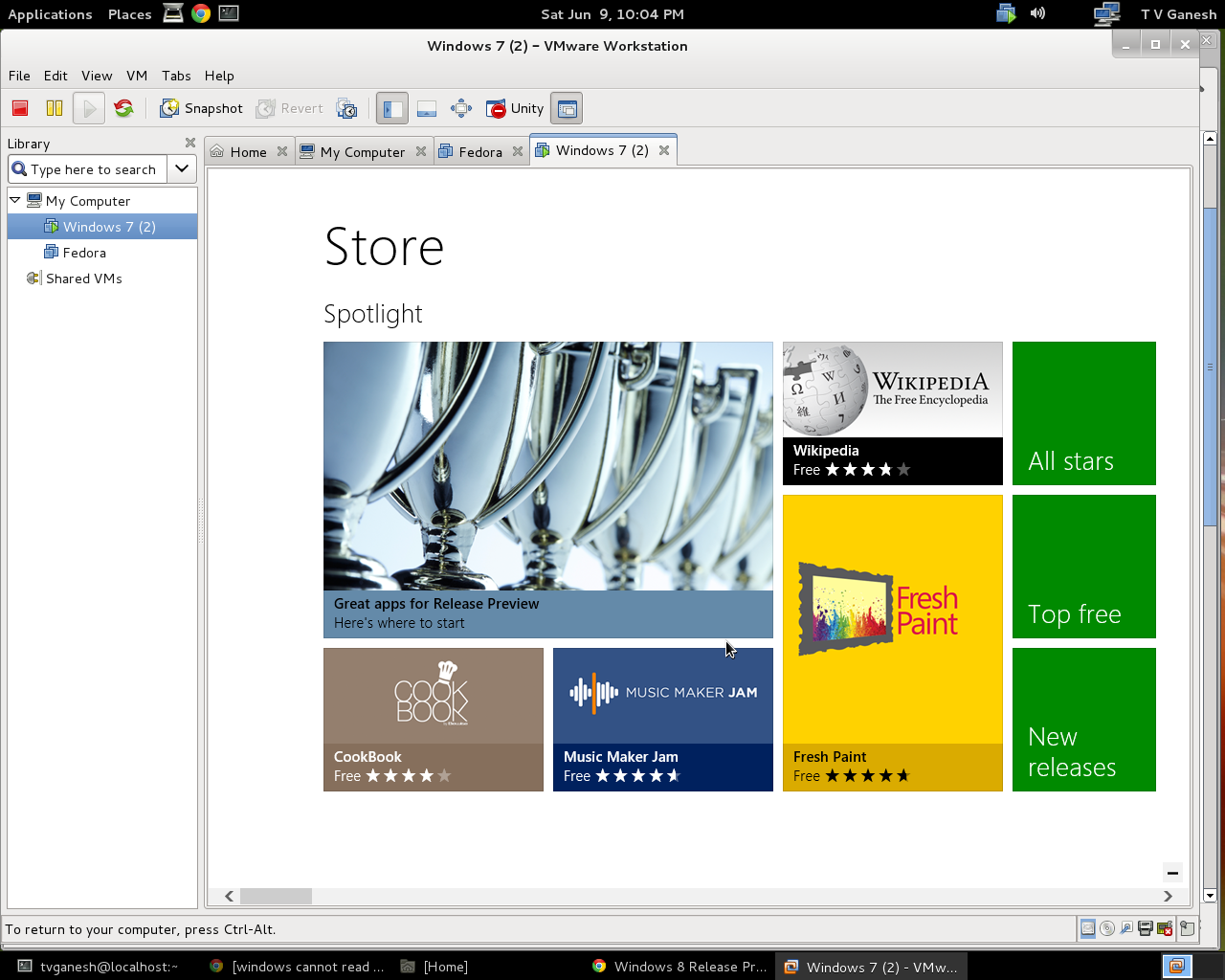
The App Store is another alluring addition.

If the boot  and load times of applications are fast in Windows 8 then Windows 8 looks to be a clear winner.

In fact with the stylish tiled look, touch interface, app store and Skydrive Windows 8 may actually give iPad a run for its money given the fact that Windows 8 provides actual computing capability in addition to consuming content.

Find me on Google+

Taking baby steps in Lisp

Lisp can be both fascinating and frustrating. Fascinating, because you can write compact code to solve really complex problems. Frustrating, because you can easily get lost in its maze of parentheses. I, for one, have been truly smitten by Lisp. My initial encounter with Lisp did not yield much success as I tried to come to terms with its strange syntax. The books I read on the Lisp language typically gloss over the exotic features of Lisp like writing Lisp code to solve the Towers of Hanoi or the Eight Queens problem. They talk about functions returning functions, back quotes and macros that can make your head spin.

I found this approach extremely difficult to digest the language. So I decided to view Lisp through the eyes of any other regular programming language like C, C++,, Java, Perl, Python or Ruby. I was keen on being able to do regular things with Lisp before I try out its unique features. So I decided to investigate Lisp from this view point and learn how to make Lisp do mundane things like an assignment, conditional, loop, array, input and output etc.

This post is centered on this fact.

Assignment statement

The most fundamental requirement for any language is to perform an assignment. For e.g. these are assignment statements in Lisp and its equivalent in C for e.g.

$ (setf x 5)                                                         -> $ x = 5
$ (setf x (+  (* y 2) (* z 8))                               -> $x = 2y + 8z

Conditional statement
 
There are a couple of forms of conditional statement in Lisp. The most basic is the ‘if’ statement which is special case. You can do if-then-else without the possibility of if-then-else if-else if – else

if (condition) statement else-statement

In Lisp this is written as
$(setf x 5)
$ (if (= x 5)
(setf x  (+ x 5))
(setf  (- x 6)))
10

In C this equivalent to
$ x = 5
$ if (x == 5)
x = x + 5;
else
x = x -6;

However Lisp allows the if-then-else if – else if –else through the use of the COND statement

So we could write

$ (setf x 10)
$ (cond ((< x 5) (setf x (+ x 8)) (setf y (* 2 y)))
((= x 10) (setf x (* x 2)))
(t (setf x 8)))
20

The above statement in C would be
$ x = 2
$ y = 10
$ if (x < 5)
{
x = x + 8;
y = 2 * y;
}
else if (x == 10)
{
x = x * 2;
}
else
x = 8;

Loops
Lisp has many forms of loops dotimes, dolist, do , loop for etc. I found the following most intuitive and best to get started with
$  (setf x 5)
$ (let ((i 0))
(loop
(setf y (* x i))
(when (> i 10) (return))
(print i) (prin1 y)
(incf i
)))

In C this could be written as
$ x = 5
(for i = 0; i < 10; i++)
{
y = x * i
printf(“%d %d\n”,i,y);
}

Another easy looping construct in C is
(loop for x from 2 to 10 by 3
do (print x))
In C this would be
(for x=2; x < 10; x = x+3)
print x;

Arrays
To create an array of 10 elements with initial value of 20
(setf numarray (make-array 10 :initial-element 20))
#(20 20 20 20 20 20 20 20 20 20)
To read an array element it is
$ (aref  numarray 3)                    – – – > numarray[3]
For e.g.
(setf x (* 2 (aref numarray 4)))     – – – – > x = numarray[4] * 2

Functions
(defun square (x)
(* x x))
This is the same as

int square (x)
{
return (x * x)
}

While in C you would invoke the function as
y = square (8)

In Lisp you would write as
(setf y (square 8))

Note: In Lisp the function is invoked as (function arg1 arg2… argn) instead of (function (arg1 arg2  … argn))

Structures
a) Create a global variable *db*
(defvar *db* nil)
 

b) Make a function to add an employee
$(defun make-emp (name age title)
(list :name name :age age :title title))
$(add-emp (make-emp “ganesh” 49 “manager”))
$(add-emp (make-emp “manish” 50 “gm”))
$(add-emp (make-emp “ram” 46 “vp”))
$ (dump-db)

For a more complete and excellent post on managing a simple DB looks at Practical Common Lisp by Peter Siebel

Reading and writing to standard output
To write to standard output you can use
(print “This is a test”) or
(print ‘(This is a test))
To read from standard input use
(let ((temp 0))
(print ‘(Enter temp))
(setf temp (read))
(print (append ‘(the temp is) (list temp))))

Reading and writing to a file
The typical way to do this is to use

a) Read
(with-open-file (stream “C:\\acl82express\\lisp\\count.cl”)
(do ((line (read-line stream nil)
(read-line stream nil)))
((null line))
(print line)))

b) Write
(with-open-file (stream “C:\\acl82express\\lisp\\test.txt”
:direction :output
:if-exists :supersede)
(write-line “test” stream)
nil)

I found the following construct a lot easier
(let ((in (open “C:\\acl82express\\lisp\\count.cl” :if-does-not-exist nil)))
(when in
(loop for line = (read-line in nil)
while line do (format t “~a~%” line))
(close in)))

With the above you can get started on Lisp. However with just the above constructs the code one writes will be very “non-Lispy”. Anyway this is definitely a start.

Find me on Google+