Test driving Apache Hadoop: Standalone & pseudo-distributed mode

The Hadoop paradigm originated from Google and is used in crunching large data sets. It is ideally suited for applications like Big Data, creating an inverted index used by search engines and other problems which require terabytes of data to processed in parallel. One key aspect of Hadoop is that it is made up of commodity servers. Hence server, disk crashes or network issues are assumed to be norm rather than an exception.

The Hadoop paradigm is made of the Map-Reduce  & the HDFS parts. The Map-Reduce has 2 major components to it. The Map part takes as input key- value pairs and emits a transformed key-value pair. For e.g Map could count the number of occurrences of words or created an inverted index of a word and its location in a document. The Reduce part takes as input the emitted key-value pairs of the Map output and performs another operation on the inputs from the Map part for.e.g summing up the counts of words. A great tutorial on Map-Reduce can be found at http://developer.yahoo.com/hadoop/tutorial/module4.html

The HDFS (Hadoop Distributed File System) is the special storage that is used in tandem with the Map-Reduce algorithm. The HDFS distributes data among Datanodes. A Namenode maintains the meta data of where individual pieces of data are stored.

To get started with Apache Hadoop download a stable release of Hadoop from (e.g. hadoop-1.0.4.tar.gz)

http://hadoop.apache.org/common/releases.html#Download

a) Install Hadoop on your system preferably in /usr/local/
tar xzf ./Downloads/hadoop-1.0.4.tar.gz

sudo mv hadoop-1.0.4 hadoop (rename hadoop-1.0.4 to hadoop for convenience)
sudo chown -R hduser:hadoop hadoop
Apache Hadoop requires Java to be installed. Download and install Java on your machine from

http://www.oracle.com/technetwork/java/javase/downloads/jdk-7u4-downloads-1591156.html

b) After you have installed java set $JAVA_HOME in
usr/local/hadoop/conf/hadoop-env.sh
export JAVA_HOME=/usr/bin/java (uncomment and set the correct path)

c) Create a user hduser in group hadoop
For this click  Applications->Other->User & Groups
Choose Add User – hduser  &  Add Group – hadoop
Choose properties and add hduser to the hadoop group.

Standalone Operation
Under root do
/usr/sbin/sshd
then
$ssh localhost

If you cannot do a ssh to localhost with passphrase then do the following
$ ssh-keygen -t rsa -P “”

You will get the following

Generating public/private rsa key pair.
Enter file in which to save the key (/home/hduser/.ssh/id_rsa):
Created directory '/home/hduser/.ssh'.
Your identification has been saved in /home/hduser/.ssh/id_rsa.


$ cat $HOME/.ssh/id_rsa.pub >> $HOME/.ssh/authorized_keys

Now  re-run
$ssh localhost – This time it should go fine

Create a directory input and copy *.xml files from conf/
$mkdir input
$cp /usr/local/hadoop/share/hadoop/templates/conf/*.xml input

Then execute the following. This searches for the string “dfs*” in all the XML files under the input directory
$/usr/local/hadoop/bin/hadoop jar /usr/share/hadoop/hadoop-examples-1.0.3.jar grep input output ‘dfs[a-z.]+’
You should see
[root@localhost hadoop]# /usr/local/hadoop/bin/hadoop jar /usr/share/hadoop/hadoop-examples-1.0.3.jar grep input output ‘dfs[a-z.]+’
12/06/10 13:00:51 INFO util.NativeCodeLoader: Loaded the native-hadoop library
..

12/06/10 13:01:45 INFO mapred.JobClient:     Reduce output records=38
12/06/10 13:01:45 INFO mapred.JobClient:     Virtual memory (bytes) snapshot=0
12/06/10 13:01:45 INFO mapred.JobClient:     Map output records=38

Where it indicates that there are 38 such record strings with dfs* in it.
If you get an error
java.lang.OutOfMemoryError: Java heap space
then increase the heap size from 128 to 1024 as below

<property>
<name>mapred.child.java.opts</name>
<value>-server -Xmx1024m -Djava.net.preferIPv4Stack=true</value>
</property>
….

Pseudo distributed mode
In the pseudo distributed mode separate Java processes are started for the Job Tracker which schedules tasks, the Task tracker which executes tasks and the Namenode which contains the data
A good post on Hadoop standalone mode is given in Michael Nolls post – Running Hadoop on Ubuntu Linux (single node cluster)

a) Execute the following commands
. ./.bashrc
$mkdir -p /home/hduser/hadoop/tmp
$chown hduser:hadoop /home/hduser/hadoop/tmp
$chmod 750 /home/hduser/hadoop/tmp

b) Do the following
Note:Files  core-site.xml, mapred-site,xml & hdfs-site.xml exist under
/usr/local/hadoop/share/hadoop/templates/conf& usr/local/hadoop/conf
It appears that Apache hadoop gives precedence to /usr/local/hadoop/conf. So add the following between <configuration and </configuration>
In file /usr/local//hadoop/conf/core-site.xml
<property>
<name>hadoop.tmp.dir</name>
<value>/home/hduser/hadoop/tmp</value>
<description>A base for other temporary directories.</description>
</property>
<property>
<name>fs.default.name</name>
<value>hdfs://localhost:54310</value>
<description>The name of the default file system.  Either the
literal string “local” or a host:port for NDFS.
</description>
<final>true</final>
</property>

In  /usr/local//hadoop/conf//mapred-site.xml
<property>
<name>mapred.job.tracker</name>
<value>localhost:54311</value>
<final>true</final
</property>

In  /usr/local//hadoop/conf//hdfs-site.xml add
<property>
<name>dfs.replication</name>
<value>1</value>
</property>

Now perform
$sudo /usr/sbin/ssh
$ssh localhost (Note you may have to generate key as above if you get an error)

c) Since the pseudo distributed mode will use the HDFS file system we need to format this.So run the following command
$$HADOOP_HOME/bin/hadoop namenode -format
[root@localhost hduser]#  /usr/local/hadoop/bin/hadoop namenode -format
12/06/10 15:48:16 INFO namenode.NameNode: STARTUP_MSG:
/************************************************************
STARTUP_MSG: Starting NameNode
STARTUP_MSG:   host = localhost.localdomain/127.0.0.1
STARTUP_MSG:   args = [-format]
STARTUP_MSG:   version = 1.0.3
STARTUP_MSG:   build = https://svn.apache.org/repos/asf/hadoop/common/branches/branch-1.0 -r 1335192; compiled by ‘hortonfo’ on Tue May  8 20:16:59 UTC 2012
************************************************************/

12/06/10 15:48:17 INFO common.Storage: Image file of size 110 saved in 0 seconds.
12/06/10 15:48:18 INFO common.Storage: Storage directory /home/hduser/hadoop/tmp/dfs/name has been successfully formatted.
12/06/10 15:48:18 INFO namenode.NameNode: SHUTDOWN_MSG:
/************************************************************
SHUTDOWN_MSG: Shutting down NameNode at localhost.localdomain/127.0.0.1
d) Now start all the Hadoop processes
$/usr/local/hadoop/bin/start-all.sh
starting namenode, logging to /var/log/hadoop/root/hadoop-root-namenode-localhost.localdomain.out
localhost: starting datanode, logging to /var/log/hadoop/root/hadoop-root-datanode-localhost.localdomain.out
localhost: starting secondarynamenode, logging to /var/log/hadoop/root/hadoop-root-secondarynamenode-localhost.localdomain.out
starting jobtracker, logging to /var/log/hadoop/root/hadoop-root-jobtracker-localhost.localdomain.out ocalhost: starting tasktracker, logging to /var/log/hadoop/root/hadoop-root-tasktracker-localhost.localdomain.out
Verify that all processes have started by executing /usr/java/jdk1.7.0_04/bin/jps
[root@localhost hduser]# /usr/java/jdk1.7.0_04/bin/jps
10971 DataNode
10866 NameNode
11077 SecondaryNameNode
11147 JobTracker
11264 TaskTracker
11376 Jps

You will see JobTracker,taskTracker,NameNode,DataNode and SecondaryNameNode

You can also do netstat -plten | grep java
tcp        0      0 0.0.0.0:50090               0.0.0.0:*                   LISTEN      0          166832     11077/java
tcp        0      0 0.0.0.0:50060               0.0.0.0:*                   LISTEN      0          167407     11264/java
tcp        0      0 0.0.0.0:50030               0.0.0.0:*                   LISTEN      0          166747     11147/java
tcp        0      0 0.0.0.0:50070               0.0.0.0:*                   LISTEN      0          165669     10866/java
tcp        0      0 0.0.0.0:50010               0.0.0.0:*                   LISTEN      0          166951     10971/java
tcp        0      0 0.0.0.0:50075               0.0.0.0:*                   LISTEN      0          166955     10971/java
tcp        0      0 127.0.0.1:55839             0.0.0.0:*                   LISTEN      0          166816     11264/java
tcp        0      0 0.0.0.0:50020               0.0.0.0:*                   LISTEN      0          165843     10971/java
tcp        0      0 127.0.0.1:54310             0.0.0.0:*                   LISTEN      0          165535     10866/java
tcp        0      0 127.0.0.1:54311             0.0.0.0:*                   LISTEN      0          166733     11147/java

e) Now copy files from your local directory /home/hduser/input  to the HDFS file system
Now you can check the web interface for JobTracker & NameNode
This is as per mapred-site.xml & hdfs-site.xml in /conf directory. They are at
ñJobTracker – http://localhost:50030/

ñNameNode – http://localhost:50070/

f) Copy files from your local directory to HDFS
$/usr/local/hadoop/bin/hadoop dfs -copyFromLocal /home/hduser/input /user/hduser/input
Ensure that the files have been copies by listing the contents of HDFS

g) Check that files have been copied
$/usr/local/hadoop/bin/hadoop dfs -ls /user/hduser/input
Found 9 items
-rw-r–r–   1 root supergroup       7457 2012-06-10 10:31 /user/hduser/input/capacity-scheduler.xml
-rw-r–r–   1 root supergroup       2447 2012-06-10 10:31 /user/hduser/input/core-site.xml
-rw-r–r–   1 root supergroup       2300 2012-06-10 10:31 /user/hduser/input/core-site_old.xml
-rw-r–r–   1 root supergroup       5044 2012-06-10 10:31 /user/hduser/input/hadoop-policy.xml
-rw-r–r–   1 root supergroup       7595 2012-06-10 10:31 /user/hduser/input/hdfs-site.xml

h) Now execute the grep functionality
[root@localhost hduser]# /usr/local/hadoop/bin/hadoop jar /usr/local/hadoop/hadoop-examples-1.0.4.jar grep /user/hduser/input /user/hduser/output ‘dfs[a-z.]+’
12/06/10 10:34:22 INFO util.NativeCodeLoader: Loaded the native-hadoop library
….
12/06/10 10:34:23 INFO mapred.JobClient: Running job: job_201206101010_0003
12/06/10 10:34:24 INFO mapred.JobClient:  map 0% reduce 0%
12/06/10 10:34:48 INFO mapred.JobClient:  map 11% reduce 0%


12/06/10 10:35:21 INFO mapred.JobClient:  map 88% reduce 22%
12/06/10 10:35:24 INFO mapred.JobClient:  map 100% reduce 22%
12/06/10 10:35:27 INFO mapred.JobClient:  map 100% reduce 29%
12/06/10 10:35:36 INFO mapred.JobClient:  map 100% reduce 100%
12/06/10 10:35:42 INFO mapred.JobClient: Job complete: job_201206101010_0003
….
12/06/10 10:36:16 INFO mapred.JobClient:     Reduce input groups=3
12/06/10 10:36:16 INFO mapred.JobClient:     Combine output records=0
12/06/10 10:36:16 INFO mapred.JobClient:     Physical memory (bytes) snapshot=180502528
12/06/10 10:36:16 INFO mapred.JobClient:     Reduce output records=36
12/06/10 10:36:16 INFO mapred.JobClient:     Virtual memory (bytes) snapshot=695119872
12/06/10 10:36:16 INFO mapred.JobClient:     Map output records=36
i) Check the result
[root@localhost hduser]# /usr/local/hadoop/bin/hadoop dfs -cat /user/hduser/output/*
6          dfs.data.dir
2          dfs.
2          dfs.block.access.token.enable
2          dfs.cluster.administrators
2          dfs.datanode.address
2          dfs.datanode.data.dir.perm
2          dfs.datanode.http.address
2          dfs.datanode.kerberos.principal
2          dfs.datanode.keytab.file
2          dfs.exclude
…..

j)/usr/local/hadoop/bin/stop-all.sh
Have fun with hadoop…

Find me on Google+

Sneak preview of Windows 8 with VMWare Workstation 8.0.3

Here’s a sneak preview of Windows 8 evaluation version using VMWare’s Workstation 8.0.3. For those who read my earlier post “Experiences with VMWare Workstation 8.0.3 : The good, bad and the Ugly” the Windows 8 VM experience  must definitely rate as good. The setup and installation of Windows 8 in Workstation was a breeze. There was just one hiccup which is mentioned below.

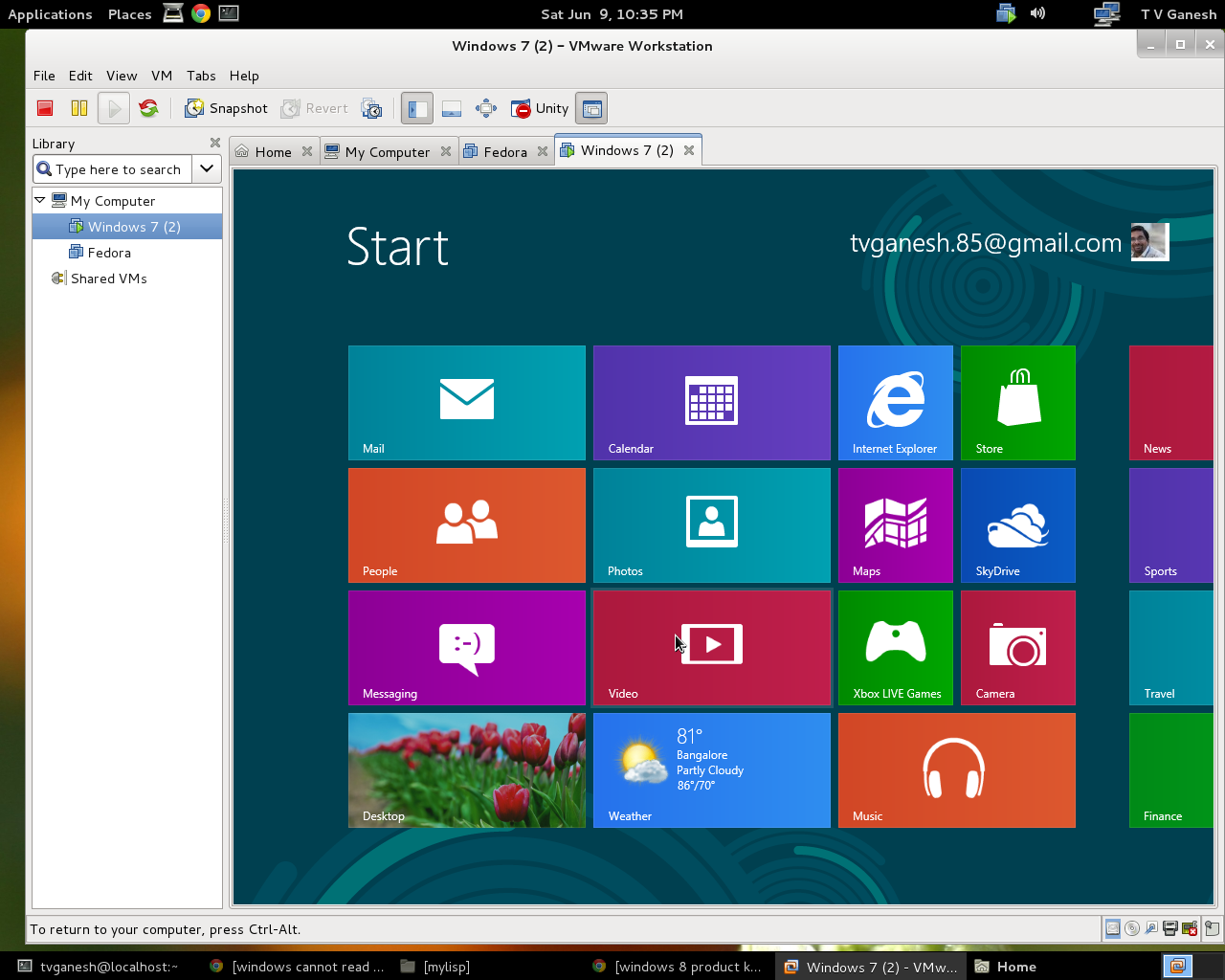
The initial experience with Windows 8 is truly breath taking. The metro-style screen with its mosaic of tiles looks really great. Besides, Microsoft with Windows 8 is definitely taking the right path with a tile for the App Store and the SkyDrive. More on that later…

To get started download Windows 8 Release preview ISO image from http://windows.microsoft.com/en-US/windows-8/iso. Make a note of the Product key in the page.

Start your VMWare Workstation and choose “Create a new VM”. Browse to the directory which has the ISO image start the VM. Use the product key that you made a note of in the download page. While the installation will start you are bound to run into the error “Windows cannot read the product key from the unattend answer file”. To fix this issue power off the Windows 8 VM. Now select the “Settings” of the VM and remove floppy drive from the settings. Now Power on your VM. This time things should go smoothly and you installation process should begin.

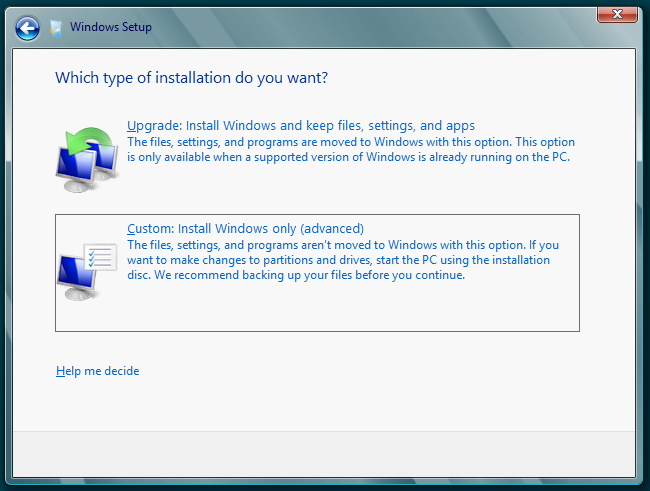
Soon you should see Windows 8 installation screen

Choose the custom option as shown below

The installation should start and you should see

Follow the prompts and pretty soon you should see a really appealing Windows 8 metro style screen. The screen has a really cool tiled look. In fact with this look icons seem almost passe.

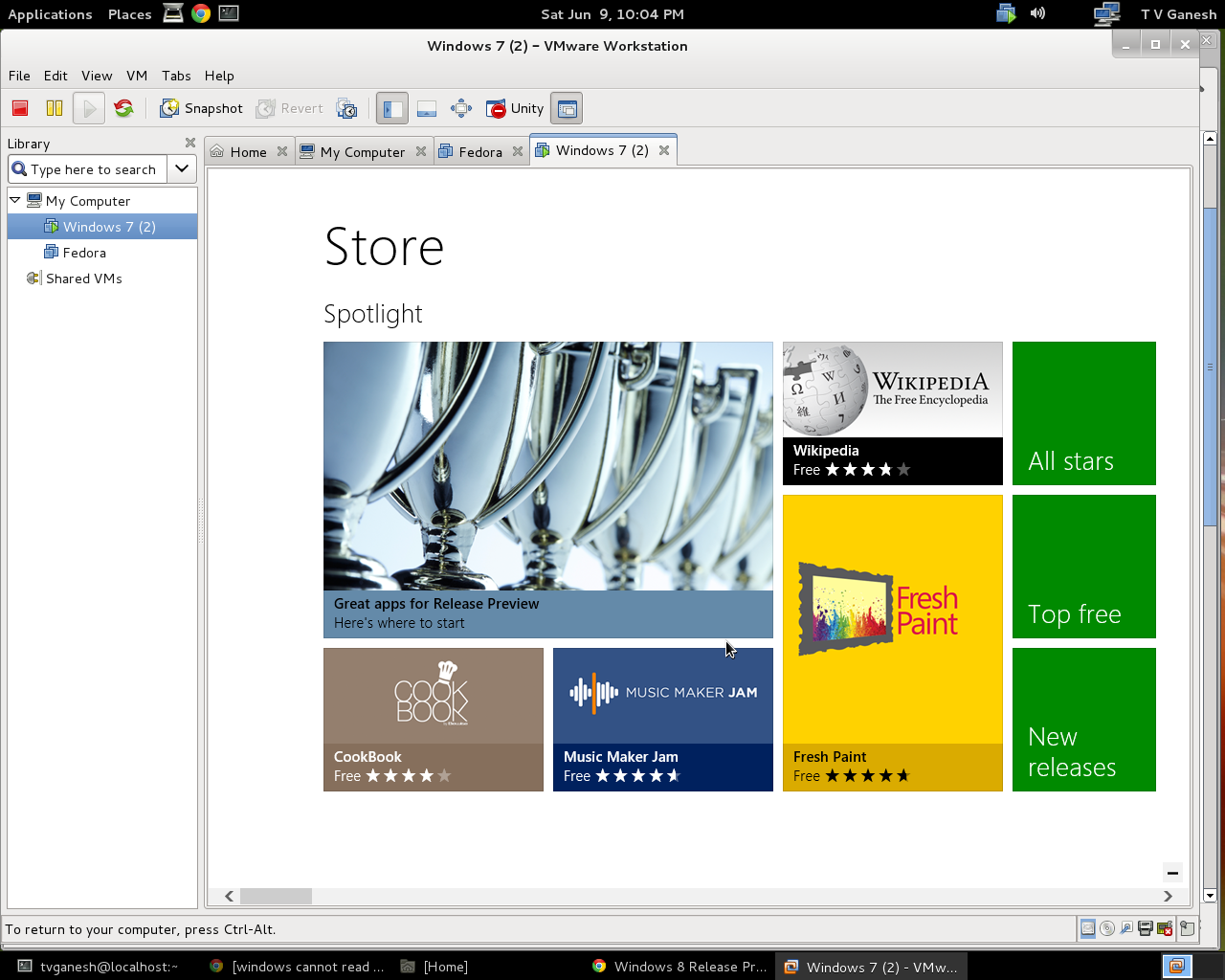
A quick look at this screen and you will see that Microsoft has now included the Store (App Store) and the SkyDrive. I am certain both of these will be put to great use in the future. Games and apps will be downloaded from the App Store. Play around the desktop.

Windows 8 is supposed to be based on touch where the user touches the screen to select an application. To navigate between applications or to get back to the metro-style screen move the mouse to the lower left corner of the screen and you should see a small metro-style screen. The top left corner has your current running applications.

I wanted to check out the Skydrive. So I created 2 text files in my Documents folder and selected Skydrive.

You can right click the files and select them. Go the bottom right corner and right click. You should see the task bar pop up. Click add and you will get a screen as shown below

Uploading files and folders to the cloud is bound to be commonly used in the not too distant future. The Skydrive right on your desktop will be a god send for users who want to keep a back up copy on the Cloud.

The App Store is another alluring addition.

If the boot  and load times of applications are fast in Windows 8 then Windows 8 looks to be a clear winner.

In fact with the stylish tiled look, touch interface, app store and Skydrive Windows 8 may actually give iPad a run for its money given the fact that Windows 8 provides actual computing capability in addition to consuming content.

Find me on Google+

Taking baby steps in Lisp

Lisp can be both fascinating and frustrating. Fascinating, because you can write compact code to solve really complex problems. Frustrating, because you can easily get lost in its maze of parentheses. I, for one, have been truly smitten by Lisp. My initial encounter with Lisp did not yield much success as I tried to come to terms with its strange syntax. The books I read on the Lisp language typically gloss over the exotic features of Lisp like writing Lisp code to solve the Towers of Hanoi or the Eight Queens problem. They talk about functions returning functions, back quotes and macros that can make your head spin.

I found this approach extremely difficult to digest the language. So I decided to view Lisp through the eyes of any other regular programming language like C, C++,, Java, Perl, Python or Ruby. I was keen on being able to do regular things with Lisp before I try out its unique features. So I decided to investigate Lisp from this view point and learn how to make Lisp do mundane things like an assignment, conditional, loop, array, input and output etc.

This post is centered on this fact.

Assignment statement

The most fundamental requirement for any language is to perform an assignment. For e.g. these are assignment statements in Lisp and its equivalent in C for e.g.

$ (setf x 5)                                                         -> $ x = 5
$ (setf x (+  (* y 2) (* z 8))                               -> $x = 2y + 8z

Conditional statement
 
There are a couple of forms of conditional statement in Lisp. The most basic is the ‘if’ statement which is special case. You can do if-then-else without the possibility of if-then-else if-else if – else

if (condition) statement else-statement

In Lisp this is written as
$(setf x 5)
$ (if (= x 5)
(setf x  (+ x 5))
(setf  (- x 6)))
10

In C this equivalent to
$ x = 5
$ if (x == 5)
x = x + 5;
else
x = x -6;

However Lisp allows the if-then-else if – else if –else through the use of the COND statement

So we could write

$ (setf x 10)
$ (cond ((< x 5) (setf x (+ x 8)) (setf y (* 2 y)))
((= x 10) (setf x (* x 2)))
(t (setf x 8)))
20

The above statement in C would be
$ x = 2
$ y = 10
$ if (x < 5)
{
x = x + 8;
y = 2 * y;
}
else if (x == 10)
{
x = x * 2;
}
else
x = 8;

Loops
Lisp has many forms of loops dotimes, dolist, do , loop for etc. I found the following most intuitive and best to get started with
$  (setf x 5)
$ (let ((i 0))
(loop
(setf y (* x i))
(when (> i 10) (return))
(print i) (prin1 y)
(incf i
)))

In C this could be written as
$ x = 5
(for i = 0; i < 10; i++)
{
y = x * i
printf(“%d %d\n”,i,y);
}

Another easy looping construct in C is
(loop for x from 2 to 10 by 3
do (print x))
In C this would be
(for x=2; x < 10; x = x+3)
print x;

Arrays
To create an array of 10 elements with initial value of 20
(setf numarray (make-array 10 :initial-element 20))
#(20 20 20 20 20 20 20 20 20 20)
To read an array element it is
$ (aref  numarray 3)                    – – – > numarray[3]
For e.g.
(setf x (* 2 (aref numarray 4)))     – – – – > x = numarray[4] * 2

Functions
(defun square (x)
(* x x))
This is the same as

int square (x)
{
return (x * x)
}

While in C you would invoke the function as
y = square (8)

In Lisp you would write as
(setf y (square 8))

Note: In Lisp the function is invoked as (function arg1 arg2… argn) instead of (function (arg1 arg2  … argn))

Structures
a) Create a global variable *db*
(defvar *db* nil)
 

b) Make a function to add an employee
$(defun make-emp (name age title)
(list :name name :age age :title title))
$(add-emp (make-emp “ganesh” 49 “manager”))
$(add-emp (make-emp “manish” 50 “gm”))
$(add-emp (make-emp “ram” 46 “vp”))
$ (dump-db)

For a more complete and excellent post on managing a simple DB looks at Practical Common Lisp by Peter Siebel

Reading and writing to standard output
To write to standard output you can use
(print “This is a test”) or
(print ‘(This is a test))
To read from standard input use
(let ((temp 0))
(print ‘(Enter temp))
(setf temp (read))
(print (append ‘(the temp is) (list temp))))

Reading and writing to a file
The typical way to do this is to use

a) Read
(with-open-file (stream “C:\\acl82express\\lisp\\count.cl”)
(do ((line (read-line stream nil)
(read-line stream nil)))
((null line))
(print line)))

b) Write
(with-open-file (stream “C:\\acl82express\\lisp\\test.txt”
:direction :output
:if-exists :supersede)
(write-line “test” stream)
nil)

I found the following construct a lot easier
(let ((in (open “C:\\acl82express\\lisp\\count.cl” :if-does-not-exist nil)))
(when in
(loop for line = (read-line in nil)
while line do (format t “~a~%” line))
(close in)))

With the above you can get started on Lisp. However with just the above constructs the code one writes will be very “non-Lispy”. Anyway this is definitely a start.

Find me on Google+

Experiences with VMWare Workstation 8.0.3 – The good,bad and the ugly

VMs( virtual machines) are the fundamental unit of the cloud. So I was interested in getting my hands around virtualization and virtual machines. Fortunately VMWare’s Workstation provides you with the opportunity. VMWare gives the user a 30 day evaluation license to evaluate Workstation 8.0.3. So I downloaded VMWare’s Workstation 8.0.3 to my desktop in Windows XP. If you had read my earlier post “Installing and configuring Fedora 16 with Windows XP using a bootable USB”  I had a dual boot desktop running either XP or Fedora 16.

Installing and getting Workstation 8.0.3 started was a breeze. I then created a VM using the Fedora 16 ISO file which I had downloaded for creating the dual boot Fedora & XP. The Workstation created a VM for me in a couple of minutes. As before the VM running Fedora 16 has LiveCD in its top right corner. Or in other words it is running the OS of a virtual CD. Anyway it was great and seemed really easy to get started.

The Ugly: I wanted to do more things with the VM. I read up the documentation on “Using the WorkStation” etc.  I wanted to install the VMWare Tools, clone a VM, save a snapshot etc. When I tried to install Vmware Tools I got a message saying the CDRom was in use. I checked the setting and found the CDRom was being used to boot Fedora. I actually needed to “install to disk”. .  As in previous post I decided I needed to create free space. Unfortunately I got ahead of myself I think. While the workstation was running I tried to access Windows Disk Management. This took a long time and I also got a message saying that the device was busy. As an afterthought it appears perfectly reasonable as the Workstation must have allocated space for the VM on the disk and must have held the disk. My disk had a primary partition C: drive with Win XP, a free logical drive D: and a partition holding my Fedora 16. I foolishly deleted drive D: This is where all hell broke loose. This took a long time. When I opened Disk Management again I found that the values it was showing was out of whack. It was C: drive 1820 GB when it should have been 70GB. D:drive as 2087 GB and also sorts vague figures. I realized that I had messed up my disk.


Here a thought struck me. Maybe if I restart the system the OS will work things out. But alas when I rebooted I got this

error: No such partition

grub rescue>

I knew I had really messed up. I could not boot my system. As I had mentioned before I could not boot Windows from my CD drive as it did not work. After trying a couple of different things I tried to boot with my USB drive.

Thank God I was able to boot Fedora. I then used fdisk to see my partitions. I realized I had clobbered my 2nd partition which was showing an incorrect size. I used fdisk to set the size right. I then installed Fedora 16 on my PC by writing to disk. Unfortunately I lost my XP drive and I was left with a Linux only PC. Thanks to my fortune there was no data that I had lost. This was a new PC which I had got.

The Bad: Now with Fedora 16 up and running I decided I thought I will try to install Workstation 8.0.3 on Fedora 16. I downloaded Workstation 8.0.3 bundle and extracted it. But when it tried to run it I ran into my 1st problem.

Cannot load module pk-gtk-module & canberra-gtk-module and I also got a message “Failed”

So with some googling I found that I needed to do

yum install PackageKit-gtk-module &

yum install libcanberra-gtk2 libcanberra-gtk3 libcanberra-gtk2.i686 libcanberra-gtk3.i686

I also got the message that some kernel files needed to be compiled. When I went and checked

/lib/modules/3.1.0-7.fc16.i686 I founf that the “build” link was broken.  So I set off on another google search on how to fix the fedora build broken situation. Finally I found the answer here

http://www.linuxquestions.org/questions/linux-newbie-8/broken-link-fedora-build-rpmtree-does-not-exist-520474/

I did a

yum install kernel-devel

As mentioned in the link above I rebooted the system. This seemed to create

/lib/modules/3.3.7-1.fci6.686.

The build in this directory was fine. Also giving uname -a showed that the kernel was updated to the new version.

I tried to start the Workstation 8.0.3 again. Now the number of complaints was less. I got a message saying the files needed to be compiled. When I clicked ok it went through the compilation process. I knew I was making progress. But anyway it once again bailed out with

Gtk-Message: Failed to load module “pk-gtk-module”: libpk-gtk-module.so: cannot open shared object file: No such file or directory

Gtk-Message: Failed to load module “canberra-gtk-module”: libcanberra-gtk-module.so: cannot open shared object file: No such file or directory

It appears that there is a patch which needs to be applied to fix the kernel. I used the following from this post

http://communities.vmware.com/thread/343441/

I downloaded workstation-8.0.2-linux3.2patch (15K) and ran the commands

cd /usr/lib/vmware/modules/source

tar xfv vmnet.tar

patch -p0 < ~/workstation-8.0.2_linux-3.2.patch

tar cfv vmnet.tar vmnet-only/

vmware-modconfig –console –install-all

Though my workstation 8.0.3 this went through fine.

I also did

LD_LIBRARY_PATH=/usr/lib/gtk-2.0/modules

export LD_LIBRARY_PATH

I started the workstation 8.0.3 and lo and behold it finally came up.

I then downloaded Fedora 17 ISO file (http://fedoraproject.org/en/get-fedora-options( and created a VM with that. My PC with about ~ 1G ram groaned. It tool nearly 20 mins to be up and running.

The searching and fixing took me nearly 7 – 8 hours. I was finally able to get workstation 8.0.3 up and running with Fedora 17 VM

Also do take a look at  the good part of  VMWare Workstation 8.0.3 Sneak preview of Windows 8 with VMWare Workstation 8.0.3

Find me on Google+

Installing and configuring a dual boot Fedora 16 with Windows XP using a bootable USB

Here the steps to create a  dual boot of Fedora 16 with Windows XP using a bootable USB. I was forced to install from a USB as my DVD/CD drive had other ideas and wouldn’t read my Fedora 16 DVD.

Anyway creating a dual boot option with a USB was fairly straightforward.  I have outlined the steps below

1)       Download an image of Fedora 16 based on your hardware architecture. I downloaded Fedora 16 (Fedora-16-i686-Live-Desktop .iso) from this site http://fedoraproject.org/get-fedora

2)       Next download and install the LiveUSB creator from https://fedorahosted.org/liveusb-creator/

3)       Insert your USB stick into a USB slot.

4)       Run the LiveUSB creator. This will detect your USB stick. (It is possible to skip step 1 and have the LiveUSB creator download the Fedora 16 image but I was getting a SHA error. So it is better to go through Step 1)

5)       In the LiveUSB Creator window, click browse and open your downloaded ISO image, Fedora-16-i686-Live-Desktop .iso. Set the persistent storage to around 750 MB and then click create USB

6)       This will verify your download and create a bootable USB stick for you.

7)       At this point you would have to do the following. For a dual boot option you need to create free space on your disk on which you can install your Fedora 16.So I did the following. I had a primary partition C drive with 70GB and an extended partition with the logical drive D. Fortunately my PC had no data. So I deleted the D drive and then created an extended partition with 35 GB and left around 35 GB of free space.

8)       Now restart your PC. Before it boots hit F2 so that you get the BIOS setting.

9)       Go to the “boot” tab and choose Boot from USB and click Enable. Save your settings with F10.

10)   With your USB still in the USB slot the PC will continue to boot but will do so from the USB stick

11)   The system will continue to Boot. Select Start Fedora 16. The right corner should show LiveCD

12)   Click Applications. You should see “Install to hard drive”

13)   Click this. At this point please see these 2 links as they have many screen shots for configuring Fedora 17

http://www.howtoforge.com/the-perfect-desktop-fedora-16-i686-gnome

http://www.if-not-true-then-false.com/2011/fedora-16-verne-install-guide-with-screenshots/

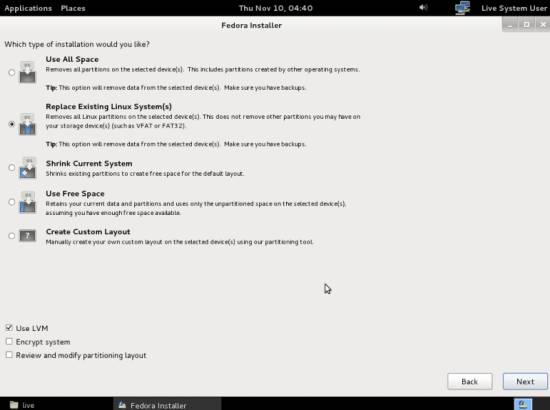
14)   I followed these links except the step “Installation Type”. Here I chose the 4th Option “Use Free space” which I had created for 35 GB. This does not touch your data & files.

15)   In the Select Storage devices make sure you choose the “Data Storage device” (your free space) and move it right to “Install target devices”

16)   You will get a Confirm changes to disk popup. Choose write changes to disk.

17)   The installation will start and will install your Fedora 16.

18)   You can then set system time, create users etc.

19)   Your Fedora 16 installation is now ready.

20)   You might want to restart the system. You will see now options to either boot from Fedora 16 or Windows XP.

I would suggest that you select F2, go to the boot tab and disable the boot from USB first option. Now you have a dual boot option Fedora 16 or Windows XP.

Note: I personally did not like the default desktop which Fedora 16 provides. For one the terminal window does not have a minimize, maximize and close icons on the title bar. Also the Window/Application is pain. If you want the default desktop interface this is what you have to do.

Click the username on the top right corner of the Fedora 16 Click System Settings, scroll down to System Info. Select Graphics and set Forced Fallback Mode to “On”. Log out and log in and hey presto , all terminal windows have the the icons properly and the desktop has the older menu style.

Find me on Google+

Re-working the Lucy Richardson algorithm in OpenCV

Here is my latest attempt at deblurring using the Lucy-Richardson algorithm. For this I looked up the chapter on Iterative deconvolution and the Lucy Richardson algorithm in scribd.

As mentioned in my previous posts the blurred image can be represented as
We can represent the ill-posed blurring problem as
b(x,y)  = i(x,y) ** k(x,y) + n(x,y)
where b(x,y) is the blurred image,  i(x,y) the original image, k(x,y) the blur kernel and n(x,y) the noise function. If our estimate of the original image is good then n(x,y) = 0

Hence b(x,y) – i(x,y) ** k(x,y) = 0
If we add i(x,y) to both sides of the equation we have
i(x,y) = i(x,y) + b(x,y) – i(x,y) ** k(x,y)
This can be represented iteratively as
ik+1(x,y) = ik(x,y) + b(x,y) – ik(x,y) ** k(x,y)  (1)

The underlined terms is the error correction.
We have to add the previous estimate with the error correction to get the new estimate.
Now we can seed this by setting ik(x,y) with the blurred image.
Hence our iteration 1 we would substitute
ik(x,y) = b(x,y) in Eqn (1)
So I have done this as follows
I have chosen a blur kernel
double a[9] = {0,40,0,0,40,0,0,40,0};

In the 1st iteration I convolve the blurred image with the kernel
cvFilter2D(im,im_conv_kernel,&kernel1,cvPoint(-1,-1));  – A
To get the error correction I subtract with the convolved term
cvSub(im,im_conv_kernel,im_correction, 0);  – B
Now I add the previous estimate with the error correction to get the new estimate
cvAdd(im,im_correction,im_new_est,NULL);   – C

Finally I repeat the process
im = im_new_est;
im = cvCloneImage(im_new_est);   – D
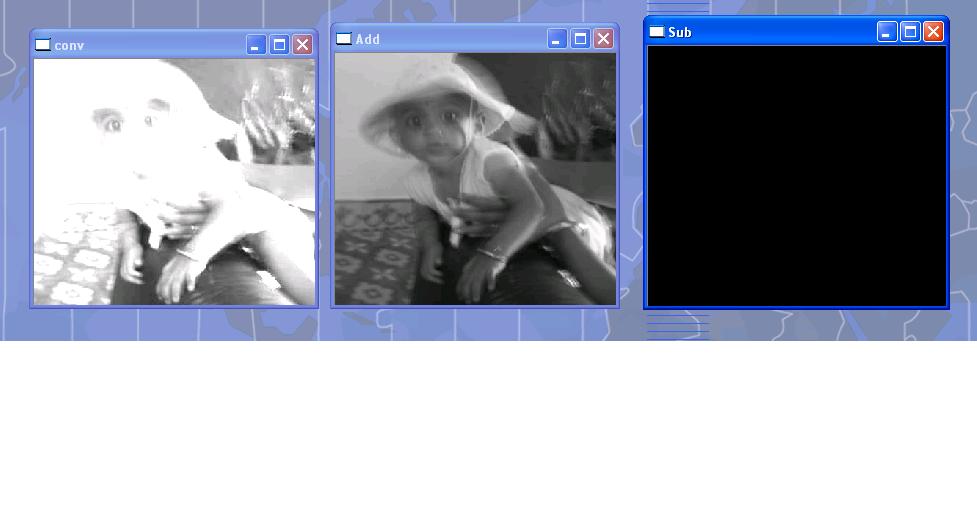
The convolved image, the error correction and the estimates of the nth iteration is shown below

The 7th,8th and 9th iteration are shown below

Note: You can clone the code from GitHub – An implementation of Lucy-Richardson algorithm in OpenCV

The complete code is given below
// deconvlucy.cpp : Defines the entry point for the console application.
//
// ===================================================================================================================================
// ========================================================Lucy-Richardson algorithm ===================================
//
// Author: Tinniam V Ganesh
// Developed 14 May 2012
// File: deconvlucy.cpp
//=====================================================================================================================================
#include “stdafx.h”
#include “math.h”
#include <cxcore.h>
#include <cv.h>
#include <highgui.h>

#define kappa 10000
int main(int argc, char ** argv)
{
IplImage* im;
IplImage* im_conv_kernel;
IplImage* im_correction;
IplImage* im_new;
IplImage* im_new_est;
IplImage* im1;

char str[80];
int i;
CvMat* cvShowDFT1(IplImage*, int, int,char*);
IplImage* cvShowInvDFT1(IplImage*, CvMat*, int, int,char*);

im1 = cvLoadImage(“kutty-1.jpg”);
cvNamedWindow(“Original-Color”, 0);
cvShowImage(“Original-Color”, im1);
im = cvLoadImage(“kutty-1.jpg”, CV_LOAD_IMAGE_GRAYSCALE );
if( !im )
return -1;

cvNamedWindow(“Original-Gray”, 0);
cvShowImage(“Original-Gray”, im);

// fk+1(x,y) = fk(x,y)

for(i=0;i < 10;i++) {

// Convolve f0(x,y)= g(x,y) with blur kernel
// f0(x,y) ** kernel

// Create a blur kernel
//double a[9]={-1,200,1,-1,200,1,-1,200,1};
//double a[9]={0,-1,0,-1,4,-1,0,-1,0};
//double a[9]={-4,40,4,-4,40,4,-4,40,4};
//double a[9]={-1,2,-1,-1,2,-1,-1,2,-1};
double a[9] = {0,40,0,0,40,0,0,40,0};
CvMat kernel1 = cvMat(3,3,CV_32FC1,a);

// Convolve the kernel with the blurred image as the seed i0(x,y) ** k(x,y)
im_conv_kernel= cvCloneImage(im);
cvFilter2D(im,im_conv_kernel,&kernel1,cvPoint(-1,-1));

cvNamedWindow(“conv”, 0);
cvShowImage(“conv”, im_conv_kernel);

// Subtract from blurred image. Error correction = b(x,y) – ik(x,y) ** k(x.y)
im_correction = cvCreateImage(cvSize(383,357),8,1);;
cvSub(im,im_conv_kernel,im_correction, 0);
cvNamedWindow(“Sub”, 0);
cvShowImage(“Sub”, im_correction);

// Add ik(x,y) with imCorrection – ik(x,y) + b(x,y) – ik(x,y) ** k(x,y)
im_new_est = cvCreateImage(cvSize(383,357),8,1);;
cvAdd(im,im_correction,im_new_est,NULL);

cvNamedWindow(“Add”, 0);
cvShowImage(“Add”, im_new_est);
sprintf(str,”Iteration – %d”,i);
cvNamedWindow(str, 0);
cvShowImage(str, im_new_est);

//Set the estimate as the previous estimate and repeat
im = im_new_est;
im = cvCloneImage(im_new_est);
}
cvWaitKey(-1);
return 0;
}

See also

1. Deblurring with OpenCV: Wiener filter reloaded
2. Dabbling with Wiener filter using OpenCV
3.Experiments with deblurring using OpenCV
4. De-blurring revisited with Wiener filter using OpenCV

You may also like
1.  What’s up Watson? Using IBM Watson’s QAAPI with Bluemix, NodeExpress – Part 1
2.  Bend it like Bluemix, MongoDB with autoscaling – Part 1
3. Informed choices through Machine Learning : Analyzing Kohli, Tendulkar and Dravid
4. A crime map of India in R: Crimes against women

Find me on Google+

Deblurring with OpenCV: Weiner filter reloaded

The problem of deblurring has really caught my fancy though I have only had partial success with it. Deblurring is basically an ill-posed problem where there are 2 unknowns namely the original image and a blurring function. There are many solutions to this problem involving a fair amount of mathematics.

Every now and then I will sneak into some white paper on this topic only to beat a hasty retreat gulping for air as I get drowned in the abstract math. Anyway my search led me to the following presentation “Deblurring in CT (Computer Tomography)” by Kriti Sen Sharma which seemed to make a lot of sense. This presentation shows how a PSF (Point Spread Function or the blur kernel) can blur an image as shown below.

Further it can be shown that the Wiener filter can be represented as
W(u) = P(u*)
——-
|P(u)|^2 + K

Where P(u) is PSD (Point Spread Distribution) of the blur kernel. K is S/N or signal to noise ratio.

For the PSF I took the Gaussian distribution given in Wikipedia – Gaussian blur given by

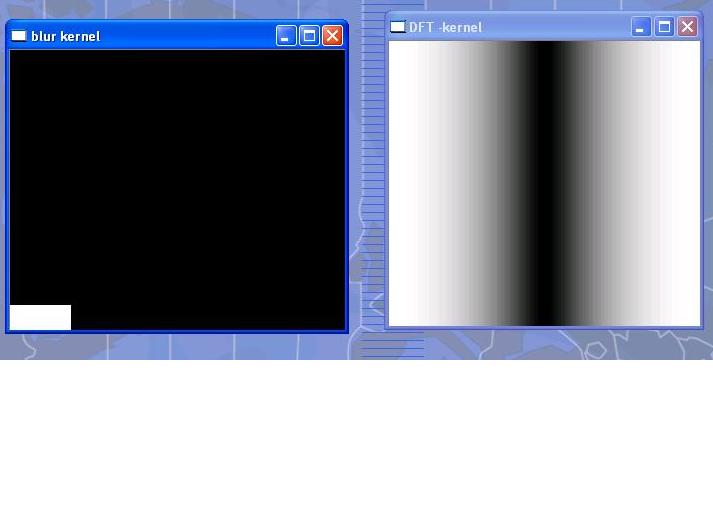
I tried with various values of SIGMA. The best value was SIGMA = 0.014089642. I get just one pixel with a value of > 0.  This is shown below.

I also tried various values of K. The larger the K the clearer was the DFT INVERSE. This was the best I got.

I am still nowhere near removing the blur but I will get there sometime in the future.
Any and all comments welcome.

Note: You can clone the code from GitHub: Weiner filter reloaded

I am including the code executed with Visual Studio 2010 express

//======================================================================================================================
// Wiener filter implemention using Gaussian blur kernel
// Developed by: Tinniam V Ganesh
// Date: 11 May 2012
//======================================================================================================================
#include “stdafx.h”
#include “math.h”
#include <cxcore.h>
#include <cv.h>
#include <highgui.h>

#define kappa 10000
int main(int argc, char ** argv)
{
int height,width,step,channels,depth;
uchar* data1;
CvMat *dft_A;
CvMat *dft_B;
CvMat *dft_C;
IplImage* im;
IplImage* im1;
IplImage* image_ReB;
IplImage* image_ImB;

IplImage* image_ReC;
IplImage* image_ImC;
IplImage* complex_ImC;
CvScalar val;
IplImage* k_image_hdr;
int i,j,k;

FILE *fp;
fp = fopen(“test.txt”,”w+”);
int dft_M,dft_N;
int dft_M1,dft_N1;

CvMat* cvShowDFT1(IplImage*, int, int,char*);
void cvShowInvDFT1(IplImage*, CvMat*, int, int,char*);

im1 = cvLoadImage(“kutty-1.jpg”);
cvNamedWindow(“Original-Color”, 0);
cvShowImage(“Original-Color”, im1);
im = cvLoadImage(“kutty-1.jpg”, CV_LOAD_IMAGE_GRAYSCALE );
if( !im )
return -1;

cvNamedWindow(“Original-Gray”, 0);
cvShowImage(“Original-Gray”, im);
IplImage* k_image;
int rowLength= 11;
long double kernels[11*11];
CvMat kernel;
int x,y;
long double PI_F=3.14159265358979;

//long double SIGMA = 0.84089642;
long double SIGMA = 0.014089642;
//long double SIGMA = 0.00184089642;
long double EPS = 2.718;
long double numerator,denominator;
long double value,value1;
long double a,b,c,d;

numerator = (pow((float)-3,2) + pow((float) 0,2))/(2*pow((float)SIGMA,2));
printf(“Numerator=%f\n”,numerator);
denominator = sqrt((float) (2 * PI_F * pow(SIGMA,2)));
printf(“denominator=%1.8f\n”,denominator);

value = (pow((float)EPS, (float)-numerator))/denominator;
printf(“Value=%1.8f\n”,value);
for(x = -5; x < 6; x++){
for (y = -5; y < 6; y++)
{
//numerator = (pow((float)x,2) + pow((float) y,2))/(2*pow((float)SIGMA,2));
numerator = (pow((float)x,2) + pow((float)y,2))/(2.0*pow(SIGMA,2));
denominator = sqrt((2.0 * 3.14159265358979 * pow(SIGMA,2)));
value = (pow(EPS,-numerator))/denominator;
printf(” %1.8f “,value);
kernels[x*rowLength +y+55] = (float)value;

}
printf(“\n”);
}
printf(“———————————\n”);
for (i=-5; i < 6; i++){
for(j=-5;j < 6;j++){
printf(” %1.8f “,kernels[i*rowLength +j+55]);
}
printf(“\n”);
}
kernel= cvMat(rowLength, // number of rows
rowLength, // number of columns
CV_32FC1, // matrix data type
&kernels);
k_image_hdr = cvCreateImageHeader( cvSize(rowLength,rowLength), IPL_DEPTH_32F,1);
k_image = cvGetImage(&kernel,k_image_hdr);

height = k_image->height;
width = k_image->width;
step = k_image->widthStep/sizeof(float);
depth = k_image->depth;
channels = k_image->nChannels;
//data1 = (float *)(k_image->imageData);
data1 = (uchar *)(k_image->imageData);
cvNamedWindow(“blur kernel”, 0);
cvShowImage(“blur kernel”, k_image);

dft_M = cvGetOptimalDFTSize( im->height – 1 );
dft_N = cvGetOptimalDFTSize( im->width – 1 );
//dft_M1 = cvGetOptimalDFTSize( im->height+99 – 1 );
//dft_N1 = cvGetOptimalDFTSize( im->width+99 – 1 );
dft_M1 = cvGetOptimalDFTSize( im->height+3 – 1 );
dft_N1 = cvGetOptimalDFTSize( im->width+3 – 1 );
printf(“dft_N1=%d,dft_M1=%d\n”,dft_N1,dft_M1);

// Perform DFT of original image
dft_A = cvShowDFT1(im, dft_M1, dft_N1,”original”);
//Perform inverse (check)
//cvShowInvDFT1(im,dft_A,dft_M1,dft_N1, “original”); – Commented as it overwrites the DFT
// Perform DFT of kernel
dft_B = cvShowDFT1(k_image,dft_M1,dft_N1,”kernel”);
//Perform inverse of kernel (check)
//cvShowInvDFT1(k_image,dft_B,dft_M1,dft_N1, “kernel”);- Commented as it overwrites the DFT
// Multiply numerator with complex conjugate
dft_C = cvCreateMat( dft_M1, dft_N1, CV_64FC2 );
printf(“%d %d %d %d\n”,dft_M,dft_N,dft_M1,dft_N1);

// Multiply DFT(blurred image) * complex conjugate of blur kernel
cvMulSpectrums(dft_A,dft_B,dft_C,CV_DXT_MUL_CONJ);
//cvShowInvDFT1(im,dft_C,dft_M1,dft_N1,”blur1?);

// Split Fourier in real and imaginary parts
image_ReC = cvCreateImage( cvSize(dft_N1, dft_M1), IPL_DEPTH_64F, 1);
image_ImC = cvCreateImage( cvSize(dft_N1, dft_M1), IPL_DEPTH_64F, 1);
complex_ImC = cvCreateImage( cvSize(dft_N1, dft_M1), IPL_DEPTH_64F, 2);
printf(“%d %d %d %d\n”, dft_M,dft_N,dft_M1,dft_N1);
//cvSplit( dft_C, image_ReC, image_ImC, 0, 0 );
cvSplit( dft_C, image_ReC, image_ImC, 0, 0 );

// Compute A^2 + B^2 of denominator or blur kernel
image_ReB = cvCreateImage( cvSize(dft_N1, dft_M1), IPL_DEPTH_64F, 1);
image_ImB = cvCreateImage( cvSize(dft_N1, dft_M1), IPL_DEPTH_64F, 1);

// Split Real and imaginary parts
cvSplit( dft_B, image_ReB, image_ImB, 0, 0 );
cvPow( image_ReB, image_ReB, 2.0);
cvPow( image_ImB, image_ImB, 2.0);
cvAdd(image_ReB, image_ImB, image_ReB,0);
val = cvScalarAll(kappa);
cvAddS(image_ReB,val,image_ReB,0);
//Divide Numerator/A^2 + B^2
cvDiv(image_ReC, image_ReB, image_ReC, 1.0);
cvDiv(image_ImC, image_ReB, image_ImC, 1.0);

// Merge Real and complex parts
cvMerge(image_ReC, image_ImC, NULL, NULL, complex_ImC);
// Perform Inverse
cvShowInvDFT1(im, (CvMat *)complex_ImC,dft_M1,dft_N1,”Weiner o/p k=10000 SIGMA=0.014089642″);
cvWaitKey(-1);
return 0;
}

CvMat* cvShowDFT1(IplImage* im, int dft_M, int dft_N,char* src)
{
IplImage* realInput;
IplImage* imaginaryInput;
IplImage* complexInput;
CvMat* dft_A, tmp;
IplImage* image_Re;
IplImage* image_Im;
char str[80];
double m, M;
realInput = cvCreateImage( cvGetSize(im), IPL_DEPTH_64F, 1);
imaginaryInput = cvCreateImage( cvGetSize(im), IPL_DEPTH_64F, 1);
complexInput = cvCreateImage( cvGetSize(im), IPL_DEPTH_64F, 2);
cvScale(im, realInput, 1.0, 0.0);
cvZero(imaginaryInput);
cvMerge(realInput, imaginaryInput, NULL, NULL, complexInput);

dft_A = cvCreateMat( dft_M, dft_N, CV_64FC2 );
image_Re = cvCreateImage( cvSize(dft_N, dft_M), IPL_DEPTH_64F, 1);
image_Im = cvCreateImage( cvSize(dft_N, dft_M), IPL_DEPTH_64F, 1);

// copy A to dft_A and pad dft_A with zeros
cvGetSubRect( dft_A, &tmp, cvRect(0,0, im->width, im->height));
cvCopy( complexInput, &tmp, NULL );
if( dft_A->cols > im->width )
{
cvGetSubRect( dft_A, &tmp, cvRect(im->width,0, dft_A->cols – im->width, im->height));
cvZero( &tmp );
}
// no need to pad bottom part of dft_A with zeros because of
// use nonzero_rows parameter in cvDFT() call below

cvDFT( dft_A, dft_A, CV_DXT_FORWARD, complexInput->height );
strcpy(str,”DFT -“);
strcat(str,src);
cvNamedWindow(str, 0);

// Split Fourier in real and imaginary parts
cvSplit( dft_A, image_Re, image_Im, 0, 0 );
// Compute the magnitude of the spectrum Mag = sqrt(Re^2 + Im^2)
cvPow( image_Re, image_Re, 2.0);
cvPow( image_Im, image_Im, 2.0);
cvAdd( image_Re, image_Im, image_Re, NULL);
cvPow( image_Re, image_Re, 0.5 );

// Compute log(1 + Mag)
cvAddS( image_Re, cvScalarAll(1.0), image_Re, NULL ); // 1 + Mag
cvLog( image_Re, image_Re ); // log(1 + Mag)
cvMinMaxLoc(image_Re, &m, &M, NULL, NULL, NULL);
cvScale(image_Re, image_Re, 1.0/(M-m), 1.0*(-m)/(M-m));
cvShowImage(str, image_Re);
return(dft_A);
}

void cvShowInvDFT1(IplImage* im, CvMat* dft_A, int dft_M, int dft_N,char* src)
{
IplImage* realInput;
IplImage* imaginaryInput;
IplImage* complexInput;
IplImage * image_Re;
IplImage * image_Im;
double m, M;
char str[80];
realInput = cvCreateImage( cvGetSize(im), IPL_DEPTH_64F, 1);
imaginaryInput = cvCreateImage( cvGetSize(im), IPL_DEPTH_64F, 1);
complexInput = cvCreateImage( cvGetSize(im), IPL_DEPTH_64F, 2);
image_Re = cvCreateImage( cvSize(dft_N, dft_M), IPL_DEPTH_64F, 1);
image_Im = cvCreateImage( cvSize(dft_N, dft_M), IPL_DEPTH_64F, 1);

//cvDFT( dft_A, dft_A, CV_DXT_INV_SCALE, complexInput->height );
cvDFT( dft_A, dft_A, CV_DXT_INV_SCALE, dft_M);
strcpy(str,”DFT INVERSE – “);
strcat(str,src);
cvNamedWindow(str, 0);
// Split Fourier in real and imaginary parts
cvSplit( dft_A, image_Re, image_Im, 0, 0 );
// Compute the magnitude of the spectrum Mag = sqrt(Re^2 + Im^2)
cvPow( image_Re, image_Re, 2.0);
cvPow( image_Im, image_Im, 2.0);
cvAdd( image_Re, image_Im, image_Re, NULL);
cvPow( image_Re, image_Re, 0.5 );

// Compute log(1 + Mag)
cvAddS( image_Re, cvScalarAll(1.0), image_Re, NULL ); // 1 + Mag
cvLog( image_Re, image_Re ); // log(1 + Mag)
cvMinMaxLoc(image_Re, &m, &M, NULL, NULL, NULL);
cvScale(image_Re, image_Re, 1.0/(M-m), 1.0*(-m)/(M-m));
//cvCvtColor(image_Re, image_Re, CV_GRAY2RGBA);
cvShowImage(str, image_Re);
}

See also
– Experiments with deblurring using OpenCV
– De-blurring revisited with Wiener filter using OpenCV
–  Dabbling with Wiener filter using OpenCV
– Re-working the Lucy-Richardson Algorithm in OpenCV

You may also like
1.  What’s up Watson? Using IBM Watson’s QAAPI with Bluemix, NodeExpress – Part 1
2.  Bend it like Bluemix, MongoDB with autoscaling – Part 1
3. Informed choices through Machine Learning : Analyzing Kohli, Tendulkar and Dravid
4. A crime map of India in R: Crimes against women

Find me on Google+

Powershell GUI – Adding bells and whistles

In my previous post “Getting your feet wet with Powershell GUI” I had mentioned how difficult it was get a concise documentation on creating Powershell GUI. To my surprise I discovered that there is a real cool tool developed by Sapien Technologies that allows you to create a Powershell GUI. They have a free Powershell Form creator – Primal Forms Community Creator” which enables you to create a nifty GUI. I was able to create a neat Form and then fill in the details of actually manipulating the controls I added. For details about the controls of a textBox, comboBox etc in Powershell refer to the MSDN library. This was the Powershell GUI I had created.

I have included the code below to execute some basic commands

Note: You can clone the code below from GitHub : Creating a GUI in powershell

#########################################################################################################
# Developed by Tinniam V Ganesh
# Date 24 Apr 2012
# Powershell GUI generated by Primal Forms CE from Sapien Technologies (http://www.sapien.com/)
#########################################################################################################
function Get-SysInfo ($strComputer)
{
write-host “reached here”
$statusBar1.Text =”Working …”
if ($radiobutton1.checked -eq $True)
{
$wmi = Get-WmiObject Win32_ComputerSystem -Namespace “root\CIMV2″ -ComputerName $strComputer|Export-csv -force “test.csv”
}
else
{
$wmi =Get-WmiObject Win32_ComputerSystem -Namespace “root\CIMV2″ -ComputerName $strComputer|ConvertTo-Html|out-file -append “test.html”
}

$statusBar1.Text =”Done.”
}

#*=============================================================================
Function Get-BIOSInfo ($strComputer)
{
$statusBar1.Text =”Working …”
if ($radiobutton1.checked -eq $True)
{
$wmi = Get-WmiObject Win32_BIOS -Namespace “root\CIMV2″ -computername $strComputer|Export-csv -force “test.csv”
}
else
{
$wmi = Get-WmiObject Win32_BIOS -Namespace “root\CIMV2″ -computername $strComputer|ConvertTo-Html|out-file -append “test.html”
}

$statusBar1.Text =”Done.”
}

Function Get-OSInfo {
$statusBar1.Text =”Working …”
if ($radiobutton1.checked -eq $True)
{
$wmi = Get-WmiObject Win32_OperatingSystem -Namespace “root\CIMV2″ -Computername $strComputer|Export-csv -force “test.csv”
}
else
{
$wmi = Get-WmiObject Win32_OperatingSystem -Namespace “root\CIMV2″ -Computername $strComputer|out-file -append “test.html”
}

$statusBar1.Text =”Done.”
}

Function Get-CPUInfo {

$statusBar1.Text =”Working …”
if ($radiobutton1.checked -eq $True)
{
$wmi = Get-WmiObject Win32_Processor -Namespace “root\CIMV2″ -Computername $strComputer|Export-csv -force “test.csv”
}
else
{
$wmi = Get-WmiObject Win32_Processor -Namespace “root\CIMV2″ -Computername $strComputer|out-file -append “test.html”
}

$statusBar1.Text =”Done.”
}

Function Get-DiskInfo {

$statusBar1.Text =”Working …”
if ($radiobutton1.checked -eq $True)
{
$wmi = Get-WmiObject Win32_DiskDrive -Namespace “root\CIMV2″ -ComputerName $strComputer|Export-csv -force “test.csv”
}
else
{
$wmi = Get-WmiObject Win32_DiskDrive -Namespace “root\CIMV2″ -ComputerName $strComputer|out-file -append “test.html”
}

$statusBar1.Text =”Done.”
}

Function Get-NetworkInfo {

$statusBar1.Text =”Working …”
if ($radiobutton1.checked -eq $True)
{
$wmi = Get-WmiObject Win32_NetworkAdapterConfiguration -Namespace “root\CIMV2″ -ComputerName $strComputer | where{$_.IPEnabled -eq “True”}|Export-csv -noclobber “test.csv”
}
else
{
$wmi = Get-WmiObject Win32_NetworkAdapterConfiguration -Namespace “root\CIMV2″ -ComputerName $strComputer | where{$_.IPEnabled -eq “True”}|out-file -append “test.html”
}

$statusBar1.Text =”Done.”
}

#Generated Form Function
function GenerateForm {
########################################################################
# Code Generated By: SAPIEN Technologies PrimalForms (Community Edition) v1.0.10.0
# Generated On: 4/24/2012 2:46 PM
# Generated By: tvganesh
########################################################################

#region Import the Assemblies
[reflection.assembly]::loadwithpartialname(“System.Windows.Forms”) | Out-Null
[reflection.assembly]::loadwithpartialname(“System.Drawing”) | Out-Null
#endregion

#region Generated Form Objects
$form1 = New-Object System.Windows.Forms.Form
$statusBar1 = New-Object System.Windows.Forms.StatusBar
$label2 = New-Object System.Windows.Forms.Label
$button3 = New-Object System.Windows.Forms.Button
$button2 = New-Object System.Windows.Forms.Button
$tabControl1 = New-Object System.Windows.Forms.TabControl
$tabControl = New-Object System.Windows.Forms.TabPage
$groupBox1 = New-Object System.Windows.Forms.GroupBox
$radioButton2 = New-Object System.Windows.Forms.RadioButton
$radioButton1 = New-Object System.Windows.Forms.RadioButton
$label1 = New-Object System.Windows.Forms.Label
$textBox1 = New-Object System.Windows.Forms.TextBox
$comboBox1 = New-Object System.Windows.Forms.ComboBox
$Database = New-Object System.Windows.Forms.TabPage
$tabPage1 = New-Object System.Windows.Forms.TabPage
$tabPage2 = New-Object System.Windows.Forms.TabPage
$button1 = New-Object System.Windows.Forms.Button
$fontDialog1 = New-Object System.Windows.Forms.FontDialog
$InitialFormWindowState = New-Object System.Windows.Forms.FormWindowState
#endregion Generated Form Objects

#———————————————-
#Generated Event Script Blocks
#———————————————-
#Provide Custom Code for events specified in PrimalForms.
$button3_OnClick=
{
$form1.Close()

}

$button2_OnClick=
{
$textBox1.text=””
# Set to the first item
$comboBox1.SelectedIndex = 0;

}

$handler_button1_Click=
{
$x = $textbox1.text
$vals = $x.split(“,”)
forEach($strComputer in $vals)
{
switch($combobox1.selectedItem)
{
“SysInfo” {Get-SysInfo ($strComputer)}
“BiosInfo” {Get-BiosInfo($strComputer)}
“CPUInfo” {Get-cpuInfo($strComputer)}
“DiskInfo” {Get-diskInfo($strComputer)}
“OSInfo” {Get-OSInfo($strCOmputer)}
“NetworkInfo” {Get-NetworkInfo($strComputer)}
}
}
}

$OnLoadForm_StateCorrection=
{#Correct the initial state of the form to prevent the .Net maximized form issue
$form1.WindowState = $InitialFormWindowState
}

#———————————————-
#region Generated Form Code
$System_Drawing_Size = New-Object System.Drawing.Size
$System_Drawing_Size.Height = 444
$System_Drawing_Size.Width = 704
$form1.ClientSize = $System_Drawing_Size
$form1.DataBindings.DefaultDataSourceUpdateMode = 0
$form1.Name = “form1”
$form1.Text = “Primal Form”

$statusBar1.DataBindings.DefaultDataSourceUpdateMode = 0
$System_Drawing_Point = New-Object System.Drawing.Point
$System_Drawing_Point.X = 0
$System_Drawing_Point.Y = 422
$statusBar1.Location = $System_Drawing_Point
$statusBar1.Name = “statusBar1”
$System_Drawing_Size = New-Object System.Drawing.Size
$System_Drawing_Size.Height = 22
$System_Drawing_Size.Width = 704
$statusBar1.Size = $System_Drawing_Size
$statusBar1.TabIndex = 8
$statusBar1.Text = “Ready”

$form1.Controls.Add($statusBar1)

$label2.DataBindings.DefaultDataSourceUpdateMode = 0
$label2.Font = New-Object System.Drawing.Font(“Microsoft Sans Serif”,14.25,1,3,1)

$System_Drawing_Point = New-Object System.Drawing.Point
$System_Drawing_Point.X = 205
$System_Drawing_Point.Y = 22
$label2.Location = $System_Drawing_Point
$label2.Name = “label2”
$System_Drawing_Size = New-Object System.Drawing.Size
$System_Drawing_Size.Height = 34
$System_Drawing_Size.Width = 341
$label2.Size = $System_Drawing_Size
$label2.TabIndex = 7
$label2.Text = “Windows Resource Management”

$form1.Controls.Add($label2)
$button3.DataBindings.DefaultDataSourceUpdateMode = 0

$System_Drawing_Point = New-Object System.Drawing.Point
$System_Drawing_Point.X = 439
$System_Drawing_Point.Y = 343
$button3.Location = $System_Drawing_Point
$button3.Name = “button3”
$System_Drawing_Size = New-Object System.Drawing.Size
$System_Drawing_Size.Height = 23
$System_Drawing_Size.Width = 75
$button3.Size = $System_Drawing_Size
$button3.TabIndex = 6
$button3.Text = “Exit”
$button3.UseVisualStyleBackColor = $True
$button3.add_Click($button3_OnClick)

$form1.Controls.Add($button3)
$button2.DataBindings.DefaultDataSourceUpdateMode = 0

$System_Drawing_Point = New-Object System.Drawing.Point
$System_Drawing_Point.X = 330
$System_Drawing_Point.Y = 343
$button2.Location = $System_Drawing_Point
$button2.Name = “button2”
$System_Drawing_Size = New-Object System.Drawing.Size
$System_Drawing_Size.Height = 23
$System_Drawing_Size.Width = 75
$button2.Size = $System_Drawing_Size
$button2.TabIndex = 5
$button2.Text = “Cancel”
$button2.UseVisualStyleBackColor = $True
$button2.add_Click($button2_OnClick)

$form1.Controls.Add($button2)

$tabControl1.DataBindings.DefaultDataSourceUpdateMode = 0
$System_Drawing_Point = New-Object System.Drawing.Point
$System_Drawing_Point.X = 136
$System_Drawing_Point.Y = 83
$tabControl1.Location = $System_Drawing_Point
$tabControl1.Name = “tabControl1”
$tabControl1.SelectedIndex = 0
$tabControl1.ShowToolTips = $True
$System_Drawing_Size = New-Object System.Drawing.Size
$System_Drawing_Size.Height = 231
$System_Drawing_Size.Width = 453
$tabControl1.Size = $System_Drawing_Size
$tabControl1.TabIndex = 4

$form1.Controls.Add($tabControl1)
$tabControl.DataBindings.DefaultDataSourceUpdateMode = 0
$System_Drawing_Point = New-Object System.Drawing.Point
$System_Drawing_Point.X = 4
$System_Drawing_Point.Y = 22
$tabControl.Location = $System_Drawing_Point
$tabControl.Name = “tabControl”
$System_Windows_Forms_Padding = New-Object System.Windows.Forms.Padding
$System_Windows_Forms_Padding.All = 3
$System_Windows_Forms_Padding.Bottom = 3
$System_Windows_Forms_Padding.Left = 3
$System_Windows_Forms_Padding.Right = 3
$System_Windows_Forms_Padding.Top = 3
$tabControl.Padding = $System_Windows_Forms_Padding
$System_Drawing_Size = New-Object System.Drawing.Size
$System_Drawing_Size.Height = 205
$System_Drawing_Size.Width = 445
$tabControl.Size = $System_Drawing_Size
$tabControl.TabIndex = 0
$tabControl.Text = “Basic Commands”
$tabControl.UseVisualStyleBackColor = $True

$tabControl1.Controls.Add($tabControl)

$groupBox1.DataBindings.DefaultDataSourceUpdateMode = 0
$System_Drawing_Point = New-Object System.Drawing.Point
$System_Drawing_Point.X = 271
$System_Drawing_Point.Y = 123
$groupBox1.Location = $System_Drawing_Point
$groupBox1.Name = “groupBox1”
$System_Drawing_Size = New-Object System.Drawing.Size
$System_Drawing_Size.Height = 49
$System_Drawing_Size.Width = 124
$groupBox1.Size = $System_Drawing_Size
$groupBox1.TabIndex = 3
$groupBox1.TabStop = $False
$groupBox1.Text = “Save As”

$tabControl.Controls.Add($groupBox1)

$radioButton2.DataBindings.DefaultDataSourceUpdateMode = 0

$System_Drawing_Point = New-Object System.Drawing.Point
$System_Drawing_Point.X = 48
$System_Drawing_Point.Y = 19
$radioButton2.Location = $System_Drawing_Point
$radioButton2.Name = “radioButton2”
$System_Drawing_Size = New-Object System.Drawing.Size
$System_Drawing_Size.Height = 24
$System_Drawing_Size.Width = 104
$radioButton2.Size = $System_Drawing_Size
$radioButton2.TabIndex = 1
$radioButton2.TabStop = $True
$radioButton2.Text = “HTML”
$radioButton2.UseVisualStyleBackColor = $True

$groupBox1.Controls.Add($radioButton2)
$radioButton1.DataBindings.DefaultDataSourceUpdateMode = 0

$System_Drawing_Point = New-Object System.Drawing.Point
$System_Drawing_Point.X = 6
$System_Drawing_Point.Y = 19
$radioButton1.Location = $System_Drawing_Point
$radioButton1.Name = “radioButton1”
$System_Drawing_Size = New-Object System.Drawing.Size
$System_Drawing_Size.Height = 24
$System_Drawing_Size.Width = 104
$radioButton1.Size = $System_Drawing_Size
$radioButton1.TabIndex = 0
$radioButton1.TabStop = $True
$radioButton1.Text = “CSV”
$radioButton1.UseVisualStyleBackColor = $True
$radioButton1.checked =$True

$groupBox1.Controls.Add($radioButton1)
$label1.DataBindings.DefaultDataSourceUpdateMode = 0

$System_Drawing_Point = New-Object System.Drawing.Point
$System_Drawing_Point.X = 6
$System_Drawing_Point.Y = 26
$label1.Location = $System_Drawing_Point
$label1.Name = “label1”
$System_Drawing_Size = New-Object System.Drawing.Size
$System_Drawing_Size.Height = 20
$System_Drawing_Size.Width = 192
$label1.Size = $System_Drawing_Size
$label1.TabIndex = 2
$label1.Text = “Enter comma separated server list”

$tabControl.Controls.Add($label1)

$textBox1.DataBindings.DefaultDataSourceUpdateMode = 0
$System_Drawing_Point = New-Object System.Drawing.Point
$System_Drawing_Point.X = 220
$System_Drawing_Point.Y = 26
$textBox1.Location = $System_Drawing_Point
$textBox1.Name = “textBox1”
$System_Drawing_Size = New-Object System.Drawing.Size
$System_Drawing_Size.Height = 20
$System_Drawing_Size.Width = 203
$textBox1.Size = $System_Drawing_Size
$textBox1.TabIndex = 1

$tabControl.Controls.Add($textBox1)

$comboBox1.DataBindings.DefaultDataSourceUpdateMode = 0
$comboBox1.FormattingEnabled = $True
$System_Drawing_Point = New-Object System.Drawing.Point
$System_Drawing_Point.X = 220
$System_Drawing_Point.Y = 79
$comboBox1.Location = $System_Drawing_Point
$comboBox1.Name = “comboBox1”
$System_Drawing_Size = New-Object System.Drawing.Size
$System_Drawing_Size.Height = 21
$System_Drawing_Size.Width = 200
$comboBox1.Size = $System_Drawing_Size
$comboBox1.TabIndex = 0

$commands = @(“SysInfo”,”BIOSInfo”,”OSInfo”,”CPUInfo”,”DiskInfo”,”NetworkInfo”)
ForEach ($command in $commands){
$comboBox1.items.add($command)
}
$tabControl.Controls.Add($comboBox1)

# Set to the first item
$comboBox1.SelectedIndex = 0;
$Database.DataBindings.DefaultDataSourceUpdateMode = 0
$System_Drawing_Point = New-Object System.Drawing.Point
$System_Drawing_Point.X = 4
$System_Drawing_Point.Y = 22
$Database.Location = $System_Drawing_Point
$Database.Name = “Database”
$System_Windows_Forms_Padding = New-Object System.Windows.Forms.Padding
$System_Windows_Forms_Padding.All = 3
$System_Windows_Forms_Padding.Bottom = 3
$System_Windows_Forms_Padding.Left = 3
$System_Windows_Forms_Padding.Right = 3
$System_Windows_Forms_Padding.Top = 3
$Database.Padding = $System_Windows_Forms_Padding
$System_Drawing_Size = New-Object System.Drawing.Size
$System_Drawing_Size.Height = 205
$System_Drawing_Size.Width = 445
$Database.Size = $System_Drawing_Size
$Database.TabIndex = 1
$Database.Text = “Database”
$Database.UseVisualStyleBackColor = $True

$tabControl1.Controls.Add($Database)

$tabPage1.DataBindings.DefaultDataSourceUpdateMode = 0
$System_Drawing_Point = New-Object System.Drawing.Point
$System_Drawing_Point.X = 4
$System_Drawing_Point.Y = 22
$tabPage1.Location = $System_Drawing_Point
$tabPage1.Name = “tabPage1”
$System_Windows_Forms_Padding = New-Object System.Windows.Forms.Padding
$System_Windows_Forms_Padding.All = 3
$System_Windows_Forms_Padding.Bottom = 3
$System_Windows_Forms_Padding.Left = 3
$System_Windows_Forms_Padding.Right = 3
$System_Windows_Forms_Padding.Top = 3
$tabPage1.Padding = $System_Windows_Forms_Padding
$System_Drawing_Size = New-Object System.Drawing.Size
$System_Drawing_Size.Height = 205
$System_Drawing_Size.Width = 445
$tabPage1.Size = $System_Drawing_Size
$tabPage1.TabIndex = 2
$tabPage1.Text = “Active Directory”
$tabPage1.UseVisualStyleBackColor = $True

$tabControl1.Controls.Add($tabPage1)

$tabPage2.DataBindings.DefaultDataSourceUpdateMode = 0
$System_Drawing_Point = New-Object System.Drawing.Point
$System_Drawing_Point.X = 4
$System_Drawing_Point.Y = 22
$tabPage2.Location = $System_Drawing_Point
$tabPage2.Name = “tabPage2”
$System_Windows_Forms_Padding = New-Object System.Windows.Forms.Padding
$System_Windows_Forms_Padding.All = 3
$System_Windows_Forms_Padding.Bottom = 3
$System_Windows_Forms_Padding.Left = 3
$System_Windows_Forms_Padding.Right = 3
$System_Windows_Forms_Padding.Top = 3
$tabPage2.Padding = $System_Windows_Forms_Padding
$System_Drawing_Size = New-Object System.Drawing.Size
$System_Drawing_Size.Height = 205
$System_Drawing_Size.Width = 445
$tabPage2.Size = $System_Drawing_Size
$tabPage2.TabIndex = 3
$tabPage2.Text = “Backup & Restore”
$tabPage2.UseVisualStyleBackColor = $True

$tabControl1.Controls.Add($tabPage2)

$button1.DataBindings.DefaultDataSourceUpdateMode = 0

$System_Drawing_Point = New-Object System.Drawing.Point
$System_Drawing_Point.X = 226
$System_Drawing_Point.Y = 343
$button1.Location = $System_Drawing_Point
$button1.Name = “button1”
$System_Drawing_Size = New-Object System.Drawing.Size
$System_Drawing_Size.Height = 23
$System_Drawing_Size.Width = 75
$button1.Size = $System_Drawing_Size
$button1.TabIndex = 0
$button1.Text = “Submit”
$button1.UseVisualStyleBackColor = $True
$button1.add_Click($handler_button1_Click)

$form1.Controls.Add($button1)

$fontDialog1.ShowHelp = $True

#endregion Generated Form Code

#Save the initial state of the form
$InitialFormWindowState = $form1.WindowState
#Init the OnLoad event to correct the initial state of the form
$form1.add_Load($OnLoadForm_StateCorrection)
#Show the Form
$form1.ShowDialog()| Out-Null

} #End Function

#Call the Function
GenerateForm

Related posts
1. Stir fry a VBA application quickly
2.Building a respectable VBA with Excel application
3. Get your feet wet with Powershell GUI
4. Powershell GUI – Adding bells and whistles
5. Slicing and dicing with LogParser & VBA
6. Adventures in LogParser, HTA and charts.

Also see
Brewing a potion with Bluemix, PostgreSQL, Node.js in the cloud
A Bluemix recipe with MongoDB and Node.js A Cloud medley with IBM Bluemix, Cloudant DB and Node.js
– A crime map of India in R: Crimes against women
– What’s up Watson? Using IBM Watson’s QAAPI with Bluemix, NodeExpress – Part 1
– Bend it like Bluemix, MongoDB with autoscaling – Part 1
– Analyzing cricket’s batting legends – Through the mirage with R
– Masters of spin: Unraveling the web with R


Find me on Google+

Get your feet wet with Powershell GUI

Here’s my latest attempt in creating a simple GUI using Powershell for Windows Resource Management Tasks. Powershell by itself is easy but there is hardly any documentation on the web for creating a cool GUI. You have to put together various bits and pieces by the trial and error method. Anyway I did come up with some success. However there is a lot to be desired. For some reason the results only show up when the GUI is closed through the Cancel or Exit button. Feel free to tweak the code as you please. The Windows Management Commands are some basic scripts taken from Powershell Pro.

This is the GUI I created. Do read my post Powershell GUI – Adding bells & whistles for creating a full-fledged Powershell GUI

Feel free to send me any comments.

[void] [System.Reflection.Assembly]::LoadWithPartialName(“System.Drawing”)
[void] [System.Reflection.Assembly]::LoadWithPartialName(“System.Windows.Forms”)

# Add functions
#*=============================================================================
Function BIOSInfo {
$colItems = Get-WmiObject Win32_BIOS -Namespace “root\CIMV2″ -computername $strComputer
foreach($objItem in $colItems) {
“—————————— Bios Info ———————”
“Computer Name: “+ $strComputer
“BIOS Characteristics: “+ $objItem.BiosCharacteristics
“BIOS Version: “+ $objItem.BIOSVersion
“Build Number: “+ $objItem.BuildNumber
“Caption: “+ $objItem.Caption
“Code Set: “+ $objItem.CodeSet
“Current Language: “+ $objItem.CurrentLanguage
“Description: “+ $objItem.Description
“Identification Code: “+ $objItem.IdentificationCode
“Installable Languages: “+ $objItem.InstallableLanguages
“Installation Date: “+ $objItem.InstallDate
“Language Edition: “+ $objItem.LanguageEdition
“List Of Languages: “+ $objItem.ListOfLanguages
“Manufacturer: “+ $objItem.Manufacturer
“Name: ” + $objItem.Name
“Other Target Operating System: “+ $objItem.OtherTargetOS
“Primary BIOS: “+ $objItem.PrimaryBIOS
“Release Date: “+ $objItem.ReleaseDate
“Serial Number: “+ $objItem.SerialNumber
“SMBIOS BIOS Version: “+ $objItem.SMBIOSBIOSVersion
“SMBIOS Major Version: “+ $objItem.SMBIOSMajorVersion
“SMBIOS Minor Version: “+ $objItem.SMBIOSMinorVersion
“SMBIOS Present: “+ $objItem.SMBIOSPresent
“Software Element ID: “+ $objItem.SoftwareElementID
“Software Element State: “+ $objItem.SoftwareElementState
“Status: “+ $objItem.Status
“Target Operating System: “+ $objItem.TargetOperatingSystem
“Version: “+ $objItem.Version

}
}

Function OSInfo {
$colItems = Get-WmiObject Win32_OperatingSystem -Namespace “root\CIMV2” -Computername $strComputer
foreach($objItem in $colItems) {
“—————————— OS Info ———————”
“Computer Name: “+ $strComputer
“Operating System:” + $objItem.Name
}
}

Function CPUInfo {
$colItems = Get-WmiObject Win32_Processor -Namespace “root\CIMV2” -Computername $strComputer
foreach($objItem in $colItems) {
“————————CPU Info ————————-”
“Computer Name: “+ $strComputer
“Caption: ”+ $objItem.Caption
“CPU Status: ”+ $objItem.CpuStatus
“Current Clock Speed: ”+ $objItem.CurrentClockSpeed
“Device ID: ”+ $objItem.DeviceID
“L2 Cache Size: ”+ $objItem.L2CacheSize
“L2 Cache Speed: ”+ $objItem.L2CacheSpeed
“Name: ”+ $objItem.Name
“System Name:” + $objItem.SystemName

}
}

Function DiskInfo {
$colItems = Get-WmiObject Win32_DiskDrive -Namespace “root\CIMV2″ -ComputerName $strComputer
foreach($objItem in $colItems) {
“————————- Disk Info ——————–”
“Computer Name: “+ $strComputer
“Description: ”+ $objItem.Description
“Device ID: ”+ $objItem.DeviceID
“Interface Type: ”+ $objItem.InterfaceType
“Media Type: ”+ $objItem.MediaType
“Model: ”+ $objItem.Model
“Partitions: ”+ $objItem.Partitions
“Size: ”+ $objItem.Size
“Status: ”+ $objItem.Status

}
}

Function NetworkInfo {
$colItems = Get-WmiObject Win32_NetworkAdapterConfiguration -Namespace “root\CIMV2” -ComputerName $strComputer | where{$_.IPEnabled -eq “True”}
foreach($objItem in $colItems) {
“—————————— Network Info ———————”
“Computer Name: “+ $strComputer
“DHCP Enabled:” + $objItem.DHCPEnabled
“IP Address:” + $objItem.IPAddress
“Subnet Mask:” + $objItem.IPSubnet
“Gateway:” + $objItem.DefaultIPGateway
“MAC Address:” + $ojbItem.MACAddress
}
}
Function SysInfo {

$colItems = Get-WmiObject Win32_ComputerSystem -Namespace “root\CIMV2” -ComputerName $strComputer
foreach($objItem in $colItems) {
“—————————— Sys Info ———————”
“Computer Name: “+ $strComputer
“Computer Manufacturer: ” + $objItem.Manufacturer
“Computer Model: ” + $objItem.Model
“Total Memory: ” + $objItem.TotalPhysicalMemory + “bytes”
}
}

# Create a GUI Form
$objForm = New-Object System.Windows.Forms.Form
$objForm.Text = “Data Entry Form”
$objForm.Size = New-Object System.Drawing.Size(800,600)
$objForm.StartPosition = “CenterScreen”

$objForm.KeyPreview = $True
#$objForm.Add_KeyDown({if ($_.KeyCode -eq “Enter”)
# {$x=$objTextBox.Text;$objForm.Close()}})
$objForm.Add_KeyDown({if ($_.KeyCode -eq “Escape”)
{$objForm.Close()}})

# Add a drop-down Combo box
$objComboBox = New-Object System.Windows.Forms.Combobox
$objComboBox.Location = New-Object System.Drawing.Size(250,250)
$objComboBox.Size = New-Object System.Drawing.Size(280,20)
$objComboBox.Text = “Please select”

# Add items to Combo box
$commands = @(“SysInfo”,”BIOSInfo”,”OSInfo”,”CPUInfo”,”DiskInfo”,”NetworkInfo”)
ForEach ($command in $commands){
$objComboBox.items.add($command)
}

# Add combo box to Userform
$objForm.Controls.Add($objComboBox)

# Set to the first item
$objComboBox.SelectedIndex = 0;

# Set selection to ComboBox selected text.
$selection = $objComboBox.Text;
write-host $selection

# Add a text box to the Userform
$objTextBox = New-Object System.Windows.Forms.TextBox
$objTextBox.Location = New-Object System.Drawing.Size(250,200)
$objTextBox.Size = New-Object System.Drawing.Size(280,20)
$objForm.Controls.Add($objTextBox)

# Add an OK button and name it as “Submit”
$OKButton = New-Object System.Windows.Forms.Button
$OKButton.Location = New-Object System.Drawing.Size(250,400)
$OKButton.Size = New-Object System.Drawing.Size(75,25)
$OKButton.Text = “Submit”
$objForm.Controls.Add($OKButton)

# Add a Cancel button
$CancelButton = New-Object System.Windows.Forms.Button
$CancelButton.Location = New-Object System.Drawing.Size(350,400)
$CancelButton.Size = New-Object System.Drawing.Size(75,23)
$CancelButton.Text = “Cancel”
$CancelButton.Add_Click({$objForm.Close()})
$objForm.Controls.Add($CancelButton)

# Add an Exit button
$ExitButton = New-Object System.Windows.Forms.Button
$ExitButton.Location = New-Object System.Drawing.Size(450,400)
$ExitButton.Size = New-Object System.Drawing.Size(75,23)
$ExitButton.Text = “Exit”
$ExitButton.Add_Click({$objForm.Close()})
$objForm.Controls.Add($ExitButton)

# Add a Text label
$objLabel = New-Object System.Windows.Forms.Label
$objLabel.Location = New-Object System.Drawing.Size(250,180)
$objLabel.Size = New-Object System.Drawing.Size(280,20)
$objLabel.Text = “Please enter a comma separated list of servers:”
$objForm.Controls.Add($objLabel)

# Add a Text label
$objLabel = New-Object System.Windows.Forms.Label
$objLabel.Location = New-Object System.Drawing.Size(260,100)
$objLabel.Size = New-Object System.Drawing.Size(280,20)
$objLabel.Text = “Windows Resource Management Tool”
$objForm.Controls.Add($objLabel)

# Set form on top
$objForm.Topmost = $True

# Show fim
$objForm.Add_Shown({$objForm.Activate()})
[void] $objForm.ShowDialog()

$x = $objTextbox.text
$vals = $x.split(“,”)
foreach ($strComputer in $vals){
write-host $strComputer
}

$OKButton.Add_Click({

switch ($objComboBox.SelectedItem)
{
“SysInfo” {SysInfo}
“BIOSInfo” {BiosInfo}
“OSInfo” {OSInfo}
“CPUInfo” {CPUInfo}
“DiskInfo” {DiskInfo}
“NetworkInfo” {NetworkInfo}

}
$objForm.Close()})

# Set selection to ComboBox selected text.
$selection = $objComboBox.Text;
write-host $selection
foreach ($strComputer in $vals){
switch($selection) {
“SysInfo” { SysInfo }
“BIOSInfo” {BiosInfo}
“OSInfo” {OSInfo}
“CPUInfo” {CPUInfo}
“DiskInfo” {DiskInfo}
“NetworkInfo” {NetworkInfo}
}
}

$x

Related posts
1. Stir fry a VBA application quickly
2.Building a respectable VBA with Excel application
3. Get your feet wet with Powershell GUI
4. Powershell GUI – Adding bells and whistles
5. Slicing and dicing with LogParser & VBA
6. Adventures in LogParser, HTA and charts.

Also see
Brewing a potion with Bluemix, PostgreSQL, Node.js in the cloud
A Bluemix recipe with MongoDB and Node.js A Cloud medley with IBM Bluemix, Cloudant DB and Node.js
– A crime map of India in R: Crimes against women
– What’s up Watson? Using IBM Watson’s QAAPI with Bluemix, NodeExpress – Part 1
– Bend it like Bluemix, MongoDB with autoscaling – Part 1
– Analyzing cricket’s batting legends – Through the mirage with R
– Masters of spin: Unraveling the web with R

Find me on Google+

Building a respectable VBA with Excel Application

VBA with Excel is not the right tool/language to solve mankind’s perennial question regarding the purpose of life. But it can come quite handy for several tasks for e.g. in quickly creating a Proof of Concept (PoC) or a prototype. It can also be quite useful for smaller tasks for e.g. 3G networks dimensioning, determining an investment portfolio, insurance schemes or maybe a smaller version of a Windows Resource Management tool.  To take a quick look at how put together a VBA application quickly take a look at my earlier post “Stir fry a VBA with Excel application quickly”.

This post takes a look at some key aspects in building a respectable, decent tool. Some of essential elements are as follows

a)      Launch button: Launch the application from the Excel sheet. For this you could add a button to the Excel sheet. For this select “View->Toolbars-Forms”. From the toolbar select a button and place it in the Excel sheet. Once you place the button appropriately select the button and choose the “Edit code” from the Forms toolbox. Add the following code

Sub Button1_Click ()

UserForm1.Show

End Sub

The Userform1 is the form that you created with VBA toolbox.

b)      Minimize button:  Now that you are able to launch the VBA application from the Excel spreadsheet you will also want to minimize the VBA form to check the output on the Excel sheet. For this add a button to the Userform probably “_” the icon for minimizing and add

Private Sub CommandButton13_Click()

Unload UserForm1

End Sub

You could also do a Userform1. Hide but I found that once you did that and re-launched the application the combo-box’s list started to repeat.  Unload essentially resets the Form and that was fine with me.

c)      Getting control of the Excel sheet: This is extremely important. Make sure that in the properties window of your userform you have ShowModal set as “false”. This will allow you to edit/change your Excel sheet even when the VBA application is running.

d)     Status bar: VBA does provide a “Status” control in the additional controls for the Userform toolbox. But I could not get it to work. So I added a textbox and update the text box with “Working …” and “Done.”

e)      Progress bar: If you want to add a progress bar do so by adding this control. For this right-click in the toolbox and choose additional controls. I did not have the need to use this but a good write up is available at O’Reilly Hacks

My VBA Userform

Here is the sample code for this ….

Option Explicit
Dim servername
Dim row
Dim value

Private Sub CommandButton13_Click()
Unload UserForm1
End Sub
Private Sub CommandButton14_Click()
Unload UserForm1
End Sub

Private Sub CommandButton2_Click()
ComboBox1.ListIndex = 0
Me.OptionButton1.value = True
TextBox1.value = “”
End Sub

Private Sub CommandButton3_Click()
Unload UserForm1
End Sub

Private Sub TextBox1_Change()
servername = TextBox1.value
End Sub
Private Sub UserForm_Activate()
With ComboBox1
ComboBox1.AddItem “Physical Memory Properties”
ComboBox1.AddItem “Get Server Info”

….
End With
Me.Label17.Font.Bold = True
Me.MultiPage1.ForeColor = vbBlue
ComboBox1.ListIndex = 0
Me.OptionButton1.value = True
row = 25
End Sub
Private Sub ComboBox1_Click()
Dim x
Select Case ComboBox1.Text
Case “Physical Memory Properties”
value = 1
Case “Get Server Info”
value = 2


End Select

End Sub
Private Sub CommandButton1_Click()

If OptionButton1.value = True Then

Select Case value
Case 1
Call phy_mem_prop
Case 2
Call GetServerInfo


End Select
Else
If OptionButton2.value = True Then

Select Case value
Case 1
Call phy_mem_prop_csv
Case 2
Call GetServerInfo_csv


End Select
End If

End If
End Sub

Private Sub phy_mem_prop()
On Error Resume Next
Dim strComputer, i, objWMIService, strMemory, colItems
Dim strCapacity, objItem, installedModules, totalSlots
Dim strCapacityGB
Dim r As Range
Dim arrstring
Dim slogFile, objFs, objFile
Dim col
row = row + 3

arrstring = Split(servername, “,”)
For Each strComputer In arrstring
i = 1
Application.StatusBar = “Working…”
UserForm1.TextBox5.Font.Italic = True
UserForm1.TextBox5.Font.Bold = False
UserForm1.TextBox5.Font.Size = 10
UserForm1.TextBox5 = “Working…”

Set objWMIService = GetObject(“winmgmts:\\” & strComputer & “\root\cimv2”)
Set colItems = objWMIService.ExecQuery(“Select * from Win32_PhysicalMemory”)

For Each objItem In colItems
strCapacity = objItem.Capacity
If strMemory <> “” Then strMemory = strMemory & vbCrLf
strMemory = strMemory & “Bank” & i & ” : ” & (objItem.Capacity / 1048576) & ” Mb”
i = i + 1
Next
installedModules = i – 1

Set colItems = objWMIService.ExecQuery(“Select * from Win32_PhysicalMemoryArray”)
For Each objItem In colItems
totalSlots = objItem.MemoryDevices
strCapacity = (objItem.MaxCapacity / 1024)
strCapacityGB = strCapacity / 1024
Next
‘MsgBox “Total Slots: ” & totalSlots & vbCrLf & _
“Free Slots: ” & (totalSlots – installedModules) & vbCrLf & _
vbCrLf & “Installed Modules:” & vbCrLf & strMemory & vbCrLf & vbCrLf & _
“Maximum Capacity for ” & strComputer & “: ” & strCapacityGB & ” GB”, vbOKOnly + vbInformation, “PC Memory Information”

Sheet1.Cells(row, 1).Font.Bold = True
Cells(row, 1) = “Physical Memory Properties”
row = row + 1

For col = 1 To 5
Sheet1.Cells(row, col).Interior.Color = vbCyan
Sheet1.Cells(row, col).Font.Bold = True
Next

Cells(row, 1) = “Computer Name: ”
Cells(row, 2) = “Total Slots”
Cells(row, 3) = “Free Slots”
Cells(row, 4) = “Installed Modules”
Cells(row, 5) = “Maximum Capacity for”
row = row + 1
Cells(row, 1) = strComputer
Cells(row, 2) = totalSlots
Cells(row, 3) = totalSlots – installedModules
Cells(row, 4) = strMemory
Cells(row, 5) = strCapacityGB
Next
UserForm1.TextBox5.Font.Italic = False
UserForm1.TextBox5 = “Done.”
Application.StatusBar = “Done.”
Application.StatusBar = False
End Sub

Private Sub phy_mem_prop_csv()
On Error Resume Next
Dim arrstring
Dim strComputer, i, objWMIService, strMemory, colItems
Dim strCapacity, objItem, installedModules, totalSlots
Dim strCapacityGB
Const FOR_APPEND = 8
Dim slogFile
Dim objFs, objFile
arrstring = Split(servername, “,”)
For Each strComputer In arrstring
i = 1

Application.StatusBar = “Working…”
UserForm1.TextBox5.Font.Italic = True
UserForm1.TextBox5.Font.Bold = False
UserForm1.TextBox5.Font.Size = 10
UserForm1.TextBox5 = “Working…”

Set objWMIService = GetObject(“winmgmts:\\” & strComputer & “\root\cimv2”)
Set colItems = objWMIService.ExecQuery(“Select * from Win32_PhysicalMemory”)
For Each objItem In colItems
strCapacity = objItem.Capacity
If strMemory <> “” Then strMemory = strMemory & vbCrLf
strMemory = strMemory & “Bank” & i & ” : ” & (objItem.Capacity / 1048576) & ” Mb”
i = i + 1
Next
installedModules = i – 1

Set colItems = objWMIService.ExecQuery(“Select * from Win32_PhysicalMemoryArray”)

For Each objItem In colItems
totalSlots = objItem.MemoryDevices
strCapacity = (objItem.MaxCapacity / 1024)
strCapacityGB = strCapacity / 1024
Next

slogFile = “logfile.txt”
Set objFs = CreateObject(“scripting.FileSystemObject”)
Set objFile = objFs.OpenTextFile(slogFile, FOR_APPEND, True)
objFile.writeline
objFile.writeline
objFile.writeline
objFile.writeline
objFile.writeline

objFile.writeline “Physical Memory Properties”
objFile.writeline “Total slot = ” & totalSlots & _
“Free Slots = ” & totalSlots – installedModules & _
“Installed Modules = ” & strMemory + _
“Max capacity = ” & strCapacityGB

objFile.Close
Set objFile = Nothing
Set objFs = Nothing
Next

UserForm1.TextBox5.Font.Italic = False
UserForm1.TextBox5 = “Done.”
UserForm1.TextBox5 = “Output in logfile.txt”
Application.StatusBar = “Done.”
Application.StatusBar = False
End Sub
Sub GetServerInfo()
On Error Resume Next

Dim r As Range, i As Integer, N As Integer
Dim arrstring
Dim strComputer, colDisks, objDisk, objWMIService
Dim col
row = row + 3
Application.StatusBar = “Working…”
UserForm1.TextBox5.Font.Italic = True
UserForm1.TextBox5.Font.Bold = False
UserForm1.TextBox5.Font.Size = 10
UserForm1.TextBox5 = “Working…”

arrstring = Split(servername, “,”)
For Each strComputer In arrstring
Worksheets(“sheet1”).Activate
Set objWMIService = GetObject _
(“winmgmts:\\” & strComputer & “\root\cimv2”)
Set colDisks = objWMIService.ExecQuery _
(“Select * From Win32_LogicalDisk”)

Sheet1.Cells(row, 1).Font.Bold = True
Cells(row, 1) = “Server Information”
row = row + 1

For col = 1 To 4
Sheet1.Cells(row, col).Interior.Color = vbCyan
Sheet1.Cells(row, col).Font.Bold = True
Next
Cells(row, 1) = “Computer Name: ”
Cells(row, 2) = “Disk”
Cells(row, 3) = “Free Space”
Cells(row, 4) = “Total Size”
row = row + 1
Cells(row, 1) = strComputer
For Each objDisk In colDisks
Cells(row, 2) = objDisk.DeviceID
If objDisk.FreeSpace < 1073741824 Then
Cells(row, 3) = objDisk.FreeSpace / 1024 / 1024
Else

Cells(row, 3) = objDisk.FreeSpace / 1024 / 1024
End If
Cells(row, 4) = objDisk.Size / 1024 / 1024
row = row + 1
Next
Next
UserForm1.TextBox5.Font.Italic = False
UserForm1.TextBox5 = “Done.”
Application.StatusBar = “Done.”
Application.StatusBar = False
End Sub

Sub GetServerInfo_csv()
On Error Resume Next

Dim arrstring
Dim strComputer, colDisks, objDisk, objWMIService
Dim slogFile
Dim objFs, objFile
Const FOR_APPEND = 8
arrstring = Split(servername, “,”)
For Each strComputer In arrstring
Application.StatusBar = “Working…”
UserForm1.TextBox5.Font.Italic = True
UserForm1.TextBox5.Font.Bold = False
UserForm1.TextBox5.Font.Size = 10
UserForm1.TextBox5 = “Working…”
Set objWMIService = GetObject _
(“winmgmts:\\” & strComputer & “\root\cimv2”)
Set colDisks = objWMIService.ExecQuery _
(“Select * From Win32_LogicalDisk”)
slogFile = “logfile.txt”
Set objFs = CreateObject(“scripting.FileSystemObject”)
Set objFile = objFs.OpenTextFile(slogFile, FOR_APPEND, True)
objFile.writeline
objFile.writeline
objFile.writeline
objFile.writeline
objFile.writeline
objFile.writeline “Server Information”
objFile.writeline “Computer Name: ,Disk, Free Space, Total Size”
objFile.write strComputer & “,”
For Each objDisk In colDisks
objFile.write objDisk.DeviceID & “,”
If objDisk.FreeSpace < 1073741824 Then
objFile.write objDisk.FreeSpace / 1024 / 1024 & “,”
Else

objFile.write objDisk.FreeSpace / 1024 / 1024 & “,”
End If
objFile.writeline objDisk.Size / 1024 / 1024 & “,”

Next
Next
objFile.Close
Set objFile = Nothing
Set objFs = Nothing

UserForm1.TextBox5.Font.Italic = False
UserForm1.TextBox5 = “Done.”
UserForm1.TextBox5 = “Output in logfile.txt”
Application.StatusBar = “Done.”
Application.StatusBar = False

End Sub

Sub GetService()
On Error Resume Next
Dim strstring
Dim r As Range, i As Integer, N As Integer
Dim col
Dim arrstring
Dim strComputer, colWMIThings, objItem, objWMIService
row = row + 4
Application.StatusBar = “Working…”
UserForm1.TextBox5.Font.Italic = True
UserForm1.TextBox5.Font.Bold = False
UserForm1.TextBox5.Font.Size = 10
UserForm1.TextBox5 = “Working…”
arrstring = Split(servername, “,”)
For Each strComputer In arrstring
‘MsgBox (servername)
Worksheets(“sheet1”).Activate
Set objWMIService = GetObject(“winmgmts:\\” & strComputer & “\root\cimv2”)
Set colWMIThings = _
objWMIService.ExecQuery(“SELECT * FROM Win32_service”)
Sheet1.Cells(row, 1).Font.Bold = True
Cells(row, 1) = “Services”
row = row + 1
For col = 1 To 4
Sheet1.Cells(row, col).Interior.Color = vbCyan
Sheet1.Cells(row, col).Font.Bold = True
Next
Cells(row, 1) = “Computer Name: ”
Cells(row, 2) = “Service name”
Cells(row, 3) = “Status”
Cells(row, 4) = “Strtup Mode”
row = row + 1
Cells(row, 1) = strComputer
For Each objItem In colWMIThings
If objItem.State = “Stopped” And objItem.StartMode = “Auto” Then
Cells(row, 2) = objItem.DisplayName
Else
Cells(row, 2) = objItem.DisplayName
End If
Cells(row, 3) = objItem.State
Cells(row, 4) = objItem.StartMode
row = row + 1
Next
Next
UserForm1.TextBox5.Font.Italic = False
UserForm1.TextBox5 = “Done.”
Application.StatusBar = “Done.”
Application.StatusBar = False
End Sub

Related posts
1. Stir fry a VBA application quickly
2.Building a respectable VBA with Excel application
3. Get your feet wet with Powershell GUI
4. Powershell GUI – Adding bells and whistles
5. Slicing and dicing with LogParser & VBA
6. Adventures in LogParser, HTA and charts.

Also see
Brewing a potion with Bluemix, PostgreSQL, Node.js in the cloud
A Bluemix recipe with MongoDB and Node.js A Cloud medley with IBM Bluemix, Cloudant DB and Node.js
– A crime map of India in R: Crimes against women
– What’s up Watson? Using IBM Watson’s QAAPI with Bluemix, NodeExpress – Part 1
– Bend it like Bluemix, MongoDB with autoscaling – Part 1
– Analyzing cricket’s batting legends – Through the mirage with R
– Masters of spin: Unraveling the web with R

Find me on Google+