Get your feet wet with Powershell GUI

Here’s my latest attempt in creating a simple GUI using Powershell for Windows Resource Management Tasks. Powershell by itself is easy but there is hardly any documentation on the web for creating a cool GUI. You have to put together various bits and pieces by the trial and error method. Anyway I did come up with some success. However there is a lot to be desired. For some reason the results only show up when the GUI is closed through the Cancel or Exit button. Feel free to tweak the code as you please. The Windows Management Commands are some basic scripts taken from Powershell Pro.

This is the GUI I created. Do read my post Powershell GUI – Adding bells & whistles for creating a full-fledged Powershell GUI

Feel free to send me any comments.

[void] [System.Reflection.Assembly]::LoadWithPartialName(“System.Drawing”)
[void] [System.Reflection.Assembly]::LoadWithPartialName(“System.Windows.Forms”)

# Add functions
#*=============================================================================
Function BIOSInfo {
$colItems = Get-WmiObject Win32_BIOS -Namespace “root\CIMV2″ -computername $strComputer
foreach($objItem in $colItems) {
“—————————— Bios Info ———————”
“Computer Name: “+ $strComputer
“BIOS Characteristics: “+ $objItem.BiosCharacteristics
“BIOS Version: “+ $objItem.BIOSVersion
“Build Number: “+ $objItem.BuildNumber
“Caption: “+ $objItem.Caption
“Code Set: “+ $objItem.CodeSet
“Current Language: “+ $objItem.CurrentLanguage
“Description: “+ $objItem.Description
“Identification Code: “+ $objItem.IdentificationCode
“Installable Languages: “+ $objItem.InstallableLanguages
“Installation Date: “+ $objItem.InstallDate
“Language Edition: “+ $objItem.LanguageEdition
“List Of Languages: “+ $objItem.ListOfLanguages
“Manufacturer: “+ $objItem.Manufacturer
“Name: ” + $objItem.Name
“Other Target Operating System: “+ $objItem.OtherTargetOS
“Primary BIOS: “+ $objItem.PrimaryBIOS
“Release Date: “+ $objItem.ReleaseDate
“Serial Number: “+ $objItem.SerialNumber
“SMBIOS BIOS Version: “+ $objItem.SMBIOSBIOSVersion
“SMBIOS Major Version: “+ $objItem.SMBIOSMajorVersion
“SMBIOS Minor Version: “+ $objItem.SMBIOSMinorVersion
“SMBIOS Present: “+ $objItem.SMBIOSPresent
“Software Element ID: “+ $objItem.SoftwareElementID
“Software Element State: “+ $objItem.SoftwareElementState
“Status: “+ $objItem.Status
“Target Operating System: “+ $objItem.TargetOperatingSystem
“Version: “+ $objItem.Version

}
}

Function OSInfo {
$colItems = Get-WmiObject Win32_OperatingSystem -Namespace “root\CIMV2” -Computername $strComputer
foreach($objItem in $colItems) {
“—————————— OS Info ———————”
“Computer Name: “+ $strComputer
“Operating System:” + $objItem.Name
}
}

Function CPUInfo {
$colItems = Get-WmiObject Win32_Processor -Namespace “root\CIMV2” -Computername $strComputer
foreach($objItem in $colItems) {
“————————CPU Info ————————-”
“Computer Name: “+ $strComputer
“Caption: ”+ $objItem.Caption
“CPU Status: ”+ $objItem.CpuStatus
“Current Clock Speed: ”+ $objItem.CurrentClockSpeed
“Device ID: ”+ $objItem.DeviceID
“L2 Cache Size: ”+ $objItem.L2CacheSize
“L2 Cache Speed: ”+ $objItem.L2CacheSpeed
“Name: ”+ $objItem.Name
“System Name:” + $objItem.SystemName

}
}

Function DiskInfo {
$colItems = Get-WmiObject Win32_DiskDrive -Namespace “root\CIMV2″ -ComputerName $strComputer
foreach($objItem in $colItems) {
“————————- Disk Info ——————–”
“Computer Name: “+ $strComputer
“Description: ”+ $objItem.Description
“Device ID: ”+ $objItem.DeviceID
“Interface Type: ”+ $objItem.InterfaceType
“Media Type: ”+ $objItem.MediaType
“Model: ”+ $objItem.Model
“Partitions: ”+ $objItem.Partitions
“Size: ”+ $objItem.Size
“Status: ”+ $objItem.Status

}
}

Function NetworkInfo {
$colItems = Get-WmiObject Win32_NetworkAdapterConfiguration -Namespace “root\CIMV2” -ComputerName $strComputer | where{$_.IPEnabled -eq “True”}
foreach($objItem in $colItems) {
“—————————— Network Info ———————”
“Computer Name: “+ $strComputer
“DHCP Enabled:” + $objItem.DHCPEnabled
“IP Address:” + $objItem.IPAddress
“Subnet Mask:” + $objItem.IPSubnet
“Gateway:” + $objItem.DefaultIPGateway
“MAC Address:” + $ojbItem.MACAddress
}
}
Function SysInfo {

$colItems = Get-WmiObject Win32_ComputerSystem -Namespace “root\CIMV2” -ComputerName $strComputer
foreach($objItem in $colItems) {
“—————————— Sys Info ———————”
“Computer Name: “+ $strComputer
“Computer Manufacturer: ” + $objItem.Manufacturer
“Computer Model: ” + $objItem.Model
“Total Memory: ” + $objItem.TotalPhysicalMemory + “bytes”
}
}

# Create a GUI Form
$objForm = New-Object System.Windows.Forms.Form
$objForm.Text = “Data Entry Form”
$objForm.Size = New-Object System.Drawing.Size(800,600)
$objForm.StartPosition = “CenterScreen”

$objForm.KeyPreview = $True
#$objForm.Add_KeyDown({if ($_.KeyCode -eq “Enter”)
# {$x=$objTextBox.Text;$objForm.Close()}})
$objForm.Add_KeyDown({if ($_.KeyCode -eq “Escape”)
{$objForm.Close()}})

# Add a drop-down Combo box
$objComboBox = New-Object System.Windows.Forms.Combobox
$objComboBox.Location = New-Object System.Drawing.Size(250,250)
$objComboBox.Size = New-Object System.Drawing.Size(280,20)
$objComboBox.Text = “Please select”

# Add items to Combo box
$commands = @(“SysInfo”,”BIOSInfo”,”OSInfo”,”CPUInfo”,”DiskInfo”,”NetworkInfo”)
ForEach ($command in $commands){
$objComboBox.items.add($command)
}

# Add combo box to Userform
$objForm.Controls.Add($objComboBox)

# Set to the first item
$objComboBox.SelectedIndex = 0;

# Set selection to ComboBox selected text.
$selection = $objComboBox.Text;
write-host $selection

# Add a text box to the Userform
$objTextBox = New-Object System.Windows.Forms.TextBox
$objTextBox.Location = New-Object System.Drawing.Size(250,200)
$objTextBox.Size = New-Object System.Drawing.Size(280,20)
$objForm.Controls.Add($objTextBox)

# Add an OK button and name it as “Submit”
$OKButton = New-Object System.Windows.Forms.Button
$OKButton.Location = New-Object System.Drawing.Size(250,400)
$OKButton.Size = New-Object System.Drawing.Size(75,25)
$OKButton.Text = “Submit”
$objForm.Controls.Add($OKButton)

# Add a Cancel button
$CancelButton = New-Object System.Windows.Forms.Button
$CancelButton.Location = New-Object System.Drawing.Size(350,400)
$CancelButton.Size = New-Object System.Drawing.Size(75,23)
$CancelButton.Text = “Cancel”
$CancelButton.Add_Click({$objForm.Close()})
$objForm.Controls.Add($CancelButton)

# Add an Exit button
$ExitButton = New-Object System.Windows.Forms.Button
$ExitButton.Location = New-Object System.Drawing.Size(450,400)
$ExitButton.Size = New-Object System.Drawing.Size(75,23)
$ExitButton.Text = “Exit”
$ExitButton.Add_Click({$objForm.Close()})
$objForm.Controls.Add($ExitButton)

# Add a Text label
$objLabel = New-Object System.Windows.Forms.Label
$objLabel.Location = New-Object System.Drawing.Size(250,180)
$objLabel.Size = New-Object System.Drawing.Size(280,20)
$objLabel.Text = “Please enter a comma separated list of servers:”
$objForm.Controls.Add($objLabel)

# Add a Text label
$objLabel = New-Object System.Windows.Forms.Label
$objLabel.Location = New-Object System.Drawing.Size(260,100)
$objLabel.Size = New-Object System.Drawing.Size(280,20)
$objLabel.Text = “Windows Resource Management Tool”
$objForm.Controls.Add($objLabel)

# Set form on top
$objForm.Topmost = $True

# Show fim
$objForm.Add_Shown({$objForm.Activate()})
[void] $objForm.ShowDialog()

$x = $objTextbox.text
$vals = $x.split(“,”)
foreach ($strComputer in $vals){
write-host $strComputer
}

$OKButton.Add_Click({

switch ($objComboBox.SelectedItem)
{
“SysInfo” {SysInfo}
“BIOSInfo” {BiosInfo}
“OSInfo” {OSInfo}
“CPUInfo” {CPUInfo}
“DiskInfo” {DiskInfo}
“NetworkInfo” {NetworkInfo}

}
$objForm.Close()})

# Set selection to ComboBox selected text.
$selection = $objComboBox.Text;
write-host $selection
foreach ($strComputer in $vals){
switch($selection) {
“SysInfo” { SysInfo }
“BIOSInfo” {BiosInfo}
“OSInfo” {OSInfo}
“CPUInfo” {CPUInfo}
“DiskInfo” {DiskInfo}
“NetworkInfo” {NetworkInfo}
}
}

$x

Related posts
1. Stir fry a VBA application quickly
2.Building a respectable VBA with Excel application
3. Get your feet wet with Powershell GUI
4. Powershell GUI – Adding bells and whistles
5. Slicing and dicing with LogParser & VBA
6. Adventures in LogParser, HTA and charts.

Also see
Brewing a potion with Bluemix, PostgreSQL, Node.js in the cloud
A Bluemix recipe with MongoDB and Node.js A Cloud medley with IBM Bluemix, Cloudant DB and Node.js
– A crime map of India in R: Crimes against women
– What’s up Watson? Using IBM Watson’s QAAPI with Bluemix, NodeExpress – Part 1
– Bend it like Bluemix, MongoDB with autoscaling – Part 1
– Analyzing cricket’s batting legends – Through the mirage with R
– Masters of spin: Unraveling the web with R

Find me on Google+

Building a respectable VBA with Excel Application

VBA with Excel is not the right tool/language to solve mankind’s perennial question regarding the purpose of life. But it can come quite handy for several tasks for e.g. in quickly creating a Proof of Concept (PoC) or a prototype. It can also be quite useful for smaller tasks for e.g. 3G networks dimensioning, determining an investment portfolio, insurance schemes or maybe a smaller version of a Windows Resource Management tool.  To take a quick look at how put together a VBA application quickly take a look at my earlier post “Stir fry a VBA with Excel application quickly”.

This post takes a look at some key aspects in building a respectable, decent tool. Some of essential elements are as follows

a)      Launch button: Launch the application from the Excel sheet. For this you could add a button to the Excel sheet. For this select “View->Toolbars-Forms”. From the toolbar select a button and place it in the Excel sheet. Once you place the button appropriately select the button and choose the “Edit code” from the Forms toolbox. Add the following code

Sub Button1_Click ()

UserForm1.Show

End Sub

The Userform1 is the form that you created with VBA toolbox.

b)      Minimize button:  Now that you are able to launch the VBA application from the Excel spreadsheet you will also want to minimize the VBA form to check the output on the Excel sheet. For this add a button to the Userform probably “_” the icon for minimizing and add

Private Sub CommandButton13_Click()

Unload UserForm1

End Sub

You could also do a Userform1. Hide but I found that once you did that and re-launched the application the combo-box’s list started to repeat.  Unload essentially resets the Form and that was fine with me.

c)      Getting control of the Excel sheet: This is extremely important. Make sure that in the properties window of your userform you have ShowModal set as “false”. This will allow you to edit/change your Excel sheet even when the VBA application is running.

d)     Status bar: VBA does provide a “Status” control in the additional controls for the Userform toolbox. But I could not get it to work. So I added a textbox and update the text box with “Working …” and “Done.”

e)      Progress bar: If you want to add a progress bar do so by adding this control. For this right-click in the toolbox and choose additional controls. I did not have the need to use this but a good write up is available at O’Reilly Hacks

My VBA Userform

Here is the sample code for this ….

Option Explicit
Dim servername
Dim row
Dim value

Private Sub CommandButton13_Click()
Unload UserForm1
End Sub
Private Sub CommandButton14_Click()
Unload UserForm1
End Sub

Private Sub CommandButton2_Click()
ComboBox1.ListIndex = 0
Me.OptionButton1.value = True
TextBox1.value = “”
End Sub

Private Sub CommandButton3_Click()
Unload UserForm1
End Sub

Private Sub TextBox1_Change()
servername = TextBox1.value
End Sub
Private Sub UserForm_Activate()
With ComboBox1
ComboBox1.AddItem “Physical Memory Properties”
ComboBox1.AddItem “Get Server Info”

….
End With
Me.Label17.Font.Bold = True
Me.MultiPage1.ForeColor = vbBlue
ComboBox1.ListIndex = 0
Me.OptionButton1.value = True
row = 25
End Sub
Private Sub ComboBox1_Click()
Dim x
Select Case ComboBox1.Text
Case “Physical Memory Properties”
value = 1
Case “Get Server Info”
value = 2


End Select

End Sub
Private Sub CommandButton1_Click()

If OptionButton1.value = True Then

Select Case value
Case 1
Call phy_mem_prop
Case 2
Call GetServerInfo


End Select
Else
If OptionButton2.value = True Then

Select Case value
Case 1
Call phy_mem_prop_csv
Case 2
Call GetServerInfo_csv


End Select
End If

End If
End Sub

Private Sub phy_mem_prop()
On Error Resume Next
Dim strComputer, i, objWMIService, strMemory, colItems
Dim strCapacity, objItem, installedModules, totalSlots
Dim strCapacityGB
Dim r As Range
Dim arrstring
Dim slogFile, objFs, objFile
Dim col
row = row + 3

arrstring = Split(servername, “,”)
For Each strComputer In arrstring
i = 1
Application.StatusBar = “Working…”
UserForm1.TextBox5.Font.Italic = True
UserForm1.TextBox5.Font.Bold = False
UserForm1.TextBox5.Font.Size = 10
UserForm1.TextBox5 = “Working…”

Set objWMIService = GetObject(“winmgmts:\\” & strComputer & “\root\cimv2”)
Set colItems = objWMIService.ExecQuery(“Select * from Win32_PhysicalMemory”)

For Each objItem In colItems
strCapacity = objItem.Capacity
If strMemory <> “” Then strMemory = strMemory & vbCrLf
strMemory = strMemory & “Bank” & i & ” : ” & (objItem.Capacity / 1048576) & ” Mb”
i = i + 1
Next
installedModules = i – 1

Set colItems = objWMIService.ExecQuery(“Select * from Win32_PhysicalMemoryArray”)
For Each objItem In colItems
totalSlots = objItem.MemoryDevices
strCapacity = (objItem.MaxCapacity / 1024)
strCapacityGB = strCapacity / 1024
Next
‘MsgBox “Total Slots: ” & totalSlots & vbCrLf & _
“Free Slots: ” & (totalSlots – installedModules) & vbCrLf & _
vbCrLf & “Installed Modules:” & vbCrLf & strMemory & vbCrLf & vbCrLf & _
“Maximum Capacity for ” & strComputer & “: ” & strCapacityGB & ” GB”, vbOKOnly + vbInformation, “PC Memory Information”

Sheet1.Cells(row, 1).Font.Bold = True
Cells(row, 1) = “Physical Memory Properties”
row = row + 1

For col = 1 To 5
Sheet1.Cells(row, col).Interior.Color = vbCyan
Sheet1.Cells(row, col).Font.Bold = True
Next

Cells(row, 1) = “Computer Name: ”
Cells(row, 2) = “Total Slots”
Cells(row, 3) = “Free Slots”
Cells(row, 4) = “Installed Modules”
Cells(row, 5) = “Maximum Capacity for”
row = row + 1
Cells(row, 1) = strComputer
Cells(row, 2) = totalSlots
Cells(row, 3) = totalSlots – installedModules
Cells(row, 4) = strMemory
Cells(row, 5) = strCapacityGB
Next
UserForm1.TextBox5.Font.Italic = False
UserForm1.TextBox5 = “Done.”
Application.StatusBar = “Done.”
Application.StatusBar = False
End Sub

Private Sub phy_mem_prop_csv()
On Error Resume Next
Dim arrstring
Dim strComputer, i, objWMIService, strMemory, colItems
Dim strCapacity, objItem, installedModules, totalSlots
Dim strCapacityGB
Const FOR_APPEND = 8
Dim slogFile
Dim objFs, objFile
arrstring = Split(servername, “,”)
For Each strComputer In arrstring
i = 1

Application.StatusBar = “Working…”
UserForm1.TextBox5.Font.Italic = True
UserForm1.TextBox5.Font.Bold = False
UserForm1.TextBox5.Font.Size = 10
UserForm1.TextBox5 = “Working…”

Set objWMIService = GetObject(“winmgmts:\\” & strComputer & “\root\cimv2”)
Set colItems = objWMIService.ExecQuery(“Select * from Win32_PhysicalMemory”)
For Each objItem In colItems
strCapacity = objItem.Capacity
If strMemory <> “” Then strMemory = strMemory & vbCrLf
strMemory = strMemory & “Bank” & i & ” : ” & (objItem.Capacity / 1048576) & ” Mb”
i = i + 1
Next
installedModules = i – 1

Set colItems = objWMIService.ExecQuery(“Select * from Win32_PhysicalMemoryArray”)

For Each objItem In colItems
totalSlots = objItem.MemoryDevices
strCapacity = (objItem.MaxCapacity / 1024)
strCapacityGB = strCapacity / 1024
Next

slogFile = “logfile.txt”
Set objFs = CreateObject(“scripting.FileSystemObject”)
Set objFile = objFs.OpenTextFile(slogFile, FOR_APPEND, True)
objFile.writeline
objFile.writeline
objFile.writeline
objFile.writeline
objFile.writeline

objFile.writeline “Physical Memory Properties”
objFile.writeline “Total slot = ” & totalSlots & _
“Free Slots = ” & totalSlots – installedModules & _
“Installed Modules = ” & strMemory + _
“Max capacity = ” & strCapacityGB

objFile.Close
Set objFile = Nothing
Set objFs = Nothing
Next

UserForm1.TextBox5.Font.Italic = False
UserForm1.TextBox5 = “Done.”
UserForm1.TextBox5 = “Output in logfile.txt”
Application.StatusBar = “Done.”
Application.StatusBar = False
End Sub
Sub GetServerInfo()
On Error Resume Next

Dim r As Range, i As Integer, N As Integer
Dim arrstring
Dim strComputer, colDisks, objDisk, objWMIService
Dim col
row = row + 3
Application.StatusBar = “Working…”
UserForm1.TextBox5.Font.Italic = True
UserForm1.TextBox5.Font.Bold = False
UserForm1.TextBox5.Font.Size = 10
UserForm1.TextBox5 = “Working…”

arrstring = Split(servername, “,”)
For Each strComputer In arrstring
Worksheets(“sheet1”).Activate
Set objWMIService = GetObject _
(“winmgmts:\\” & strComputer & “\root\cimv2”)
Set colDisks = objWMIService.ExecQuery _
(“Select * From Win32_LogicalDisk”)

Sheet1.Cells(row, 1).Font.Bold = True
Cells(row, 1) = “Server Information”
row = row + 1

For col = 1 To 4
Sheet1.Cells(row, col).Interior.Color = vbCyan
Sheet1.Cells(row, col).Font.Bold = True
Next
Cells(row, 1) = “Computer Name: ”
Cells(row, 2) = “Disk”
Cells(row, 3) = “Free Space”
Cells(row, 4) = “Total Size”
row = row + 1
Cells(row, 1) = strComputer
For Each objDisk In colDisks
Cells(row, 2) = objDisk.DeviceID
If objDisk.FreeSpace < 1073741824 Then
Cells(row, 3) = objDisk.FreeSpace / 1024 / 1024
Else

Cells(row, 3) = objDisk.FreeSpace / 1024 / 1024
End If
Cells(row, 4) = objDisk.Size / 1024 / 1024
row = row + 1
Next
Next
UserForm1.TextBox5.Font.Italic = False
UserForm1.TextBox5 = “Done.”
Application.StatusBar = “Done.”
Application.StatusBar = False
End Sub

Sub GetServerInfo_csv()
On Error Resume Next

Dim arrstring
Dim strComputer, colDisks, objDisk, objWMIService
Dim slogFile
Dim objFs, objFile
Const FOR_APPEND = 8
arrstring = Split(servername, “,”)
For Each strComputer In arrstring
Application.StatusBar = “Working…”
UserForm1.TextBox5.Font.Italic = True
UserForm1.TextBox5.Font.Bold = False
UserForm1.TextBox5.Font.Size = 10
UserForm1.TextBox5 = “Working…”
Set objWMIService = GetObject _
(“winmgmts:\\” & strComputer & “\root\cimv2”)
Set colDisks = objWMIService.ExecQuery _
(“Select * From Win32_LogicalDisk”)
slogFile = “logfile.txt”
Set objFs = CreateObject(“scripting.FileSystemObject”)
Set objFile = objFs.OpenTextFile(slogFile, FOR_APPEND, True)
objFile.writeline
objFile.writeline
objFile.writeline
objFile.writeline
objFile.writeline
objFile.writeline “Server Information”
objFile.writeline “Computer Name: ,Disk, Free Space, Total Size”
objFile.write strComputer & “,”
For Each objDisk In colDisks
objFile.write objDisk.DeviceID & “,”
If objDisk.FreeSpace < 1073741824 Then
objFile.write objDisk.FreeSpace / 1024 / 1024 & “,”
Else

objFile.write objDisk.FreeSpace / 1024 / 1024 & “,”
End If
objFile.writeline objDisk.Size / 1024 / 1024 & “,”

Next
Next
objFile.Close
Set objFile = Nothing
Set objFs = Nothing

UserForm1.TextBox5.Font.Italic = False
UserForm1.TextBox5 = “Done.”
UserForm1.TextBox5 = “Output in logfile.txt”
Application.StatusBar = “Done.”
Application.StatusBar = False

End Sub

Sub GetService()
On Error Resume Next
Dim strstring
Dim r As Range, i As Integer, N As Integer
Dim col
Dim arrstring
Dim strComputer, colWMIThings, objItem, objWMIService
row = row + 4
Application.StatusBar = “Working…”
UserForm1.TextBox5.Font.Italic = True
UserForm1.TextBox5.Font.Bold = False
UserForm1.TextBox5.Font.Size = 10
UserForm1.TextBox5 = “Working…”
arrstring = Split(servername, “,”)
For Each strComputer In arrstring
‘MsgBox (servername)
Worksheets(“sheet1”).Activate
Set objWMIService = GetObject(“winmgmts:\\” & strComputer & “\root\cimv2”)
Set colWMIThings = _
objWMIService.ExecQuery(“SELECT * FROM Win32_service”)
Sheet1.Cells(row, 1).Font.Bold = True
Cells(row, 1) = “Services”
row = row + 1
For col = 1 To 4
Sheet1.Cells(row, col).Interior.Color = vbCyan
Sheet1.Cells(row, col).Font.Bold = True
Next
Cells(row, 1) = “Computer Name: ”
Cells(row, 2) = “Service name”
Cells(row, 3) = “Status”
Cells(row, 4) = “Strtup Mode”
row = row + 1
Cells(row, 1) = strComputer
For Each objItem In colWMIThings
If objItem.State = “Stopped” And objItem.StartMode = “Auto” Then
Cells(row, 2) = objItem.DisplayName
Else
Cells(row, 2) = objItem.DisplayName
End If
Cells(row, 3) = objItem.State
Cells(row, 4) = objItem.StartMode
row = row + 1
Next
Next
UserForm1.TextBox5.Font.Italic = False
UserForm1.TextBox5 = “Done.”
Application.StatusBar = “Done.”
Application.StatusBar = False
End Sub

Related posts
1. Stir fry a VBA application quickly
2.Building a respectable VBA with Excel application
3. Get your feet wet with Powershell GUI
4. Powershell GUI – Adding bells and whistles
5. Slicing and dicing with LogParser & VBA
6. Adventures in LogParser, HTA and charts.

Also see
Brewing a potion with Bluemix, PostgreSQL, Node.js in the cloud
A Bluemix recipe with MongoDB and Node.js A Cloud medley with IBM Bluemix, Cloudant DB and Node.js
– A crime map of India in R: Crimes against women
– What’s up Watson? Using IBM Watson’s QAAPI with Bluemix, NodeExpress – Part 1
– Bend it like Bluemix, MongoDB with autoscaling – Part 1
– Analyzing cricket’s batting legends – Through the mirage with R
– Masters of spin: Unraveling the web with R

Find me on Google+

Windows Resource Management Tool – Technology choices

There are the following technology choices for a Windows Automation Tool

a)      VBA with Excel

b)      Perl

c)      Powershell

d)     HTML for Applications (HTA)

1. VBA with Excel

VBA (Visual Basic for Applications) with Excel is good option to consider. VBA allows for a quick development of a fairly reasonable user interface. VBA includes a Userform to which one can controls like textbox, listbox, combo box, radio button etc.  These controls can then invoke VBscripts in the background which can perform resource management tasks. For some more detail on how to create the Userform with controls look at my earlier post Stir fry a VBA application quickly. Besides, the results can be populated in the Excel sheet

A screen shot of a VBA with Excel is shown below

Pros

  1. Ease of building a GUI using the Visual Basic User form with appropriate controls
  2. The VBA will include VBscripts that will perform resource management tasks
  3. Can populate the results into Excel sheet.
  4. The  results from the Excel sheet can be saved as CSV, HTML etc

Cons

  1. Not all client sites have MS Office installed on them. This makes it difficult to deploy Excel with VBA.

2. Perl

Perl allows for easy creation of scripts to manage Windows Resources. The language is easy to use and facilitates quick prototyping. However Perl by itself does not provide for the creation of a GUI. Perl scripts can only be run in command line mode.

Pros

  1. Ease of scripting

Cons

  1. Does not allow for creation of a GUI

3. Powershell

Powershell is a convenient way for creating resource management scripts. It is surprising the Microsoft took such a long time to progress from the clunky “command” shell to Powershell which is more on the lines of Korn, Bourne and Unix shell. The nice part is that instead of the cryptic Unix commands the commands have a verb-noun combination for e.g. get-date, get-command etc. The benefit of Powershell is the extensive help that is available for each command. Powershell is in many ways similar to Perl. Building a GUI with Powershell is quite involved and requires quite a bit of programming. Moreover Powershell is installed by default only on Windows 7 and later. For an excellent tutorial on Powershell do read Powershell tutorial by Jesse Hamrick

Pros

  1. Ease of scripting for resource management
  2. Extensive help available for query while building resource management commands
  3. Can format output easily into list, table or Excel sheet
  4. Easy to build stand-alone scripts

Cons

a. Building a GUI based tool is fairly involved

4. HTML Applications (HTA)

HTML application brings the power of the browser for the front end with VBscript or JScript as the backend. But to build a easy to use GUI there is a need to use Web page builders like Microsoft’s FrontPage, Dreamweaver etc. The controls on the Web page can invoke VBScript to run resource management tasks

Pros

  1. Can build a user-friendly front-end using Web page builder tools
  2. Resource management tasks can be executed by VBscript

Cons

  1. Needs a regular Web page building tool like MS FrontPage or Dreamweaver

Find me on Google+

Stir fry a VBA with Excel application quickly

This is bound to bring a sense of deja-vu to you. How often have you come across a situation where your boss comes all excited about a new idea? So he says

Boss: “I have a new idea. Can you quickly come up with a prototype?”
You: “Sure” As you say this your mind is quickly assessing various tools, IDEs, languages. You are wondering whether you should go with Java or Ruby on Rails, Python-Django etc.

Then your boss drops the bombshell

Boss: “And by the way I need the Proof of Concept (PoC) yesterday!”
You are deflated as you try to pick your crumpled physical remains from the floor.

For all these situations VBA with Excel is good choice to quickly put a prototype together. If you know any other language VBscript should be a breeze. In fact this is a very useful skill to know whether you are a seasoned programmer, a marketing or sales veteran or a novice programmer. VBA is quite useful for prototyping applications with a fairly simple and straightforward GUI.

You could be building a prototype to dimension a Core Network – determining the number of SS7 links, the traffic on various links or you may want to prepare a rudimentary tax calculator. You may want to process the sales in a quarter and display it in a pretty way. For many purposes VBA fits the bill quite well particularly when you need to  hit the road right way.

Here is a highly condensed version of VBscript

Variables: Declared/defined with Dim sValue. There is no explicit typing
Global Variables: Add the Dim aValue at the top.
Branching:

If cond1 then  Else if cond2 Else Endif.
Select case var1 case “a” case “b” End Select

There is also the Go To
Loops:

Do {while|until} condition statements Loop
Do statementsLoop{while|until} condition

For I = 1 to 10 step 2 statement Next
For each element in group statements Next
Procedure: Sub proc (a,b) statements End Sub. Procedure called with Call proc(x,y)
Function: Function test (a,b) statements End function. Invoked with test(x,y)
Output: MsgBox “Hello world”

You could write to Excel sheet with
Cells (3, 1) = value where row 3, column 1 would be populated with value
Writing to File:
slogfile = “logfile.txt”
Set objFs = CreateObject(“scripting.FileSystemObject”)
Set objFile = objFs.CreateTextFile(slogfile)
objFile.writeLine “Total slot = ” & totalSlots
objFile.Close

With this you should be good to get started on some basic application.
Create a new Excel sheet. Click Tools->Macro->Visual basic Editor. Then click Insert->userform
You should see something like this

Assume that you want to include some VBscripts to perform some common tasks that you often do.
You could add components from the VB Toolbox. I created something like this.

When you click on the component it will take you to the code where you can write the procedure you want.
To populate a combo box you will have to add the following code for e.g.

Private Sub UserForm_Activate()
With ComboBox1
ComboBox1.AddItem “Physical Memory Properties”
ComboBox1.AddItem “Enumerate Port”
ComboBox1.AddItem “Basic Computer Information”
ComboBox1.AddItem “Inventory Information”
End With
End Sub

When the 1st item is clicked it will call the phy_sys_prop procedure
Private Sub ComboBox1_Click()
Dim x
Select Case ComboBox1.Text
Case “Physical Memory Properties”
Call phy_mem_prop
End Select

We can have multiple forms/tabs as shown with radio-buttons, text boxes, spin buttons, list boxes etc.
To execute the code click the green > at the top

This is what the output will look like. It also populates the Excel sheet.. This code was taken from Microsoft’s Technet Script Center Repository

VBA with Excel is definitely useful to know.
The code for the form is shown below
Private Sub UserForm_Activate()
With ComboBox1
ComboBox1.AddItem “Physical Memory Properties”
ComboBox1.AddItem “Enumerate Port”
ComboBox1.AddItem “Basic Computer Information”
ComboBox1.AddItem “Inventory Information”
End With
End Sub

Private Sub phy_mem_prop()
Dim strComputer, i, objWMIService, strMemory, colItems
Dim strCapacity, objItem, installedModules, totalSlots
Dim strCapacityGB
Dim r As Range
Set r = Range(“A2”)
strComputer = InputBox(“Enter PC Name or IP:”, “PC Name”)
strMemory = “”
i = 1

Set objWMIService = GetObject(“winmgmts:\\” & strComputer & “\root\cimv2”)
Set colItems = objWMIService.ExecQuery(“Select * from Win32_PhysicalMemory”)
For Each objItem In colItems
strCapacity = objItem.Capacity
If strMemory <> “” Then strMemory = strMemory & vbCrLf
strMemory = strMemory & “Bank” & i & ” : ” & (objItem.Capacity / 1048576) & ” Mb”
i = i + 1
Next
installedModules = i – 1

Set colItems = objWMIService.ExecQuery(“Select * from Win32_PhysicalMemoryArray”)
For Each objItem In colItems
totalSlots = objItem.MemoryDevices
strCapacity = (objItem.MaxCapacity / 1024)
strCapacityGB = strCapacity / 1024
Next
MsgBox “Total Slots: ” & totalSlots & vbCrLf & _
“Free Slots: ” & (totalSlots – installedModules) & vbCrLf & _
vbCrLf & “Installed Modules:” & vbCrLf & strMemory & vbCrLf & vbCrLf & _
“Maximum Capacity for ” & strComputer & “: ” & strCapacityGB & ” GB”, vbOKOnly + vbInformation, “PC Memory Information”
Cells(2, 1) = “Total Slots”
Cells(2, 2) = “Free Slots”
Cells(2, 3) = “Installed Modules”
Cells(2, 4) = “Maximum Capacity for”
Cells(3, 1) = totalSlots
Cells(3, 2) = totalSlots – installedModules
Cells(3, 3) = strMemory
Cells(3, 4) = strCapacityGB
slogfile = “logfile.txt”
Set objFs = CreateObject(“scripting.FileSystemObject”)
Set objFile = objFs.CreateTextFile(slogfile)
objFile.writeLine “Total slot = ” & totalSlots & _
“Free Slots = ” & totalSlots – installedModules & _
“Installed Modules = ” & strMemory + _
“Max capacity = ” & strCapacityGB
objFile.Close
Set objFile = Nothing
Set objFs = Nothing
End Sub

Private Sub ComboBox1_Click()
Dim x
Select Case ComboBox1.Text
Case “Physical Memory Properties”
Call phy_mem_prop
End Select
End Sub

Related posts
1. Stir fry a VBA application quickly
2.Building a respectable VBA with Excel application
3. Get your feet wet with Powershell GUI
4. Powershell GUI – Adding bells and whistles
5. Slicing and dicing with LogParser & VBA
6. Adventures in LogParser, HTA and charts.

Also see
Brewing a potion with Bluemix, PostgreSQL, Node.js in the cloud
A Bluemix recipe with MongoDB and Node.js A Cloud medley with IBM Bluemix, Cloudant DB and Node.js
– A crime map of India in R: Crimes against women
– What’s up Watson? Using IBM Watson’s QAAPI with Bluemix, NodeExpress – Part 1
– Bend it like Bluemix, MongoDB with autoscaling – Part 1
– Analyzing cricket’s batting legends – Through the mirage with R
– Masters of spin: Unraveling the web with R

Find me on Google+

Stacks of protocol stacks – A primer

Communication protocols like any other technology arrive on the scene to solve a particular problem. Some protocols endure while many perish. The last 60 years or so have seen a true proliferation of protocols in various domains.

So what is a protocol?

In my opinion a protocol is any pre-defined set of communication rules. For e.g. consider the exchange between you and me.

Me: “Thank You”
You: “You’re welcome”.

A more complex exchange could be
You: “How are you doing today?”
Me:” Fine. And yourself?”
You: “Great”

These are “protocols of courtesy or decorum”. There are many such protocols in daily use so there is little wonder that the technological world is full of protocols.

So then what is a protocol stack?

Let us take this hypothetical example. Assume that the CEO of company ABC Inc. wants to talk to CEO of XYZ Inc. This is how this would work in the context of an organizational protocol stack.

CEO (ABC Inc.) to secretary: “Can you arrange for a call with CEO (XYZ Inc.)?”
Secretary (ABC Inc.): “Sure.”

Next the secretary of ABC Inc. will make a call to secretary of XYZ Inc. The exchange would go like this.

Secretary (ABC Inc.): “My CEO would like to have a talk with your CEO”.
Secretary (XYZ Inc.) looks up her CEOs calendar and says
Secretary (XYZ Inc.): My CEO will be free between 3.00 pm – 3.30 pm

So at 3.15 pm
CEO (ABC Inc.) calls CEO (XYZ Inc.): “Can we have a round of golf this weekend?”
CEO (XYZ Inc.): “Absolutely!”

This is typically what also happens in communication protocol stacks. The lower layers provide functions to upper layers (for e.g. the secretary to CEO). Once the lower layers establish the communication channels the upper layers (CEOs) can communicate.

Now is that all there is protocols and protocol stack? In a way, yes. However if we return to our 2nd exchange we could have received any of the following responses

You: “How are you doing today?”
Me:” Will you shut up?”

Or

You: “How are you doing today?”
Me: Sigh.

In other words the protocol suite must take into account all the moods of the communicating parties at either end. So there will be what is known as “sunny day” scenarios and “error scenarios”

This is essentially the basics of any communication protocol whether it is in the internet domain, telecom (SS7 domain), IEEE or any other domain.

Find me on Google+

Stacks of protocol stacks

Communication protocols like any other technology arrive on the scene to solve a particular problem. Some protocols endure while many perish. The last 60 years or so have seen a true proliferation of protocols in various domains.

So what is a protocol?
In my opinion a protocol is any pre-defined set of communication rules.

For e.g. consider the exchange between me and you
Me: “Thank You”
You: “You’re welcome”.

A more complex exchange could be
You: “How are you doing today?”
Me:”Fine. And yourself?”
You: “Great”

These are “protocols of courtesy or decorum”. There are many such protocols in daily use so there is little wonder that the technological world is full of protocols.

A couple of decades back there were 3 main standard bodies that came up with protocols namely IEEE (for LANs), IETF for the internet and ITU-T for telecom. Now there are many more bodies for e.g. CableLabs for cable television, WiMAX forum for WiMAX, NFC Forum etc.

Also protocols exist both for wired and the wireless domain. The protocols differ based on the distance for which the protocol will apply. This post will try to take a look at the some of most important in this. Certainly many will slip through the cracks, so beware!

Near Field Communication (NFC): This is a wireless protocol of the order of a few centimeters primarily for contactless data transfers. Its primary use is for mobile payment. As opposed to Bluetooth there will be no necessity for device pairing. The NFC standards are maintained by the NFC Forum.

Bluetooth: This is another wireless protocol and uses the 2.4- 2.48 GHz band for data exchange and is commonly used in mobile phones, TVs, and other devices. This protocol requires pairing of devices prior to data transfer. The Bluetooth details are maintained in Bluetooth Special Interest Group.

Zigbee:  Zigbee is a low powered, low cost wireless protocol that will connect devices within residential homes. Zigbee has a data rate of 250 kbps and is based on the IEEE 802 standard for Personal Area Network (PAN) or Home Area Network (HAN). Zigbee will be protocol of choice in the Smart Home which will be part of Smart Grid concept. More details can be found at the Zigbee Alliance.

LAN protocols:  LAN protocols are wired protocols. The main 3 LAN protocols are IEEE 802.3 (Ethernet), IEEE 802.4 (Token Bus) & IEEE (Token Ring) are used in enterprises, schools or small buildings of the order of a few 100 meters. LAN protocols ensure transmission speeds of the order of 10 Mbps – 40 Mbps.

WiFi: WiFi provides wireless access in residential homes, airports, cafes at a distance of 20 meters with speeds of 2 Mbps – 8 Mbps (802.11a/b/e/g). Wireless hotspots use WiFi protocols

Super WiFi/Whitespaces: Whitespaces refers to using abandoned TV frequency bands for wireless data transmission around the 700 MHz range. Whitespaces can travel larger distances typically around 100 km and through trees and walls. This is nascent technology and is based on IEEE 802.22 protocol. A new forum for taking this technology forward is the Whitespace Alliance.

Telecom protocols

ISDN:  This protocol is governed by the Q.931 standards and was supposed to carry high speed data (64 kbps???) from residential homes, This protocol went into relative obscurity soon.

Wired Trunk protocols: There are several trunk protocols that connect digital exchanges (digital switches) for e.g. ISUP (Q.763), BTUP, TUP. These protocols exchange messages between central offices and are used for setting up, maintaining and release of STD voice calls.

Internet Protocols

The predominant protocol of the internet is TCP/IP (RFC 793). There are several other protocols that work in the internet. A few of them

Exterior Gateway Protocol (EGP)

OSPF Open Shortest Path First protocol

Interior Gateway Protocol (IGP)

RSVP & DiffServ

WAN protocols: There is a variety of protocols to handle communication between regions or across a large metropolitan area. The most common among these are

MPLS: Multi-protocol Label System.

ATM : Asynchronous Transfer Mode

Frame relay:

X.25:

Protocols that are exist in both the Internet & Telecom domain

A number of protocols work in concert to setup, maintain and release multi-media sessions

SIP/SDP: Session Initiation Protocol (RFC 3261 et al) /Session Description Protocol (RFC 2327)

SCTP/RTP/RTSP: Session Control Transport Protocol/Real Time Protocol/Real Time Secure Protocol – These protocols are used to send and control media packets.

MGCP/Megaco: This is a protocol used to control the Softswitch.or the Media Gateway Controller (MGC)

WiMAX: (Worldwide Interoperability for Microwave Access) is a technology for wirelessly delivering high-speed Internet service to large geographical areas. WiMAX offers data speeds in the range of 40 Mbps – 70 Mbps. This is an IEEE 802.16 family of protocols. Details about WiMAX can be obtained at WiMAX Forum.

DOCSIS: DOCSIS is the protocol that is used in cable TV and uses hybrid fiber co-axial cables for transmission. This protocol is also used these days for internet access. More details regarding the DOCSIS protocol can be found at CableLabs.

Note: I will be adding more substance and body to this post soon …

Find me on Google+

The Next Frontier

Published in Telecom Asia – The next frontier, 21, Mar, 2012

In his classic book “The Innovator’s Dilemma” Prof. Clayton Christensen of Harvard Business School presents several compelling cases of great organizations that fail because they did not address disruptive technologies, occurring in the periphery, with the unique mindset required in managing these disruptions.

In the book the author claims that when these disruptive technologies appeared on the horizon there were few takers for these technologies because there were no immediate applications for them. For e.g. when the hydraulic excavator appeared its performance was inferior to the existing predominant manual excavator. But in course of time the technology behind hydraulic excavators improved significantly to displace existing technologies. Similarly the appearance of 3.5 inch disk had no immediate takers in desktop computers but made its way to the laptop.

Similarly the mini computer giant Digital Equipment Corporation (DEC) ignored the advent of the PC era and focused all its attention on making more powerful mini-computers. This led to the ultimate demise of DEC and several other organizations in this space. This book includes several such examples of organizations that went defunct because disruptive technologies ended up cannibalizing established technologies.

In the last couple of months we have seen technology trends pouring in.  It is now accepted that cloud computing, mobile broadband, social networks, big data, LTE, Smart Grids, and Internet of Things will be key players in the world of our future. We are now at a point in time when serious disruption is not just possible but seems extremely likely. The IT Market Research firm IDC in its Directions 2012 believes that we are in the cusp of a Third Platform that will dominate the IT landscape.

There are several technologies that have been appearing on the periphery and have only gleaned marginal interest for e.g. Super Wi-Fi or Whitespaces which uses unlicensed spectrum to access larger distances of up to 100 kms. Whitespaces has been trialed by a few companies in the last year. Another interesting technology is WiMAX which provides speeds of 40 Mbps for distances of up to 50 km. WiMAX’s deployment has been spotty and has not led to widespread adoption in comparison to its apparent competitor LTE.

In the light of the technology entrants, the disruption in the near future may occur because of a paradigm shift which I would like to refer as the “Neighborhood Area Computing (NAC)” paradigm.  It appears that technology will veer towards neighborhood computing given the bandwidth congestion issues of WAN. A neighborhood area network (NAN) will supplant the WAN for networks which address a community in a smaller geographical area

This will lead to three main trends

Neighborhood Area Networks (NAN):  Major improvements in Neighborhood Area Networks (NAN) are inevitable given the rising importance of smart grids and M2M technology in the context of WAN latencies. Residential homes of the future will have a Home Area Network (HAN) based on bluetooth or Zigbee protocols connecting all electrical appliances. In a smart grid contextNAN provides the connectivity between the Home Area Network (HAN) of a future Smart Home with the WAN network. While it is possible that the utility HAN network will be separate from the IP access network of the residential subscriber, the more likely possibility is that the HAN will be a subnet within the home network and will connect toNAN network.

The data generated from smart grids, m2m networks and mobile broadband will need to be stored and processed immediately through big data analytics on a neighborhood datacenter. Shorter range technologies like WiMAX, Super WiFi/ Whitespaces will transport the data to a neighborhood cloud on which a Hadoop based Big Data analytics will provide real time analytics

Death of the Personal Computer:  The PC/laptop will soon give way to a cloud based computing platform similar to Google’s Chrome book. Not only will we store all our data on the cloud (music, photos, videos) we will also use the cloud for our daily computing needs. Given the high speeds of theNAN this should be quite feasible in the future. The cloud will remove our worries about virus attacks, patch updates and the need to buy new software.  We will also begin to trust our data in the cloud as we progress to the future. Moreover the pay-per-use will be very attractive to consumers.

Exploding Datacenters:  As mentioned above a serious drawback of the cloud is the WAN latency. It is quite likely that with the increases in processing powers and storage capacity coupled with dropping prices that cloud providers will have hundreds of data centers with around 1000 servers for each city rather than a few mega data centers with 10,000’s of servers.  These data centers will address the computing needs of a community in a small geographical area. Such smaller data centers, typically in a small city, will solve 2 problems. One it will build into the cloud geographical redundancy besides also providing excellent performance asNAN latencies will be significantly less in comparison to WAN latencies.

These technologies will improve significantly and fill in the need for handling neighborhood high speed data

The future definitely points to computing in the neighborhood.

Find me on Google+

The Science of Innovation

Mankind’s progress is measured by the depth of creativity and the number of innovations in every period. The human race has an irresistible urge to make things better, faster, cheaper. While modern technological marvels like the airplane, the laptop or an LCD TV continue to amaze us, people in these industries will most probably concur that most of the developments that have happened in these domains have been in small increments over long periods of time. Barring a few breakthrough discoveries like calculus by Isaac Newton or the Theory of General Relativity by Albert Einstein most of the innovations that have happened have been incremental and are the result of careful analysis, sudden insight after several days of thoughtful deliberation, or sound judgment.

Creativity need not be sensational nor even path breaking. Creative ideas can just be incremental. Not all ideas happen in the spur of the moment or are serendipitous.

Innovation and creativity can be deliberate and well thought-out. There is neither a silver bullet for innovation nor a magic potion to inspire creativity. However there are certain eternal principles of innovation that keep repeating time and time again.  Almost all innovations are based on the constant need for simplicity, reliability, being disaster proof, extendibility or safety. “Invention is the child of Necessity” and innovations happen when there is strong need for it. This article explores some of the eternal principles behind the various innovations of the ages.  It looks at the motivation and the thought processes behind those inventions. Various common day-to-day gadgets, processes or devices are explored to determine the principles behind the particular improvement or advancement.

Some of the principles behind innovations are looked at below in greater detail

1. Simplicity

Several innovations are based on the principle of simplicity. Smaller, simpler, faster has been the driver of several innovations. .For e.g. RISC (Reduced Instruction Set Computer) design strategy is based on the insight that simplified instructions can provide higher performance. The philosophy behind this is that simplicity enables much faster execution of each instruction as opposed to CISC (Complex Instruction Set Computer). In favor of simplicity, are regular English alphabet text based protocols like HTTP, SIP as opposed to the more esoteric telecommunication or data communication protocols which send and receive messages in binary 1’s & 0’s and have complicated construction rules. The tradeoff for simplicity, however, is the consequent increase in bandwidth or the increase in the communication pipe capacity. To counter the increase in bandwidth there are several innovative techniques to compress the text message. These compression algorithms compress the text messages before sending them on the communication pipe. These compressed messages, on reception are uncompressed to obtain the original message.

2.Safety

Some incremental changes result from the need to increase safety. It is based on the principle of disaster-proofing the devices or to provide safety to us human beings and protect us from freak accidents. For e.g. the safety pin is an incremental improvement over the regular pin. The electrical fuse and the safety valve in a pressure cooker are two such innovative improvements that are based on the principle of safety. The electrical fuse is an interesting innovation and is based on the principle that when there is an abnormal surge of current in the fuse wire, the resulting heat produced will melt the wire, thus breaking the electrical connection. This protects the gadget and the more expensive internal circuits from serious damage. Also the safety valve in the pressure cooker will give way if the pressure inside the cooker goes beyond safety limits. This protects the cooker from bursting due to excess pressure and causing damage to humans and property.

3.Judgment:

Some innovations are based on the principle of sound engineering judgment and to large extent common sense. One such innovation is the LRU technique of an Operating System like Windows or UNIX. This technique or algorithm helps the computer in deciding which specific “page” or section of a large program in the computer’s Random Access Memory (RAM) should be moved out or swapped to the disk (only a limited number of pages can be in the RAM at a time). The computer makes this decision based on the “Least recently Used” (LRU) technique. Obviously, amongst many pages in the computer’s RAM, the page that has been used the least, in the recent past, can be moved out to the disk under the assumption that it less likely to be used in the future.

Another wonderful innovation, based on sound engineering judgment, is Huffman’s method of coding.  This technique is used in computer communication for the most efficient method of encoding the English text. It is based on a simple rule that more frequently occurring letters in the text should be assigned a smaller number of binary digits  (0 or 1) or bits and less frequently occurring letters be assigned a larger number of binary digits. Since the letter ‘e’ occurs most frequently it is assigned the least number of binary digits and the letter ‘z’ number of binary digits. The resulting binary string thus obtained is most efficient and optimal. This technique clearly shows the ingenuity in the algorithm.

4.Paradigm Shift

The move from vacuum-tube based electronics for e.g. the diode, triode to the more compact, smaller & less power consuming semi-conductor devices was a major paradigm shift in the realm of electronics. So also the move from cassette tapes to compact discs (CDs) and from VHS video tapes to the now compact DVDs were game changing innovations. Similarly the move from film-based cameras to the now digital cameras is a huge paradigm shift. Innovations which are based on a paradigm different from an existing philosophy truly require an out-of-box or a lateral thinking coupled with great perceptiveness and knowledge of the field.

5.Logical induction/deduction

In the mid 19th century many great and powerful inventions/ discoveries were made by giants like Faraday, Lenz, Maxwell, and Fleming in the field of Electro Magnetism. One the finding was that, there was a production of a voltage, and hence a current, across a conductor situated in a changing magnetic field. This consequently led to the invention of the Electro-mechanical Generator for generating electricity. Conversely, it was found that if a current carrying conductor is located in an external magnetic field perpendicular to the conductor, the conductor experiences a force perpendicular to itself and to the external magnetic field. This principle, which results in a force on the conductor, promptly led to the invention of the still prevalent Electro-mechanical Motor.

6.Cause-Effect –Cause

There are many inventions which are based on the cause-effect-cause principle. In this category of innovations the cause & effect are interchanged in different situations to handle different problems. For e.g. thermal energy may be converted to electrical energy as in the case of a steam turbine. Or conversely electrical energy may be converted to heat for e.g. in the electric cooker. Similarly there are inventions, where light energy and electrical energy are transformed based on the specific need.   A recent investigation into the possibility of a remote power outlet led the author on an interesting journey. Since electrical energy can be converted to microwaves (microwave cooker) the author wondered whether the reverse is possible i.e. could microwaves be transmitted across space and at the receiving end be converted to electricity. An internet search showed that this is very much possible and has been thought of more than a decade back. This is known as Microwave Power Transmission (MPT). However practical applications of this are not possible because of the radiation hazards of microwaves. However, MPT is used in outer space.

7.Feedback principle

An excellent example of this is the room Air Conditioner (A/C). The room air-conditioner maintains a constant temperature. If there is an increase in room temperature it increases the cooling and if there is a drop in temperature it decreases the rate of cooling. There are many day to day inventions that are based on the principle of feedback where the result is fed back and manipulated internally such that resultant output is maintained at a constant level.

8.Insight & Ingenuity

Vacuum tubes and the semi-conductor transistor can be made to toggle between 2 distinct states (on & off). This property and the insight and knowledge of  binary arithmetic soon led to utilization of electronic devices for binary arithmetic. This soon led to the development of electronic circuits for simple addition, subtraction, and multiplication etc of binary numbers. Invention after invention and innovation after innovation led to development and metamorphosis of the now ubiquitous Personal Computer.

Conclusion

In conclusion innovations can be incremental. There are numerous examples of human cleverness and innovation all around us. One just needs to notice and pretty soon we begin to appreciate human ingenuity. We need to reflect on the thought processes behind each incremental innovation which have made our lives more pleasant and convenient. Hopefully, as we become more aware, someday, some of us may have a defining “eureka” moment.

Find me on Google+

Smart Grids – Heralding a smart future

Smart Grids are “happening” technology. Smart grids are coming. In fact smart grids are coming right into our homes. So what is Smart Grid all about?

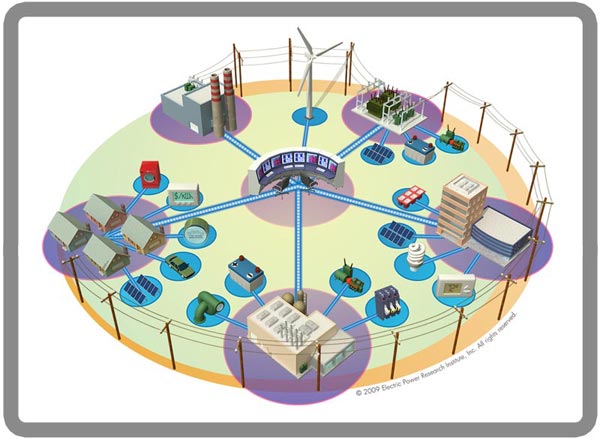
About 2 decades ago the electricity grid of the world had 3 main elements to it namely energy generation, energy transmission and energy distribution to the consumer. According to  The Smart Grid) “The grid,” refers to the electric grid, a network of transmission lines, substations, transformers and more that deliver electricity from the power plant to your home or business. It’s what you plug into when you flip on your light switch or power up your computer. The issue with the traditional energy grid is that there are enormous losses in transmission and grid would be strained during peak usage. Moreover any outage of the energy grid would have a domino effect and could effectively cause a blackout in large areas. Remember the blackout in US in 2003 which was the largest blackout in US history (Biggest blackout in US history).

The Smart Grid tries to address all these problems of traditional energy grid. The Smart Grid has millions of sensors along the grid which measure and monitor the grid continuously and are equipped with 2 way communication. The “smart” grid will be equipped with controls, sensors, automatic meters and computers that communicate and control the grid. The smart meters and sensor constantly transmit data back to a central command center.  The Smart Grid can quickly identify outages and isolate that part of the grid preventing a cascading effect to other parts. The Smart Grid can identify potential network problems and re-route the energy through other parts of the energy network. Moreover the smart meters that are installed in every home can intelligently adjust the energy usage to non-peak hours when the cost of the energy is low.

Some of the key advantages of smart grids

–          Better resiliency to failures and quicker recovery times
–          Automatic re-routing of energy transmission in case of network failures
–          Faster response to outages with the ability to isolate the faults
–          Better integration with renewable energy like wind, solar energy
–          Reduced losses and more efficiency built into the grid.

Some of the key aspects of the Smart Grid are

Smart Home: As mentioned above the Smart Grid will extend to your home making it a “Smart Home”. Smart Homes will be equipped with smart meters instead of the traditional meters. These meters will be equipped with 2 way communication with your energy utility. All the appliances in your home will be networked into a “Energy Management System” the EMS. Through the EMS you will be able to monitor your energy usage and ensure that save money by utilizing your appliances during off peak hours. Smart Appliances will be able to communicate with the energy utility and automatically turn off during peak periods and turn on during when the cost of the energy is low. This is also known as “demand response” when consumers change their consumption patterns based on lower cost or other incentives offered by the utility companies. The energy price like the stick ticker fluctuates with the energy cost being highest during peak periods during the day.

Home Power Generation: The homes of the future will have solar panels or wind turbines will generate power and sell the excess power back to the Smart Grid.

Distribution Intelligence: The smart grid with its transformers, switches, substations will be fitted with sensors that will measure and monitor the energy flow through the grid. These sensors will be able to quickly detect faults and isolate the faulty network from the rest of the network. The Smart Grid will have computer software that will provide the grid with the capacity to self-heal in case of outages and provide better resiliency to the network. Besides security systems will play a key role in the Smart Grid.

Grid Operation Centers: The Energy grid consists of transformers, power lines and transmission towers. It is absolutely essential that only as power as needed is generated. Otherwise like water sloshing through water pipes excess power generated can cause oscillations and result in  the grid to become unstable eventually leading to a black out. The Smart Grid will have sensors all along the way which measure and monitor the energy usage and be able to respond quickly to any instability. It will have the power to self-heal.

Plug-in Electric Vehicles (PEVs) : Plug-in Electric Vehicles like Chevy’s Volt, Ford’s Electric Focus, the Nissan’s Leaf and the Tesla’s electric vehicle. The electric vehicle will run entirely on electricity and will be eventually lead to reducing the carbon emissions and a greener future. The PEVs will plug into the grid and will charge during the off-peak periods. The advantage of the PEVs is that the Smart Grid can utilize the energy stored in the PEVs to other parts of the network which need them most. The PEVs can serve as distributed source of stored energy supplying the energy to isolated regions during blackouts.

Smart Grids truly herald a smart future!

Find me on Google+

Re-imagining the Web portal

Published in Telecom Asia, Mar 16, 2012 – Re-imagining the web portal

Web portals had their heyday in the early 1990’s. Remember Lycos, Alta-vista, Yahoo, and Excite – portals which had neatly partitioned the web into compartments for e.g. Autos, Beauty, Health, and Games etc. Enter Google. It had a webpage with a single search bar. With a single stroke Google pushed all the portals to virtual oblivion.

It became obvious to the user that all information was just a “search away”. There was no longer the need for neat categorization of all the information on the web. There was no need to work your way through links only to find your information at the “bottom of the heap”. The user was content to search their way to needed information.

That was then in the mid 1990s. But much has changed since then. Many pages have been uploaded into the trillion servers that make up the internet. There is so much more information in the worldwide web.  News articles, wikis, blogs, tweets, webinars, podcasts, photos, you tube content, social networks etc etc.

Here are some fun facts about the internet – It contains 8.11 billion pages (Worldwidewebsize), has more than 1.97 billion users, 266 million websites (State of the Internet). We can expect the size to keep growing as the rate of information generation and our thirst for information keeps increasing.

In this world of exploding information the “humble search” will no longer be sufficient. As a user we would like to browse the web in a much more efficient, effective and personalized way.   Neither will site aggregators like StumbleUpon, Digg, Reddit and the like will be useful.  We need to have a smart way to be able to navigate through this information deluge.

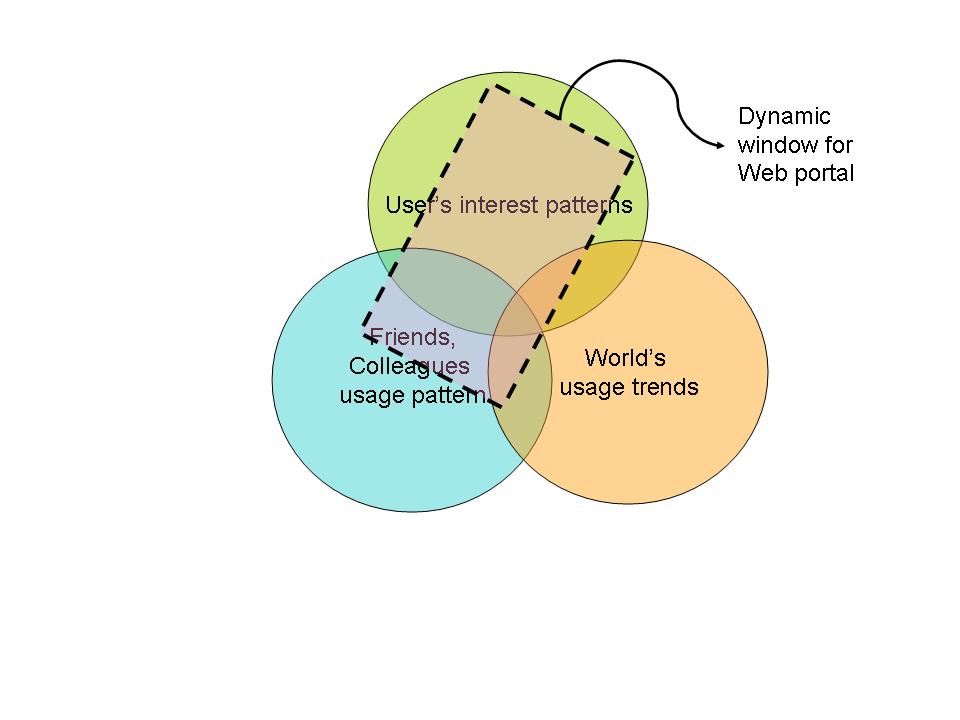
It is here I think that there is a great opportunity for re-imagining the Web Portal. As a user of the web it would be great if the user is shown a view of the web that is personalized to the tastes and interests that is centered on him. What I am proposing is a Web portal that metamorphoses dynamically based on the user’s click stream, the user’s browsing preferences, of his interests and inclinations as the focal center.  Besides the user’s own interests the web portal would also analyze the click streams of the user’s close friends, colleagues and associates. Finally the portal would also include inputs from what the world at large is interested in and following. The web portal would analyze the key user’s preferences and then create a web portal based on its analysis of what the user would like to see.

This can be represented in the diagram below

We have all heard of Google’s zeitgeist which is a massive database of the world’s inclinations and tendencies.  Such a similar database would probably be also held by Yahoo, Microsoft, FB, Twitter etc.

The Web portal in its new incarnation would present contents that are tailored specifically to each user’s browsing patterns. In a single page would be included all news, status updates, latest youtuble videos, tweets etc he would like to see.

In fact this whole functionality can be integrated into the Web browser. In its new avatar the Web Portal would have content that is dynamic, current and personalized to each individual user. Besides every user would also be able to view what his friends, colleagues and the world at large are browsing.

A few years down the line we may see “the return of the dynamic, re-invented Web Portal”.

Find me on Google+